


Common Issues with 3D Model Loading
Loading errors for 3D models often arise due to mismatches in file formats, damaged mesh data, incorrect memory layouts, or issues during the deserialization process when importing. Typically, resolving these problems involves verifying the model's format, fixing the geometry, or troubleshooting the asset pipeline within the rendering system.
Pinpointing the failure point—whether it's during file parsing, mesh rebuilding, or GPU upload—usually provides the quickest route to a solution.
Essential Insights
Working extensively with 3D pipelines in visualization and architectural rendering reveals that a "model failed to load" message rarely indicates a completely unusable asset. More often, an error occurs somewhere in the import process: the parser anticipates a different file type, mesh information gets corrupted, or the memory organization conflicts with engine expectations.
It is common to observe models functioning well in tools like Blender or Maya but failing importer steps within certain rendering engines. The underlying issue stems from incompatibilities between systems rather than flaws in the original design.
Teams creating environments, product visualizations, or spatial arrangements frequently deal with asset transfer challenges between various applications. Tools like Homestyler, which assist with 3D floor planning, depend on consistent 3D model imports to maintain workflow efficiency.
This article outlines the primary causes of model load failures, describes diagnostic techniques, and shares practical solutions applied in real production environments.
Why 3D Models May Fail to Load
Most failures happen before rendering even starts, typically during parsing or reconstructing geometry.
When loading a model, an engine usually goes through these steps: verifying the file, deserializing the mesh, rebuilding vertex buffers, and transferring geometry data to GPU memory. If any step fails, the model does not display.
Common obstacles include exporter inconsistencies, where various software interpret file formats differently. For instance, OBJ files exported from CAD programs might contain redundant vertices or faces lacking triangulation, which some engines cannot handle properly.
The adoption of glTF as a preferred exchange format stems from its standardized approach to serializing geometry and materials, reducing these inconsistencies.
Mesh and Geometry Deserialization Errors
Deserialization problems occur when vertex buffers, normals, UV mappings, or indices cannot be correctly reconstructed into valid meshes.
Fixing these requires examining how the geometry data is organized during import. Engines generally transform raw or structured data into mesh buffers for rendering.
Typical geometry issues include missing normals, duplicated vertices, or improper UV channels.
Debugging often involves validating input files, running automated checks, and repairing errors beforehand.
File Format and Parser Compatibility Problems
Failures during import frequently occur because the parser expects a different file schema or version than what is provided.
Different formats convey diverse structural rules. Parsing unsupported metadata or extensions can cause failures.
Formats prone to issues include older or proprietary types lacking standardized definitions.
In workflows using applications akin to Homestyler’s interactive 3D floor planning, glTF pipelines have significantly lowered parser errors.
Memory Layout and Model Import Crashes
Some models load only to crash later because their memory consumption or internal structure exceeds engine thresholds.
This is common with CAD exports and high-polygon scans.
Causes include oversized vertex buffers or non-optimized data structures.
Solutions involve simplifying meshes, reducing polygon counts, or splitting geometry.
Engines like Unity or Unreal may silently fail when memory limits are reached, complicating troubleshooting.
Troubleshooting Asset Pipelines in Rendering Environments
Isolating each pipeline stage is the fastest method to identify importer crashes.
An effective approach is to validate assets progressively before integration into production builds, minimizing runtime failures.
Teams working on architectural visualizations or product layouts often implement such validation steps, especially when tools like Homestyler are involved in preparing 3D environments.
Tools for Validation and Repair of 3D Files
Specialized validators can uncover structural issues invisible to standard modeling software.
Commonly recommended solutions include mesh repair utilities and file format converters.
A basic repair strategy is to re-export from a sanitized scene, which resolves a majority of corrupted model problems.
Summary of Solutions
Most loading failures stem from corrupted geometry, incompatible formats, or flawed asset pipelines. Ensuring mesh integrity and standardizing exports—particularly to glTF—addresses most crashes efficiently.
Commonly Asked Questions
Why does my 3D model sometimes not load?
Incompatibility in file format, damaged mesh data, or absent associated files such as textures often cause failures.
What triggers mesh deserialization errors?
These errors occur when vertex buffers or indices are corrupted or inconsistent during import.
Why might a model importer unexpectedly crash?
Crashes can result from exceeding memory limits, unsupported file types, or malformed geometry.
How can a corrupted 3D model be fixed?
Open the model in an editor such as Blender, clean and recalculate geometry, then export to a robust format like glTF.
Is glTF superior to OBJ for model loading?
Yes; glTF offers structured geometry and material descriptions, ensuring greater compatibility with modern engines.
What steps help debug glTF loading problems?
Utilize official validators and inspect buffer files to verify model integrity.
Could highly detailed models cause loading failures?
Yes; extremely dense meshes might breach memory or GPU buffer limits.
Which export formats are safest for game engines?
Formats like glTF and FBX enjoy broad support, with glTF generally producing fewer parsing issues.

LITTLE TREE 63" L Shaped Executive Computer Desk


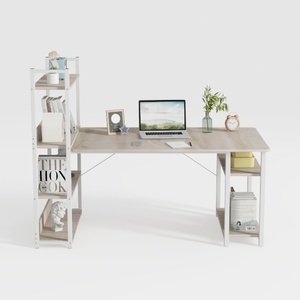
Modern Minimalist Oak Metal Computer Desk With Storage Shelves 3D Model
Homestyler offers an easy-to-use online design tool with stunning 3D renderings, inspiring design projects, and helpful video tutorials. It’s perfect for anyone looking to create and visualize beautiful home designs effortlessly.
Progetta ora GRATIS
































