


Animating 3D models with Blender helps you transform static designs into dynamic creations suitable for applications like gaming, film, or architectural presentations. As a powerful and free 3D creation tool, Blender encompasses a range of functionalities including modeling, texturing, animation, and rendering. For newcomers, this guide will provide a detailed, step-by-step overview of the animation process, equipping you with knowledge about essential workflows and tools required, including innovative features of platforms like Homestyler.
Step 1: Import or Create Your 3D Model
Launch Blender and either sculpt a new model utilizing its robust modeling tools or import an existing one by navigating to File > Import and selecting the appropriate format. Ensure your mesh is clean, optimized, and well-organized for best results.
Step 2: Set Up Your Scene
Arrange your object in the 3D Viewport. If working on a character model, ensure it is positioned upright and correctly aligned with the axes. Properly setting up your camera and lighting is crucial for optimal visibility during the animation preview process.
Step 3: Add an Armature (Rigging)
If you are animating a character or any articulated object, select your mesh, press Shift+A, and introduce an 'Armature' (a single bone). Switch to Edit Mode to add and modify bones that conform to your model’s anatomy. To facilitate movement, parent your mesh to the armature by selecting (Ctrl+P > With Automatic Weights).
Step 4: Create Keyframes
Change to Pose Mode for character models or Object Mode for simpler objects. At frame 1, position your model or bones, select them, and press I to insert a keyframe (choose from Location/Rotation/Scale). Move to a different frame, adjust the pose or position, and insert another keyframe. Blender will automatically interpolate the movements in between these keyframes.
Step 5: Refine Animation in the Timeline & Graph Editor
Utilize the Timeline to review, manipulate, and organize your keyframes. For more refined movements, open the Graph Editor to adjust interpolation curves, ensuring smooth transitions between actions. You can play back your animation using the Spacebar and modify the timing as necessary.
Step 6: Add Advanced Effects
Investigate shape keys for facial animation, apply constraints for automated movements, or utilize non-linear animation techniques to reuse your actions. If your project demands additional complexity, consider integrating physics simulations or cloth effects for dynamic realism.
Step 7: Render and Export
Once satisfied with your animation, navigate to the Render settings and export your project as a video via File > Export and choose your preferred format.
For designers, the ability to animate models is more than just a technical skill—it effectively conveys space, functionality, and emotion. If you're working on projects like interior walkthroughs or product demonstrations, leveraging tools such as Homestyler can significantly enhance the creation of photorealistic scenes and engaging presentations, thus captivating your clients and audiences.
Tips 1:
Maintain a simple topology for your model, as it simplifies the rigging and animation process. Organize objects using layers and collections for better management. Observing real-world movements through videos can immensely enhance the natural quality of your animations. When dealing with architectural projects, animating furniture or spatial transitions can dramatically improve the clarity of your presentations, especially when incorporating tools like Homestyler.
FAQ
Q: What’s the quickest method to animate a simple object in Blender?
A: Utilize keyframes on the object's Location, Rotation, or Scale while in Object Mode. Move to the desired frame, change the attributes, and press I to insert a new keyframe.
Q: Is it necessary to rig all my models for animation?
A: Rigging with armatures is important for articulated or character animation. However, basic positional animations, like moving a chair or door, do not require rigging.
Q: Can Blender import animations created in other software?
A: Yes, Blender allows for the import of formats such as FBX and Collada, which can carry animation data from programs like Maya or 3ds Max.
Q: How can I get a smooth preview of my animation?
A: Lowering the viewport shading or resolution can help achieve real-time playback, or you can use Playblast features for quick previews of your animation.
Q: What are the best render settings for exporting animations?
A: Opt for FFmpeg or AVI formats for video renders. For the utmost quality and flexibility, consider rendering individual frames as PNGs and subsequently compiling them into a video.
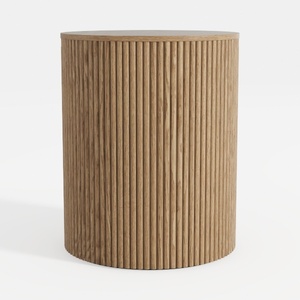
Minimalist Fluted Oak Round Side Table 3D Model


Modern Marble Brass Solid Wood Nesting Coffee Tables 3D Model
Looking to transform your space? Homestyler has you covered! This user-friendly online design platform offers powerful tools for 3D rendering and a wealth of design projects and video tutorials. Whether you're a beginner or a DIY pro, you'll find it inspiring and easy to create the perfect home design.
Concevez maintenant gratuitement
































