
AI Painter - Turn Your Photo into Art in Seconds (AI Painter User Guide)
In this tutorial, you'll learn how to use the AI Painter feature to transform your photos into stunning artworks in a variety of styles. Simply upload an image, choose your preferred style and frame size, and let the AI generate high‑quality art for you. This guide will walk you through the entire process and share tips to help you achieve the best results.
Tutorial for AI Painter Web:
1.Open the Homestyler website.
2.On the top navigation bar, click AI → AI Painter (“Turn Your Photo into Art in Seconds”).
3.Enter the AI Painter feature page.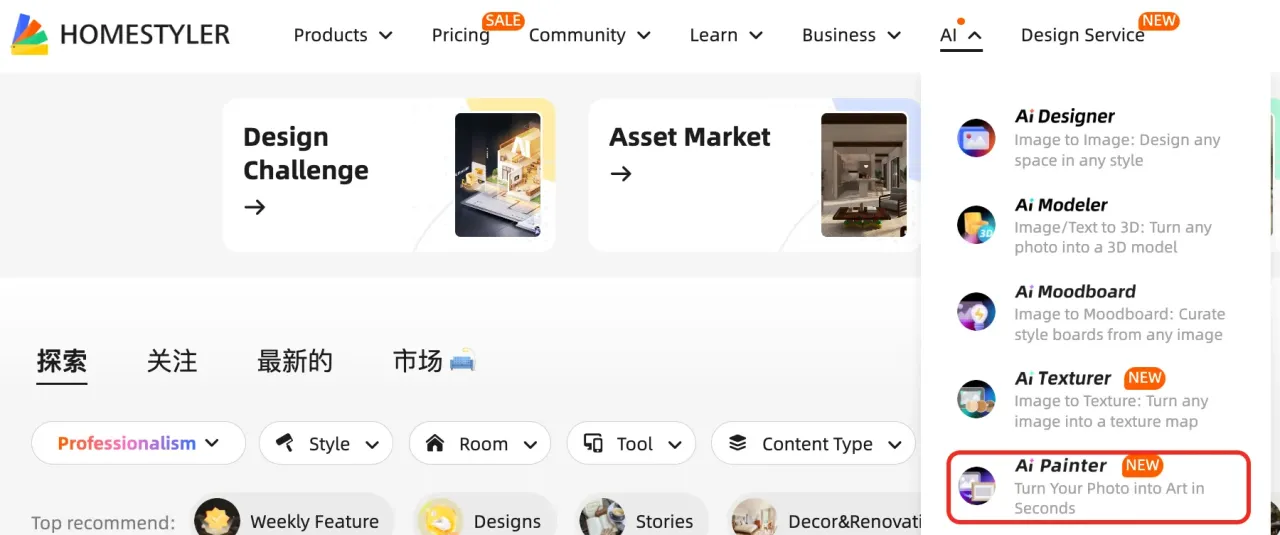
Step1.Upload an image
Click the Step 1 – Upload an image area.
Choose a photo from your device that you want to convert.
After uploading, a preview of your image will be displayed.
Step2.Select a painting style
In Step 2 – Select a painting style, choose your preferred art style, such as Pet Oil Painting, Christmas, Monet-style Oil Painting, Ghibli-style, Pop Art Portrait, American Comic Style, Black and White Photography, or Original Image.
The selected style will be highlighted and show a check mark.
Step3.Select Image Size
In Step 3 – Select Image Size, choose the output size (e.g., 5×7, 8×10, 12×16 inches, etc.).
Different sizes affect the final appearance and level of detail.
Step4.Select the frame
In Step 4 – Select the frame, choose a frame style you like.
The frame will affect the overall visual presentation of your artwork.
Final.Generate works
After confirming the style, size, and frame, click the Generate button.
Each generation will consume a certain number of AI credits, and the remaining credits will be shown on the page.
Wait for processing, and your artwork will be generated in seconds.
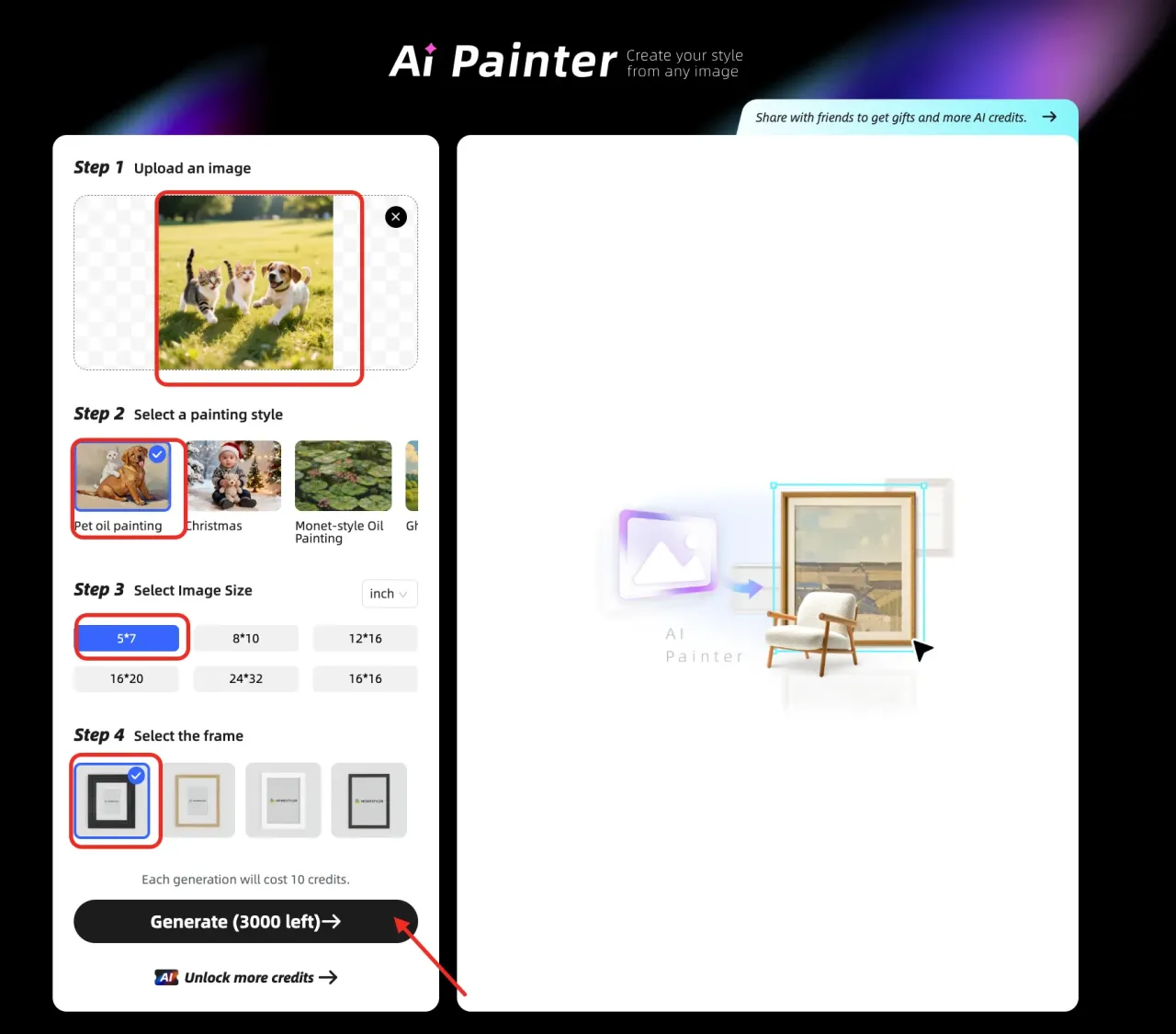
Once the generation is complete, the system will show Your AI Models Are Ready for Exploration!
Click the link provided (e.g., Floor Planner – My AI Result) to view the results.
You can download your artwork, further edit it, or share it with friends.
Tutorial for AI Modeler APP:
Step 1.
Enter the design page, click on the AI Painter banner to activate this feature. Upload your image and set the parameters to generate.
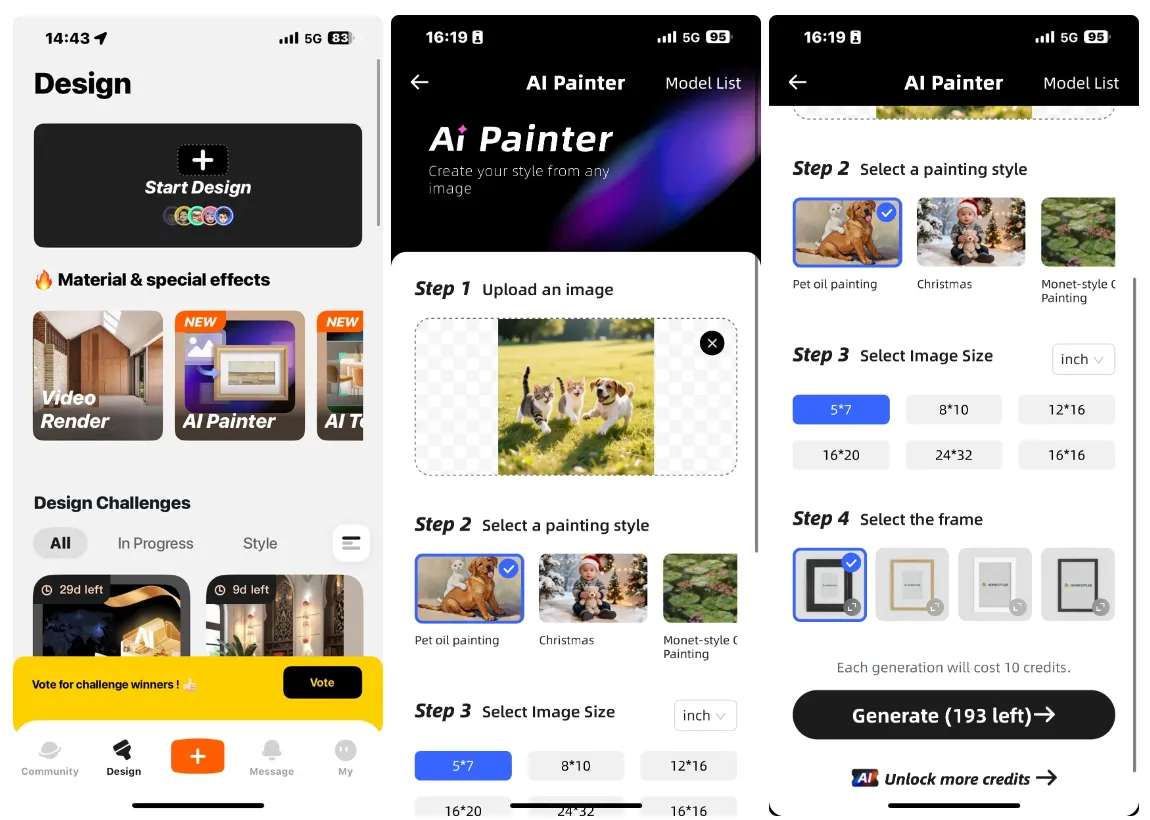
Step 2.
Once generated, click 'Model List' to view your model. Click the model image for a 360-degree view, or 'Use in Design' to apply it to your design.
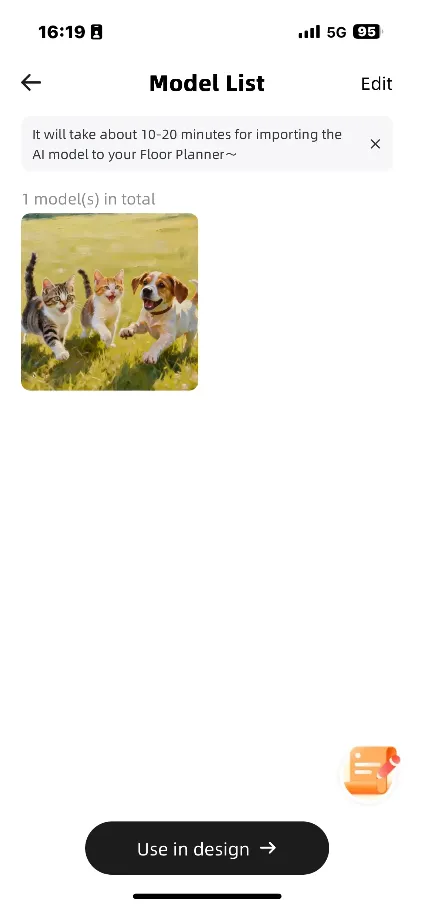
Step 3:
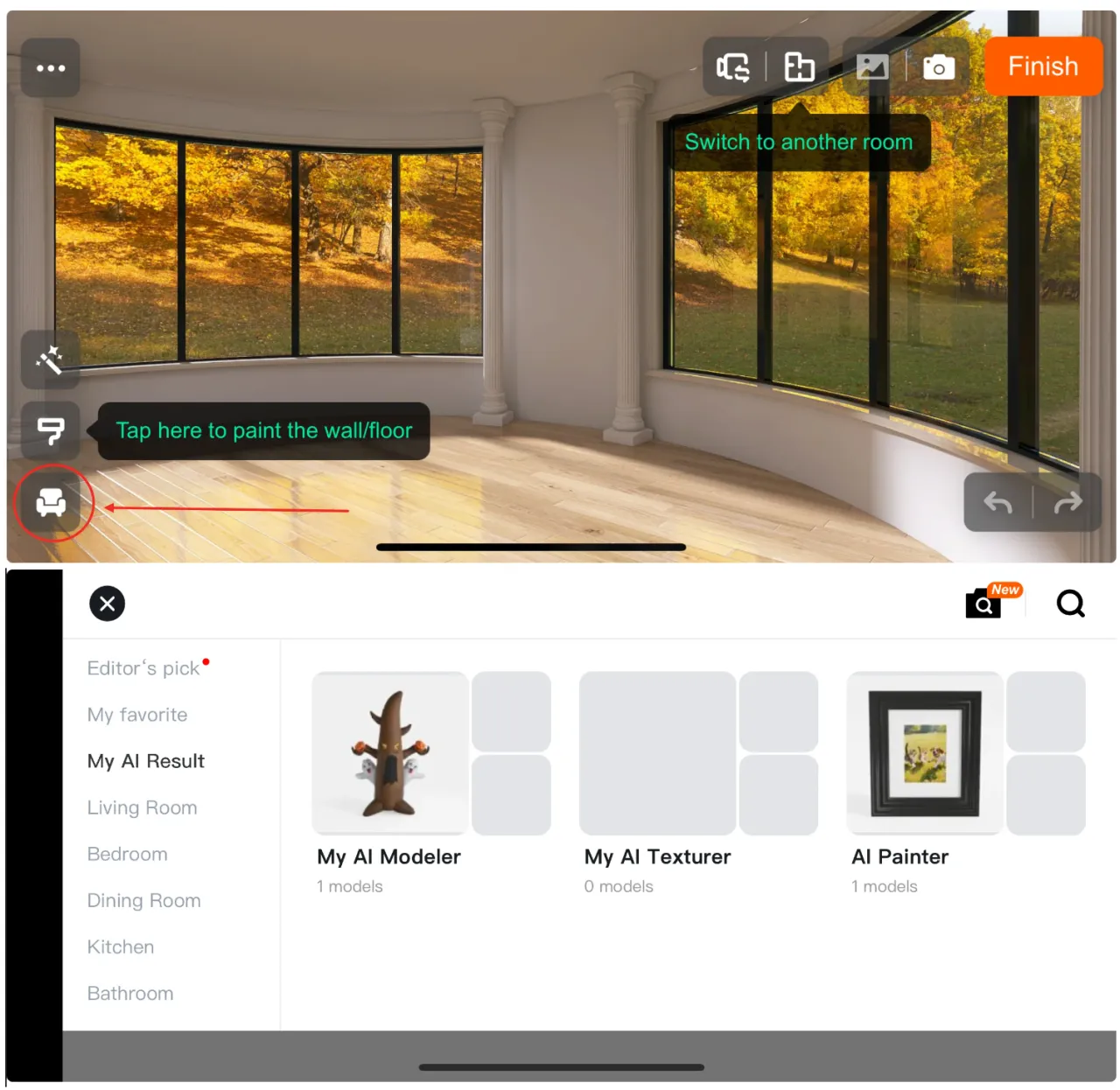
Additionally, you can select the sofa icon in the design interface to open the 'My AI Painter' directory and choose the model you generated for use.
📌Warm Notes
The generated image and the selected frame may have size differences. Please carefully check and confirm the chosen dimensions before generating your artwork.
Generated artworks can be used as 3D decorations within your Homestyler design projects, or be downloaded separately. Please note that download access is available only to Homestyler members (Styler, Pro, Master, and Team memberships).
