1. Overview:
Homestyler’s material upload system adopts a Physically Based Rendering (PBR) material framework, widely used in industry-standard renderers such as VRay, Corona, Unreal Engine, Unity 3D, and Blender’s Cycles. This workflow is prevalent across disciplines including product design, interior design, gaming, virtual reality, and CG film production.
This tutorial covers the fundamentals of PBR materials, including core channel definitions, parameter setup, and the material upload workflow in the Homestyler platform.
2. Introduction to PBR Concepts:
In a Physically Based Rendering (PBR) material system, different visual effects are achieved by defining values in specific material channels. These values can be constants (scalar numbers) or derived from the luminance of pixels in texture maps.
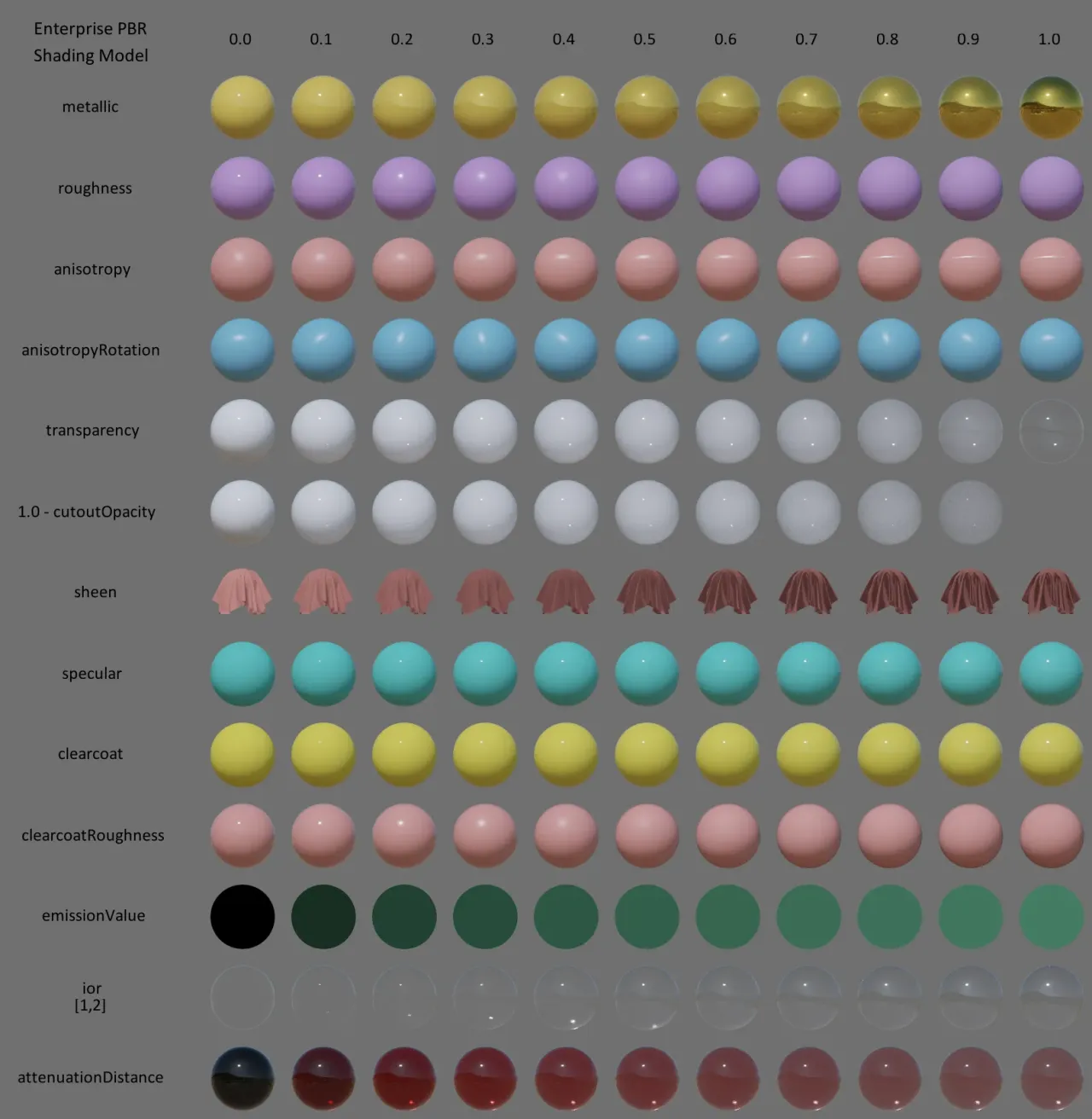
The most commonly used PBR channels are illustrated below. Among them, Metallic, Roughness, and Specular are the primary channels for controlling material appearance, and this guide will focus on how to define their parameters.
In addition to these three, other essential channels include the Base Color Map (representing the product’s surface color/texture) and the Normal Map (used to simulate surface depth and geometric detail such as bumps and grooves).
3. Material Channel Definition
3.1 Metallic
A value in the 0 to 1 range, or a grayscale (non-color) texture. The higher the value (the whiter the pixel), the stronger the metalness; see the metallic gradient above.
Used to indicate whether the material is metal or dielectric. Materials that strongly reflect the environment should use this channel, e.g., metallic surfaces and mirrors.
Note: Environmental reflections affect both brightness and color.
3.2 Roughness
Represented as a scalar value between 0 and 1, or a grayscale texture (non-color map). Lower values or darker areas indicate a smoother, more reflective surface — refer to the Roughness gradient example above.
Controls the microsurface detail of a material, determining how sharp or diffuse specular reflections appear.
Note: Unlike Metallic, which affects environmental reflections (color and lighting from surroundings), Roughness specifically governs how direct light sources are reflected — smoother surfaces produce sharper highlights, while rougher surfaces scatter light diffusely.
3.3 Specular
Represented as a scalar value between 0 and 1, or a grayscale texture (non-color map). Higher values or whiter areas result in stronger specular highlights (brighter reflections), as illustrated in the Metallic gradient reference above.
Note: When uploading materials to Homestyler, this parameter can typically be left at its default setting unless specific adjustments are required.
3.4 Normal Map
A color texture (typically RGB) that simulates surface detail such as bumps, dents, or grooves by altering the direction of surface normals per pixel.
Used to add high-frequency surface detail (e.g., weave patterns, embossing, scratches) without increasing mesh complexity. The RGB channels encode normal vector directions (X, Y, Z), which affect how light interacts with the surface.
Note: In Homestyler, upload the normal map to the designated slot and adjust its intensity as needed (default intensity = 1 is recommended for most materials).
3.5 Parameter Setup Guidelines:
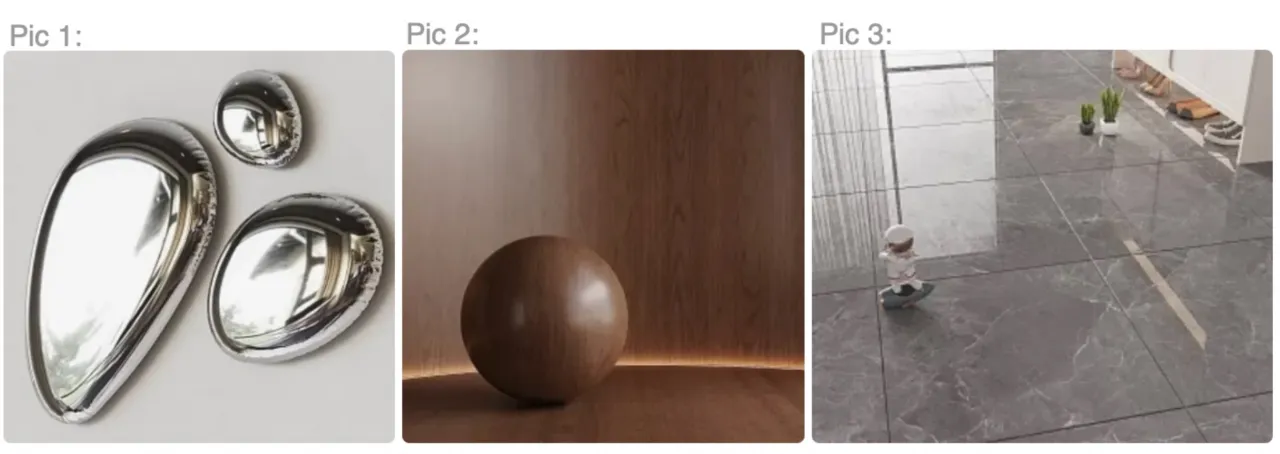
The above 3 parameters should be estimated based on real-world material behavior. With practice, accurate estimation becomes intuitive. See the examples below for reference:
Example: Polished stainless steel (Pic 1):Metallic= 1, Roughness = 0, Specular = 1
Example: Glossy wood (Pic 2):Metallic = 0, Rougness = 0.2, Specular = 0.7
Example: Polished tile (Pic 3):Metallic = 0, Roughness = 0 , Specular = 0.8
4. Case Study
4.1 Real Photo Reference
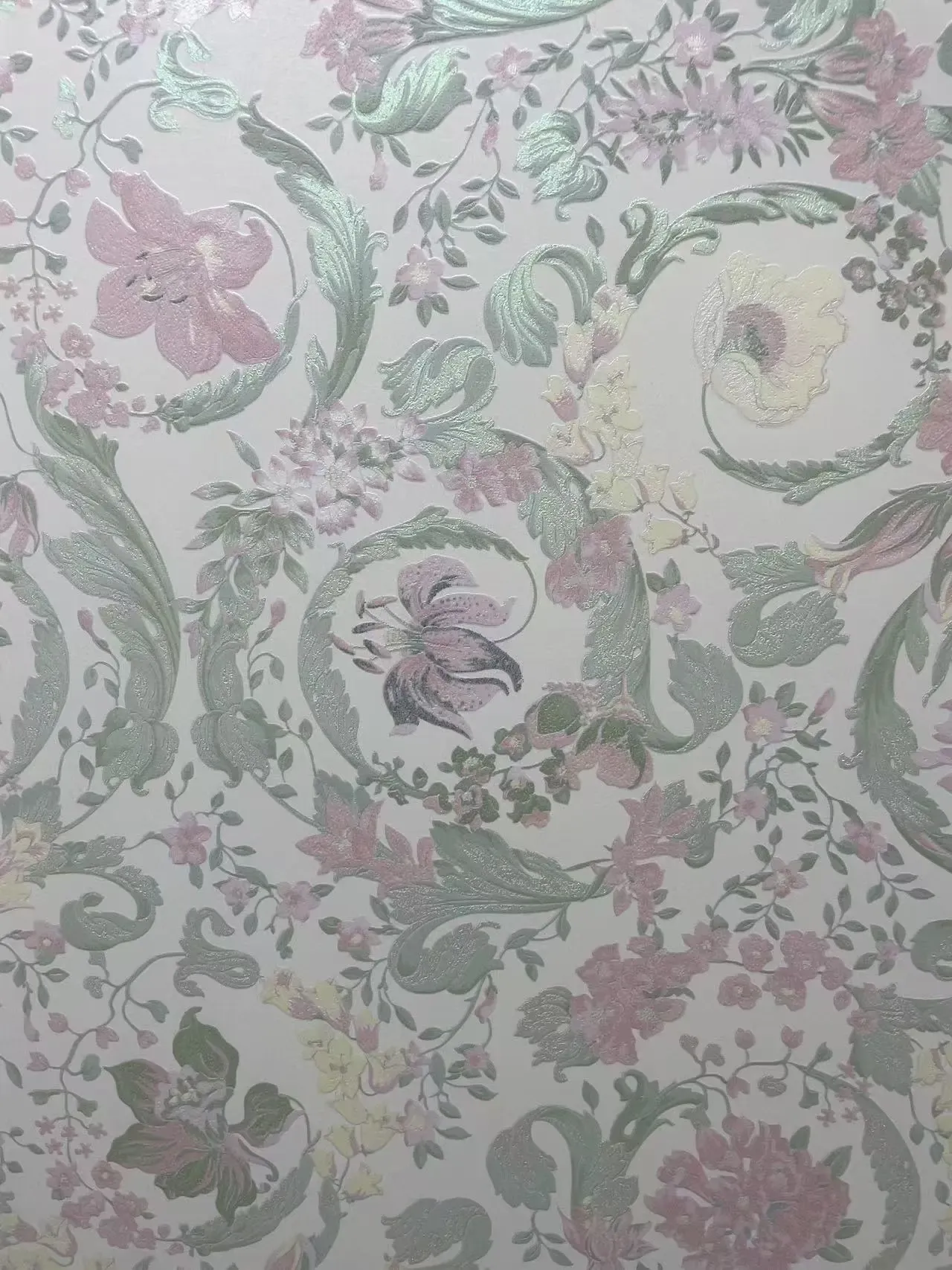
Below is a high-resolution photograph of a real textured wallpaper. This reference will be used to analyze surface properties and demonstrate how to derive a PBR texture map set suitable for upload in Homestyler.
4.2 Reference Photo Analysis:
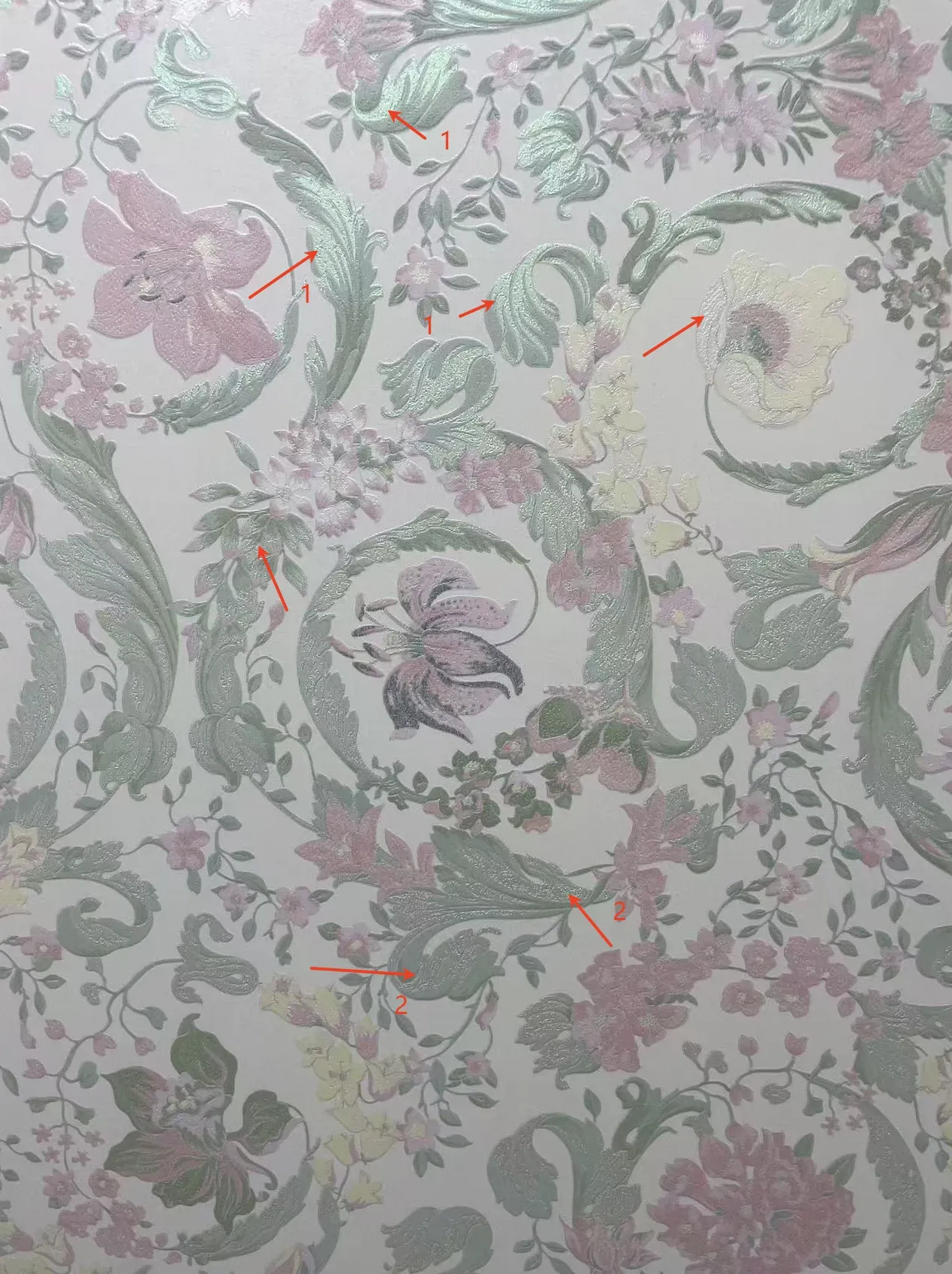
● Areas marked 1 and 2 show strong specular highlights and increased brightness, indicating high reflectivity. These regions should have elevated Metallic values.
● To achieve sharp reflections, Roughness should be reduced.
● Other areas should be adjusted based on visual cues from the reference.
4.3 Reference Texture Map Set
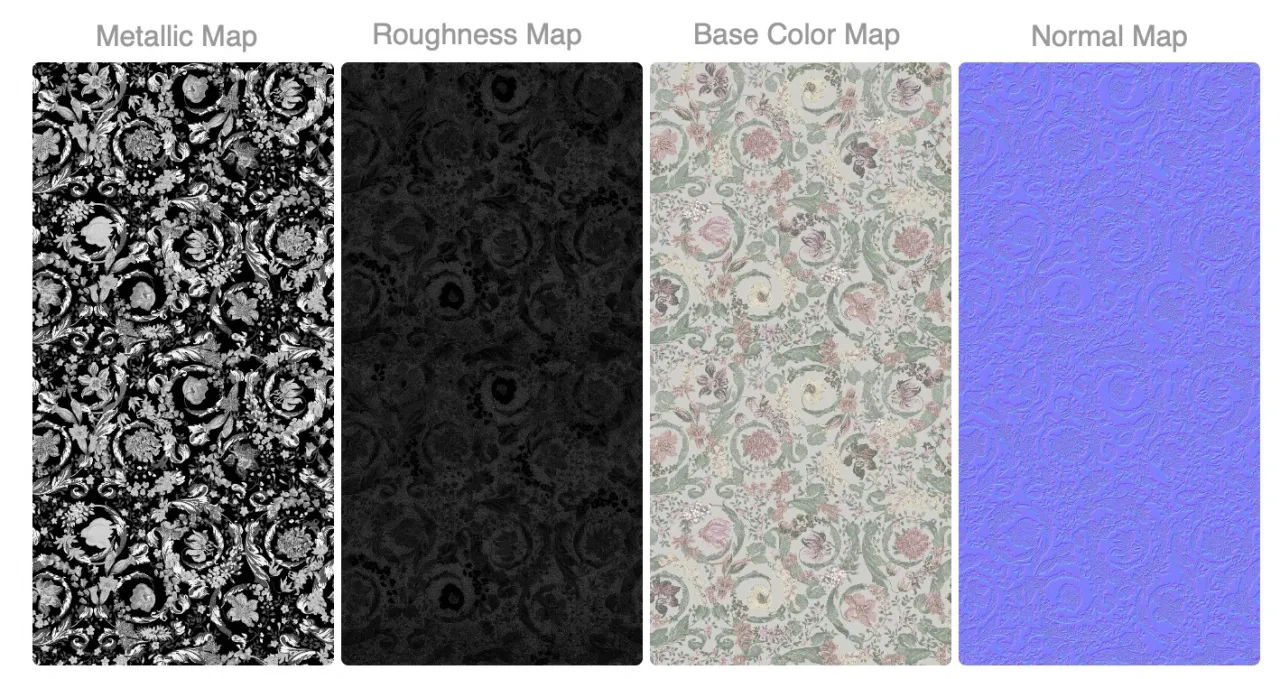
The metallic map, roughness map, base color map and normal map are shown below.
Google Drive Link to Download the example map set:
https://drive.google.com/drive/folders/17VzT3F-45oteJbFMCk-_5B5_GLLgQaFT?usp=sharing
4.3.1 Metallic Map
The whiter the area, the higher the metalness and the stronger the environment reflections.
4.3.2 Roughness Map
The darker the area, the higher the gloss/smoothness and the stronger the specular highlights.
4.3.3 Base Color Map
The product’s base color/albedo texture. Should contain only color information (no lighting, shadows, AO, or specular baked in).
4.3.4 Normal Map
Product Normal Map is shown below:
5. Map Production Tips
- Except for the normal map, most assets can be processed directly in Photoshop. Save files as 8-bit per channel, RGB color mode, in JPG or PNG.
- For the normal map, start from a grayscale height/bump map and generate a normal map with CrazyBump; it provides rich parameters to fine-tune the relief detail.
- For region selections in Photoshop, prepare separate color-based selections and masks for different areas to speed up iteration (see example below).
- If you’re new to PBR materials, do plenty of quick tests. You can use Corona Renderer or a recent version of V-Ray in 3ds Max for fast look-dev.
6. How to upload it in Homestyler?
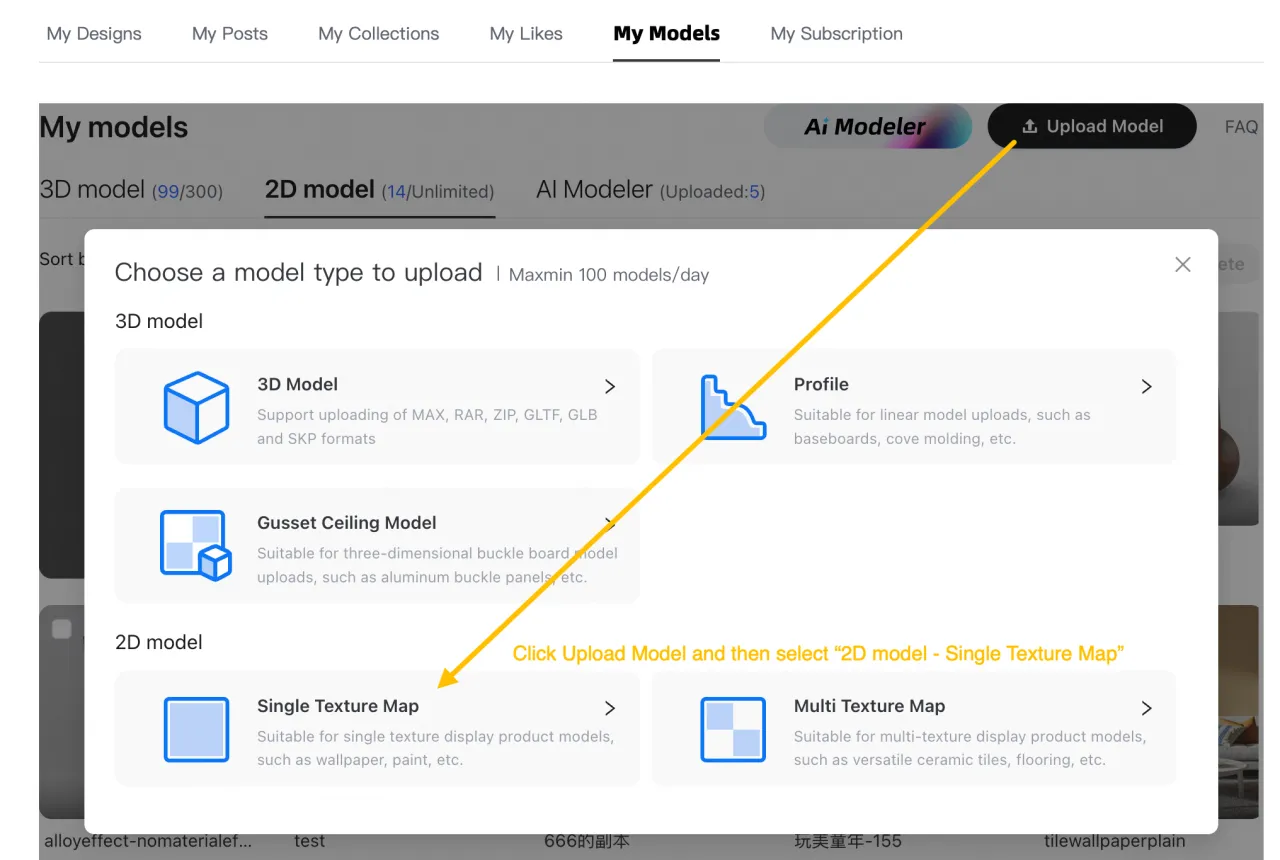
Step 1: Log in to the Homestyler website and go to My Workspace. Switch to the "My Models" tab, or directly visit https://www.homestyler.com/workspace/mymodels. Navigate to the 2D Models section and click "Upload Model".
Tip: If you're inside the Homestyler Floorplanner, you can access the upload interface by opening the left-side panel and navigating to My → Uploads → Texture and Image.
Step 2: After clicking "Upload Model", select "Single Texture Map" under the "2D Model" section, where you could upload the example Base Color Map.
Single Texture Map: Suitable for products displayed with a single texture, such as wallpapers, paints, or flat surface materials.
Multi-Texture Map: Ideal for products that feature multiple surface variations, such as multi-face tiles, stone slabs, or engineered wood flooring.
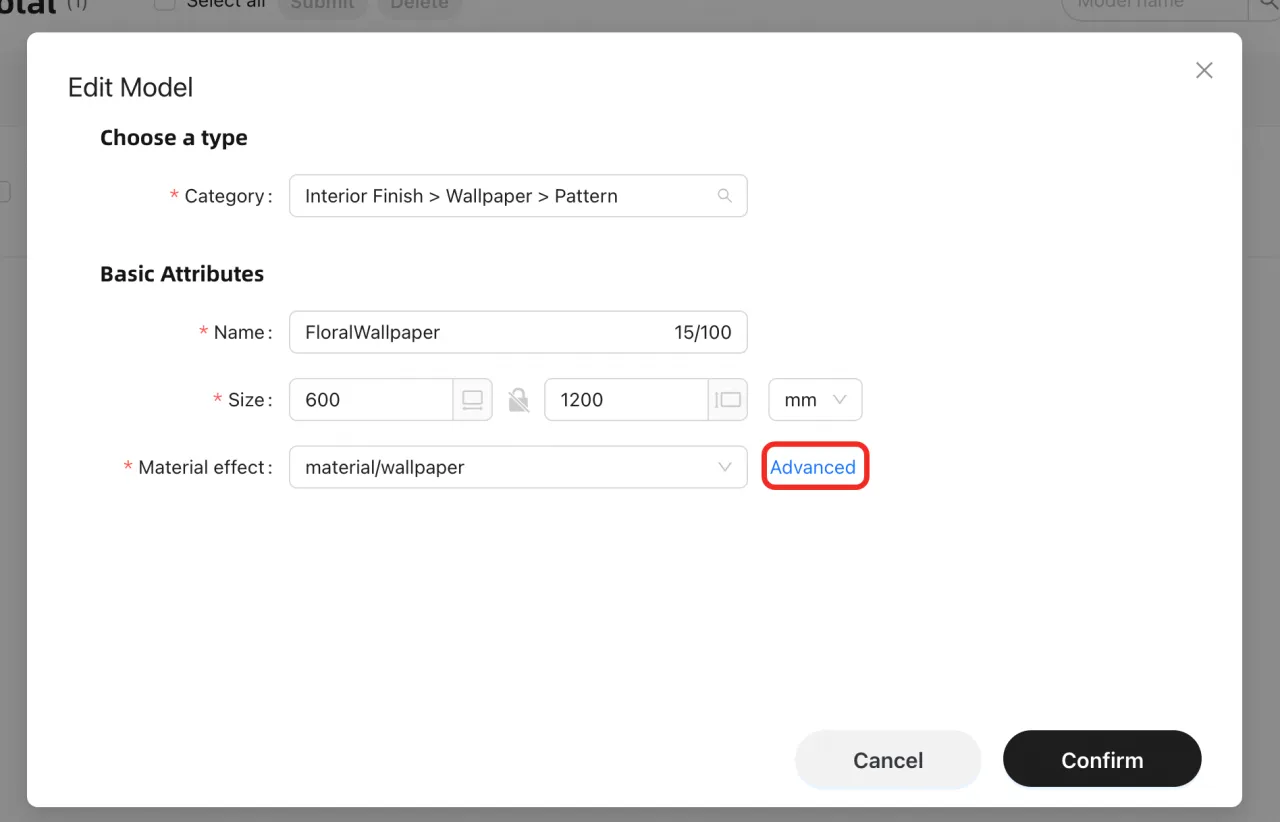
Step 3: Select the material category, enter the name and dimensions, then click "Advanced" to access the advanced settings.
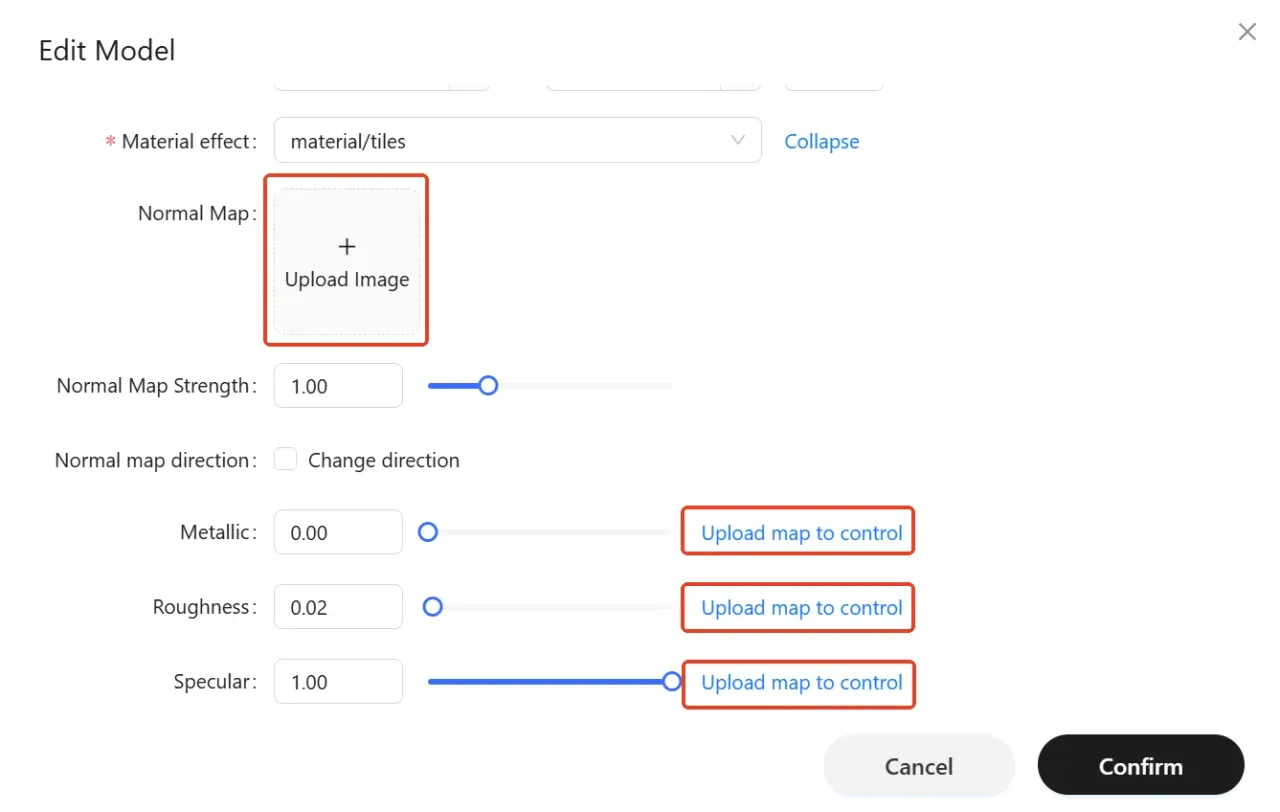
Step 4: Upload the normal map from the example into the Normal Map channel and set the intensity to 1. Then upload the texture map set from the example into their respective channels.
*You can click the "Change Direction" option under Normal Map Direction to invert the X or Y components of the normal map. By flipping the channel, you effectively transform convex areas into concave ones.
*You can perform fine, localized adjustments by uploading texture maps, or control the global channel parameters directly by inputting values in the channel settings.
7. Rendering Effect Showcase
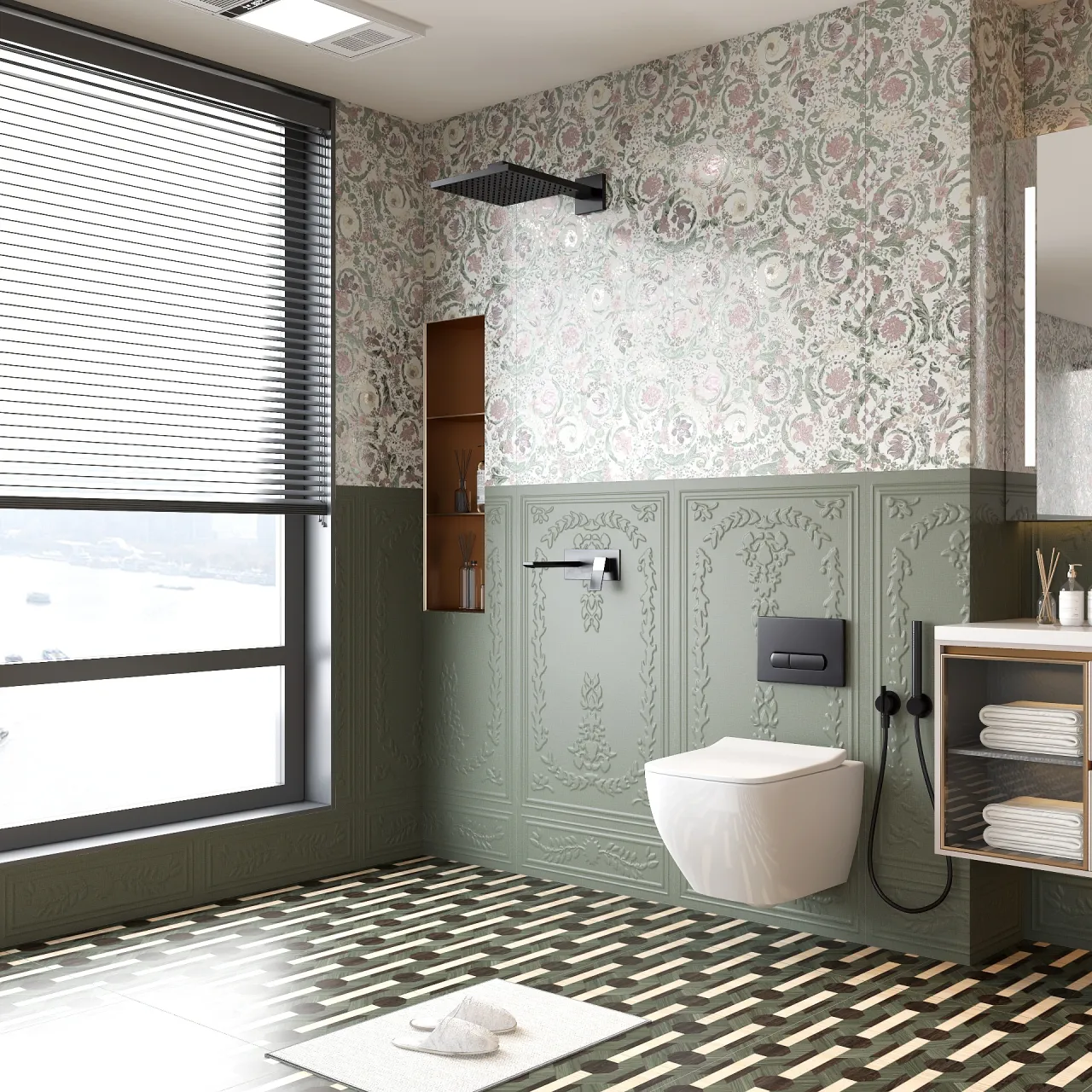
After uploading the wallpaper material into Homestyler, the rendered effects of are showcased below: