


In an age where streaming platforms like DIRECTV shape our entertainment choices, designing a living room that enhances screen visibility and sound experience becomes essential. Thoughtful spatial planning with comfortable seating and adjustable lighting can transform a home theater setup, ensuring technology integrates seamlessly into your living space while supporting relaxed viewing habits.
Several years ago, I delivered a construction drawing to a client that appeared flawless on my monitor, yet the PDF they opened onsite was a blurry disaster. Thin walls vanished, measurements looked skewed, and the contractor humorously asked if I had "exported it with a toaster." That experience compelled me to reevaluate my entire approach to preparing CAD files for PDF export.
Since that moment, I treat CAD-to-PDF output as a crucial final design phase. Keeping layers tidy, applying appropriate lineweights, and fine-tuning export settings profoundly impact the clarity. I often begin with an organized 3D floor planning workflow—tools like Homestyler prove invaluable here—to establish a clear hierarchy before generating any PDFs.
Minor tweaks can elevate cluttered technical drawings into sharp, professional documents. Through experience, I've cultivated consistent habits that result in crisp, lightweight PDFs contractors and clients find reliable and easy to use.
Here are my go-to strategies.
Why the Quality of CAD to PDF Export Is Critical
In actual projects, PDFs become the universal medium of communication. Contractors print them, clients scrutinize them on tablets, and consultants annotate them. Subpar export quality can tarnish even the most meticulous designs, making them appear careless.
I've discovered that clarity engenders confidence. When lineweights render accurately and text remains sharp regardless of zoom, stakeholders immediately believe the documents are professional. Interestingly, achieving this level of quality typically doesn't require expensive software—just meticulous preparation.
Preparing CAD Drawings Prior to Conversion
Before exporting, I dedicate time to cleansing the drawing by purging unused layers, deleting rogue geometry, and standardizing annotation scales. Though tedious, disorganized CAD files almost invariably produce confusing PDFs.
One method I rely on is constructing the layout from a structured plan first. For early conceptual sketches, I opt for simple floor planning tools— Homestyler is excellent for this—to ensure proportions and spacing are logical before intricate technical detailing begins.
The drawback is this adds minutes to the process, but it saves hours of misunderstandings down the line when contractors can easily interpret the drawings.
Optimizing Layers and Lineweights for PDF Outputs
Lineweight hierarchy is the key ingredient for readability. Main structural walls must appear bolder than furniture outlines, and annotations should never overwhelm architectural elements.
Early in my practice, I applied uniform thickness to all lines, which looked acceptable onscreen but created visual chaos upon printing. Now, I adhere to a firm system: thick outlines, medium-weight interior walls, light detail lines, and very faint hatching.
This simple adjustment dramatically improves legibility; even complex floor plans become easy to interpret at a glance.
Decreasing PDF File Size While Preserving Detail
Bulky CAD PDFs pose issues for emailing and mobile viewing. I've seen single-sheet PDFs balloon to 40MB due to unoptimized raster images or dense hatchings.
My process involves reducing hatch density, converting unnecessary raster graphics into vector format when feasible, and avoiding overly high DPI settings. Usually, architectural linework renders perfectly well at moderate resolution.
While the trade-off slightly mutes very fine textures, clarity is paramount for construction documentation over microscopic detail.
Ideal Export Settings for DWG to PDF
Many professionals unintentionally compromise their drawings at export by overlooking plot style configurations, lineweight scaling, or exporting via raster instead of vector.
I also preview how drawings present spatial hierarchy and wall thicknesses, akin to a quick 3D render preview—using Homestyler can assist in visualizing this step—ensuring the documentation accurately reflects design intent.
This precaution often uncovers issues before the PDF reaches clients.
Post-Export Quality Verification
A step frequently skipped is opening the final PDF and performing stress tests. Zooming to 400%, I verify whether thin lines fade and if text sharpness endures.
Simulating different viewing environments—laptop, tablet, print—is also important, as a drawing perfect at full scale might become ambiguous on smaller screens.
When problems arise, I address them instantly and re-export, a process taking just minutes but preventing later confusion or complaints about missing wall lines.
Frequently Asked Questions
1. How can I enhance CAD drawings for PDF export?
Begin with thorough file cleanup: remove inactive layers, standardize lineweights, and minimize hatch complexity. Utilize appropriate plot styles and vector output for superior PDF clarity.
2. What leads to poor-quality DWG to PDF conversions?
Common culprits include incorrect lineweight scaling, rasterized exports, cluttered layers, dense hatches, and low-resolution settings that blur the drawings.
3. Which settings yield the best CAD to PDF export?
Vector output, consistent plot styles, and suitable lineweight scaling are essential. Approximately 300 DPI is a balanced resolution for print quality and manageable file size.
4. How can I reduce the size of CAD PDF files?
Simplify hatch patterns, remove unused layers, and avoid embedding large raster images. Exporting vector data instead of raster graphics significantly decreases file weight.
5. Why do lineweights appear inconsistent in the PDF?
This usually occurs when plot style tables (CTB/STB) are misconfigured or when lineweight scaling is disabled during export. Verifying plot preview helps identify this problem early.
6. How to improve AutoCAD drawings before exporting to PDF?
Maintain clean geometry, organize layers logically, and apply consistent annotation scales. A well-structured drawing environment ensures readability at any zoom level.
7. What is the recommended resolution for CAD PDF files?
For most architectural drawings, 300 DPI strikes a practical balance between detail and file size. Higher DPI may be preferable for presentations but considerably increases file sizes.
8. Are PDFs the standard format to share CAD drawings?
Absolutely. According to the American Institute of Architects (AIA), PDFs are the preferred format for distributing construction documentation because they maintain formatting while being easy to access across various devices.
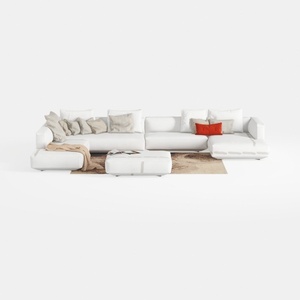
Minimalist White Fabric L Shaped Sectional Sofa with Ottoman 3D Model

Minimalist Textured Base Glass Top Coffee Table 3D Model
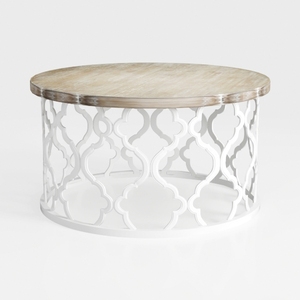

Modern Solid Wood Top White Metal Frame Round Coffee Table 3D Model
Homestyler offers an easy-to-use online design tool with stunning 3D renderings, a vast gallery of interior projects, and helpful DIY video tutorials—perfect for anyone looking to creatively and confidently design their dream home.
Design Now for FREE
































