

As summer approaches, many embrace new trends like the 2026 nail styles to refresh their personal look. This seasonal focus on self-expression naturally extends to living spaces, where vibrant colors and innovative textures can inspire home decor choices. Incorporating bold hues and playful patterns in furniture and accessories allows your space to reflect the same renewed spirit that summer fashion trends encourage.
Direct Answer
You can change the color of a 3D model in PowerPoint by inserting the model, selecting it, and accessing the 3D Model Format tab, where you can apply new colors or materials through 3D Model Styles or the Format Pane. PowerPoint offers quick adjustments such as tint, lighting style, and material effects without requiring external 3D design applications, making it convenient for immediate visual updates.
This enables users to customize icons, product visuals, or presentation elements directly within PowerPoint, streamlining workflow without additional software.
Quick Takeaways
Introduction
Many are unaware that PowerPoint supports 3D objects effectively. In my client presentations, I frequently use simple 3D visuals to illustrate furniture layouts or spatial concepts. Occasionally, the default color of a 3D model does not harmonize with the slide’s palette, making it essential to know how to recolor 3D models in PowerPoint to maintain visual consistency.
Fortunately, you often don’t need specialized 3D modeling tools like Blender or SketchUp just to tweak colors. PowerPoint includes built-in styling features that allow recoloring many 3D models in mere seconds. Understanding which controls impact color versus lighting or rendering is key.
How to insert a 3D model into PowerPoint first
Key Insight: A compatible 3D model must be inserted before color editing options become accessible in PowerPoint.
PowerPoint supports multiple 3D formats such as GLB and FBX. Most of the time, I rely on the built-in stock 3D models since they are optimized for PowerPoint and respond well to style modifications.
Once you place a model on a slide, it becomes interactive—you can rotate, zoom, and find visual adjustment tools in the 3D Model Format ribbon.
How to change the color of a 3D model in PowerPoint
Key Insight: Color changes primarily happen through 3D Model Styles rather than direct painting.
Unlike typical shapes, PowerPoint does not always permit direct RGB color selection for every 3D asset. Instead, it applies predefined material styles that simultaneously adjust color, reflection, and shading.
Basic method: apply various 3D Model Styles to see noticeable color differences on your model.
From experience, these style presets can significantly alter the perceived color. For example, a metallic style will give a very different look than matte finishes.
In many cases, these predefined styles are sufficient to match a model's color with your slide’s theme.
Why some 3D models cannot be recolored
Key Insight: Some 3D models have baked-in textures that can't be modified within PowerPoint.
This often causes confusion for beginners. When a model contains fixed textures, PowerPoint treats those colors as images rather than editable materials.
Typically, simpler models recolor best. Complex geometry or detailed textures often require edits in dedicated 3D software before importing into PowerPoint.
What is the fastest way to match a 3D model with your slide’s color scheme
Key Insight: Adjusting lighting presets within PowerPoint often creates better color harmony than trying to change materials alone.
PowerPoint’s Scene and Lighting presets influence how light interacts with the 3D model, significantly changing its perceived color and material reflection.
In my workflow, modifying lighting settings frequently helps align a model’s appearance with presentation colors without altering base materials.
Common mistakes when coloring 3D models in PowerPoint
Key Insight: Over-styling can degrade a model’s appearance, making it look artificial rather than polished.
Repeatedly, I observe errors such as applying too many glossy effects or excessive colors, which detracts from professionalism.
A practical guideline: if your model starts to resemble a shiny toy, it’s a sign to simplify the styling.
Answer Box
The easiest method to recolor a 3D model in PowerPoint is to select it and choose a different material from the 3D Model Format styles gallery. If color changes don’t take effect, the model probably contains locked textures that need to be edited externally.
Can you recolor 3D icons from PowerPoint's stock library?
Key Insight: Stock 3D icons from PowerPoint generally allow the easiest color adjustments.
These models are designed specifically for PowerPoint rendering and thus respond well to material and style changes.
I recommend using these built-in assets for most presentations rather than downloading unrelated 3D models, ensuring better compatibility.
Final Summary
FAQ
Can you change the color of a 3D model in PowerPoint?
Yes. By selecting the model and applying materials in the 3D Model Format tab, you can alter its color appearance.
Why can't I recolor my 3D model in PowerPoint?
Some 3D files include baked-in textures that lock colors, making them uneditable within PowerPoint.
What 3D file types work best in PowerPoint?
GLB and FBX formats usually perform best because they support material and lighting control.
Does changing lighting affect a 3D model's color?
Yes. Lighting presets greatly impact how a model's color is perceived by influencing reflections and shading.
Can I match a 3D model to my PowerPoint theme colors?
Using a combination of material styles and lighting adjustments, you can approximate your theme colors.
Where can I find editable 3D models for PowerPoint?
PowerPoint’s built-in Stock 3D Models library is the most reliable and compatible source.
Is PowerPoint effective for basic 3D customization?
Yes. It excels at quick styling tasks like rotation, lighting, and color adjustments with ease.
Do I need external software to recolor a 3D model in PowerPoint?
Not necessarily. Many models can be recolored directly inside PowerPoint with its built-in style tools, augmented by platforms like Homestyler to conceptualize interior designs that incorporate personalized 3D model styling.
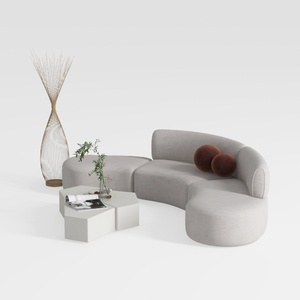
Minimalist Fabric Curved Sectional Sofa 3D Model

Minimalist Walnut Fabric Loveseat Sofa 3D Model
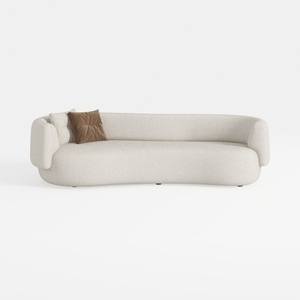
Minimalist Boucle Curved Living Room Sofa 3D Model
Homestyler offers a user-friendly online design tool with stunning 3D renderings, a vast collection of interior projects, and helpful DIY video tutorials, making it easy and fun to create your perfect home design.
Desain sekarang Gratis
































