


Direct Answer
Common problems encountered when downloading 3D models include corrupted files, unsupported file formats, missing textures, and incorrect scale settings. Usually, these issues can be resolved by re-exporting the model, converting the file format, reconnecting texture directories, or adjusting unit settings within the 3D software.
Understanding the root causes of these problems makes troubleshooting simpler and can even help prevent them from occurring.
Quick Takeaways
Introduction
If you download a significant number of 3D assets, you will eventually encounter a faulty one. With over ten years of experience in architectural visualization and interior design workflows, I've observed nearly every type of model download failure: from files that won't open, to models that import at tiny scales, or scenes that appear flawless until you notice textures are missing.
Fortunately, most of these problems aren't severe. They typically stem from minor technical discrepancies between the export settings of the model and the expectations of your software.
In production settings—especially when preparing assets for realistic rendering or spatial planning—quickly diagnosing these issues can save substantial time. When my team prepares models for projects involving AI-assisted interior designs with pre-made 3D assets, resolving these technical glitches becomes part of the routine.
This article covers frequent 3D model download challenges along with practical solutions that professionals rely on daily, including those using Homestyler for interior visualization.
Save pin
Reasons 3D Model Downloads Sometimes Fail
Key Insight: Download failures are often due not to the 3D model itself but to interrupted transfers, extraction errors, or missing dependencies.
Many asset platforms package models in compressed files like ZIP or RAR. If a download halts prematurely—even momentarily—the archive may seem complete but be incomplete internally.
Common causes include:
Within studio workflows, we typically verify downloads before importing them into rendering pipelines. A corrupted mesh file can cause software crashes or result in broken geometry.
Quick diagnostic checklist:
According to Autodesk support, incomplete downloads are a frequent reason why FBX and OBJ files fail to open properly.
Repairing Corrupted or Incomplete 3D Model Files
Key Insight: Corrupted 3D models can often be salvaged by re-exporting geometry or rebuilding meshes in different applications.
Just because a downloaded model won’t open doesn’t necessarily mean the data is lost. Sometimes, the geometry is intact but the file header is damaged.
Professional recovery methods include:
Blender’s mesh repair functionality is surprisingly efficient for damaged files. I've successfully restored many architectural models that initially failed to open in rendering software.
Typical steps include:
This straightforward approach can resolve many instances where a 3D model download won’t open.
Save pin
Handling Unsupported File Format Issues
Key Insight: Unsupported format errors occur when your software cannot interpret the model’s original export format.
Different design platforms use varied file standards. A model intended for game engines may not load correctly in CAD programs, and vice versa.
Common format incompatibilities:
Typical conversion workflow:
In visualization pipelines—especially when creating photorealistic 3D interior renderings—we often standardize downloaded models into formats like FBX to prevent workflow disruptions.
Popular free tools such as Blender, Autodesk FBX Converter, and MeshLab facilitate file format conversions.
Addressing Missing Textures in Downloaded Models
Key Insight: Missing textures often result from texture folders being separated from the model file or broken file paths during extraction.
This is among the most frequent visual issues encountered with downloaded assets: geometry appears but everything looks gray or untextured.
Typical causes include:
Rapid fix steps:
In interior visualization, organizing downloaded assets into structured folders before importing them into planning tools—such as Homestyler for designing detailed floor plans with realistic furniture—helps prevent material-related issues by keeping geometry and textures together.
Save pin
Resolving Scale and Unit Discrepancies in Imported Models
Key Insight: Scale problems happen when exporting and importing software use different measurement units.
A chair importing at just a few millimeters tall is typically not corrupted; it was likely exported in centimeters while your software expects meters.
Frequent unit mismatches include:
Quick resolution steps:
Many professional asset repositories now document scale explicitly to address issues caused by inconsistent unit systems within production workflows.
Summary Answer
Most issues downloading 3D models stem from corrupted archives, unsupported file types, missing textures, or unit mismatches. Common remedies include re-downloading, converting formats, relinking textures, and adjusting scale settings, often streamlined by tools like Homestyler.
Utilities to Repair or Convert 3D Files
Key Insight: Proper utility programs can repair or convert most problematic 3D models without starting from scratch.
Professionals typically avoid discarding damaged assets immediately, instead running them through repair or conversion software.
Helpful troubleshooting utilities include:
Blender alone addresses a large portion of corrupted model repair cases as it tolerates imperfect geometry better than some commercial software.
Final Overview
FAQ
Why won’t my downloaded 3D model open?
The file might be corrupted, partially downloaded, or exported in an unsupported format. Try re-downloading or converting it using software like Blender.
How can missing textures in 3D models be fixed?
Ensure texture files reside in the same folder as the model and reconnect them within the material editor of your 3D application.
What causes 3D model download failures?
Interrupted downloads, corrupted ZIP files, or antivirus software interference are common issues.
How do I repair corrupted 3D model files?
Import the model into utilities like Blender or MeshLab, then re-export it as a clean OBJ or FBX.
Why is my 3D model importing at an incorrect size?
This usually happens due to differing unit measurements, such as exporting in centimeters instead of meters.
What are the best file formats for sharing 3D models?
OBJ and FBX remain the most widely supported formats across design and rendering software.
Can unsupported 3D file formats be converted?
Yes, software like Blender and MeshLab can convert multiple formats including GLB, FBX, and OBJ.
Why are materials missing after importing a 3D model?
Texture paths may be broken or missing because texture files were not included in the original download package.

Minimalist White Leather Armchair and Ottoman Set 3D Model
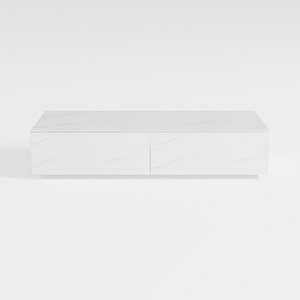

Modern Minimalist Faux Marble Coffee Table with Storage Drawers 3D Model
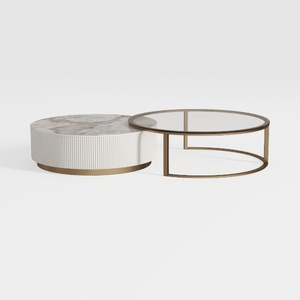
Modern Marble Gold Metal Glass Round Nesting Coffee Table 3D Model
Homestyler offers an easy-to-use online design tool with stunning 3D renderings, inspiring interior projects, and helpful DIY video tutorials. It’s a great platform to visualize and create your dream home design effortlessly.
Desain sekarang Gratis
































