

Transforming a 3D model into Minecraft consists of converting intricate digital designs into the recognizable, pixelated world of this beloved sandbox game. This conversion technique appeals to enthusiasts and professionals alike who wish to bring their concepts to life in an interactive format. Key steps encompass selecting or crafting a 3D model, preparing it for the conversion process, employing specialized tools, and finally, importing your polished design into the vibrant universe of Minecraft.
Begin by selecting your desired 3D model, which typically exists in formats such as .obj, .stl, or .dae. It's crucial to simplify the model, as the Minecraft framework operates on a block-based system that is better suited for basic shapes and surfaces. Following this, utilize tools like Mineways, BinVox, or Blender plugins designed specifically for Minecraft transformations. These applications effectively convert 3D geometry into a mosaic of Minecraft blocks and produce schematic files (.schematic or .litematic) that are compatible with world editing software such as MCEdit or Litematica.
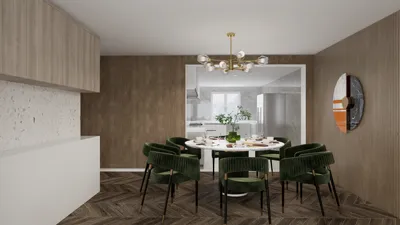
After preparing the schematic, you will import it into your Minecraft realm using MCEdit or similar editing software. It’s wise to review the positioning and choice of blocks, as you may want to replace specific materials or modify details for enhanced realism or visual appeal. As I’ve experienced, translating designs from digital formats to blocks is significantly more effective when you keep spatial proportions and flow in mind throughout both the modeling and import phases. Imagining your model as a 3D rendered home prior to its introduction into Minecraft can aid in foreseeing how various structural components will be reflected with blocks, ensuring that the spirit of your initial design is preserved.
Tips to Consider:
Before finalizing your conversion in your main Minecraft world, it's advisable to test your converted model in a separate environment. This allows you to fine-tune complexities, optimize your block selection, and prevent your device from being overwhelmed by substantial builds. For models featuring intricate interiors or complex textures, consider breaking down the import process and using block substitutions to maintain clarity and visual coherence.
Frequently Asked Questions
Q: Which file formats are ideal for converting a 3D model into Minecraft?
A: Recommended formats include .obj, .stl, and .dae, which can be processed using tools such as Mineways or BinVox.
Q: What tools are suggested for executing this conversion?
A: Notable converters comprise Mineways, BinVox, and specific Blender plugins that ensure compatibility with Minecraft.
Q: Is it possible to transfer detailed textures from a 3D model into Minecraft blocks?
A: Although Minecraft cannot accurately replicate detailed textures, block mapping can achieve a semblance of color and material, despite some necessary simplifications.
Q: How can I successfully import a schematic file into Minecraft?
A: Use world editing tools like MCEdit or Litematica to effectively place the schematic within your Minecraft landscape.
Q: Are bulky or high-poly models appropriate for conversion into Minecraft?
A: Large or highly detailed models often require simplification to ensure they function efficiently and maintain visual harmony within Minecraft's block-centric environment.
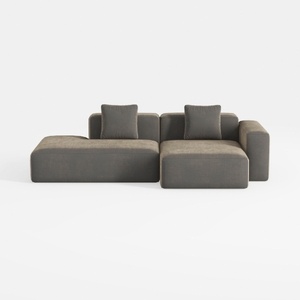
WJShome Cloud Couch Modular Sectional Sofa,102inch
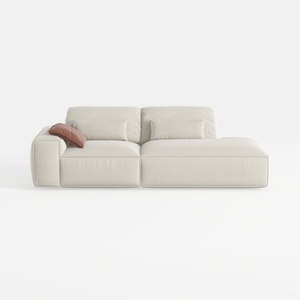
109" Cloud Sectional Couch - L Shaped Chenille Cou
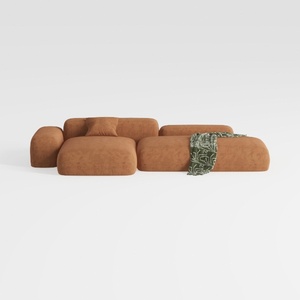
Oversized L-Shaped Sectional Sofa with Ottoman
Discover Homestyler, the ultimate online home design platform! With its easy-to-use design tool, stunning 3D renderings, and a wealth of inspiring decor projects and video tutorials, transforming your living space has never been more enjoyable and accessible. Let your creativity shine with Homestyler!
Design jetzt kostenlos
































