


Transforming a 3D model into an STL file stands as a vital step for many individuals looking to 3D print or distribute their designs. This article will guide you through the necessary steps and factors to facilitate an efficient conversion process while incorporating the capabilities offered by Homestyler.
Comprehending the STL Format:
The STL (Stereolithography) format is predominantly utilized for 3D printing due to its function of effectively capturing the surface geometry of a 3D object without any supplementary details regarding color or texture. This characteristic makes it exceptionally suitable for 3D printing, as it streamlines the data required for manufacturing and guarantees precise material deposition during the printing process.
Step-by-Step Conversion Procedure:
1. **Select Your Software**: Opt for a 3D modeling program such as Blender, Tinkercad, or Fusion 360 that is capable of exporting in STL format. Each of these applications caters to different skill levels and project needs, so it is advisable to select one that aligns well with your expertise and the complexity of your project.
2. **Load Your 3D Model**: Import your existing 3D model into the chosen software. Make sure your model is suitable for printing by inspecting it for non-manifold edges, holes, or other extraneous elements that could potentially hinder the export and lead to printing errors.
3. **Export as STL**: Locate the export feature within the software, usually available in the File menu. Choose the STL format and adhere to any prompts that arise. You might also have the choice to adjust certain export settings—such as units or scaling—which is essential for upholding the proportions of your model.
4. **Verify the STL File**: Post-export, open the STL file in a slicer software (such as Cura or PrusaSlicer) to confirm the integrity of the model. This crucial step enables you to preview the model's readiness for printing and identify any discrepancies prior to commencing the printing process.
Tips for Effective Conversion:
– Confirm your model is manifold: A manifold model implies that it is devoid of holes or non-watertight edges. This is essential for 3D printing, as non-manifold models can trigger print failures or complications during the slicing phase.
– Streamline your model: Simplifying intricate geometries when possible can decrease the STL file size and enhance its printability. Reducing the polygon count might result in quicker slicing times and less strain on the 3D printer.
– Maintain your design's scale: Always verify the measurements of your model while converting. It's not uncommon for the scale to become distorted during the export process, and preserving accurate scaling is crucial for the functionality of the printed object.
Frequently Asked Questions
Q: Which software can I utilize to convert my 3D model to STL?
A: You can effectively employ various software like Blender, Tinkercad, Fusion 360, or SketchUp for the conversion process, tailored to your expertise level and project specifications. Additionally, tools like Homestyler can significantly enhance the modeling experience.
Q: Why is my STL file experiencing printing issues?
A: Typical problems include non-manifold geometries and incorrect scaling. Always verify your model within a slicer prior to printing to pinpoint and resolve any potential complications, thereby ensuring a smoother printing experience.

Natural Live Edge Solid Walnut Coffee Table Top 3D Model
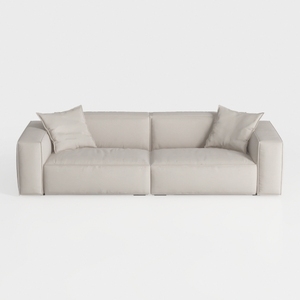
Minimalist Beige Fabric Modern Sofa with Throw Pillows 3D Model
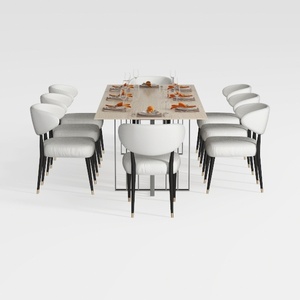
GarveeHome Natural Rattan Dining Chairs Set of 2
Discover the creativity of Homestyler, your go-to online home design platform! Featuring an intuitive design tool, stunning 3D renderings, and a treasure trove of DIY video tutorials, it makes interior decorating accessible and enjoyable for everyone. Transform your space today!
Progetta ora GRATIS
































