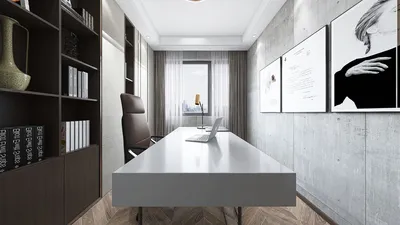


Integrating 3D models into Adobe After Effects enables designers and content creators to merge 3D assets effortlessly with video footage, motion graphics, and various effects, resulting in professional and captivating visuals. The standard workflow begins with exporting your 3D model from applications such as Blender, Cinema 4D, or Maya into a format that After Effects can recognize, such as OBJ. Alternatively, you can utilize plugins that facilitate direct 3D integration, like Element 3D or Cineware. After importing the model or sequence into After Effects, you can utilize layers, camera controls, and lighting effects, along with other compositing techniques—including color correction, depth of field, and motion blur—to ensure that your 3D model fits seamlessly into your 2D visual landscape. To achieve realistic shadows and reflections, make use of adjustment layers and shadow catchers. Once you've refined your composite, adjust the rendering settings to export your final video in the desired format.
Tips 1:
As a designer, I highly suggest planning your shot composition ahead of time. Utilizing specialized platforms and tools for 3D rendering home projects can greatly assist you in visualizing lighting and spatial arrangement prior to importing assets into After Effects. This precaution ensures that your compositing efforts are as realistic and cohesive as possible. Furthermore, leveraging tools like Homestyler can provide a detailed overview of your project layout, enhancing your overall design process.
FAQ
Q: Is it possible to import any 3D model format directly into After Effects?
A: After Effects does not natively support all types of 3D model formats. You will need to employ compatible plugins, such as Element 3D for OBJ files, or utilize Cineware for importing models from Cinema 4D.
Q: How can I synchronize the lighting of my 3D model with my video footage?
A: Take advantage of After Effects’ built-in light layers and compare them with the existing lighting in your footage. Adjust variables like intensity, direction, and color temperature to achieve a cohesive composite.
Q: What is the most recommended plugin for compositing 3D models in After Effects?
A: Element 3D (created by Video Copilot) is among the most popular plugins for importing, animating, and compositing 3D models directly within After Effects.
Q: How do I generate realistic shadows for my 3D model?
A: Employ shadow catchers in your 3D plugin or add adjustment layers in After Effects that replicate natural shadow falloff, matching the ambiance of your scene.
Q: Is it possible to animate my 3D model directly in After Effects?
A: Absolutely! Plugins like Element 3D support various animations such as movement, scaling, and rotation. For more complex animations, consider doing the rigging in your 3D software before importing it into After Effects.
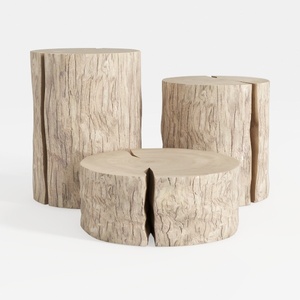

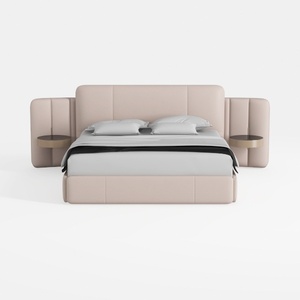
Meridian Furniture B1214Grey-K Vaughn Collection M

BAXMUY 94.4” Oversized Cloud Couch, Pink Chenille
Discover the ease of home design with Homestyler! This intuitive online platform offers a powerful design tool alongside stunning 3D renderings and a treasure trove of DIY video tutorials. Transform your space and unleash your creativity effortlessly—perfect for both novices and seasoned decorators alike!
지금 무료로 디자인하세요
































