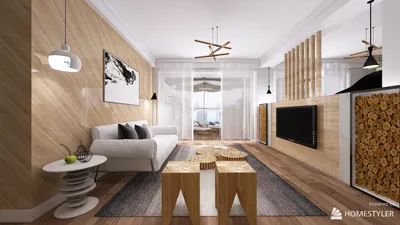


Experiencing a laptop crash during 3D rendering can be incredibly exasperating, especially after dedicating numerous hours to your design. To help prevent such incidents in the future, it's vital to grasp the common triggers and employ effective strategies for smoother rendering. Incorporating tools like Homestyler can also enhance your workflow significantly.
Identifying Causes of Crashes
Frequent causes of laptop crashes during 3D rendering include overheating, inadequate memory, and software glitches. By recognizing these issues, you can adopt measures to alleviate them.
1. Enhance Your Laptop's Cooling System
Overheating is often a major factor behind crashes. Here are some strategies to maintain your laptop’s coolness:
2. Upgrade RAM and Storage Capacities
Lack of sufficient RAM may result in crashes. Here’s how to effectively manage your memory:
3. Fine-tune Rendering Preferences
Tweaking your software settings can greatly lessen the load on your device:
4. Close Unneeded Applications
Running multiple applications at once can drain essential resources:
5. Ensure Software is Up-to-Date
Software bugs often lead to instability in operations:
6. Regularly Save Your Progress
Always remember to save your work at intervals to prevent loss:
Frequently Asked Questions
Q: What actions should I take if my laptop crashes during rendering? A: Restart your laptop, check for overheating, and consider applying the tips provided above to minimize future crashes.
Q: Is it essential to upgrade my laptop for optimal 3D rendering? A: Although it might not always be necessary, boosting RAM and transitioning to an SSD can greatly enhance rendering performance, especially when using tools like Homestyler.
Welcome to the leading home design software solution!
今すぐ无料でデザイン
































