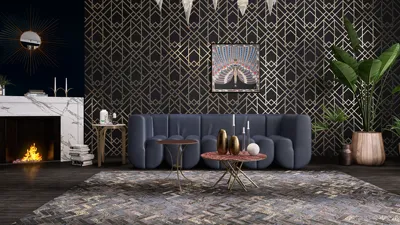


Rendering interiors can truly transform the way you present your design projects. With Homestyler, you'll access a range of robust rendering features that enhance the quality of your interior visualizations. Here’s how to fine-tune your Homestyler interior render settings for optimal results.
Understanding the Fundamentals of Render Settings
Before you delve into specific configurations, it's vital to comprehend the essential elements that affect the quality of your renders. These include:
Enhancing Lighting Configurations
Lighting plays a pivotal role in interior renders. Here are several strategies to enhance your lighting configurations:
Adjust the positioning of light sources to emulate natural sunlight. The time of day will influence the warmth and shadows present in your space.
Make use of Homestyler’s interior lighting options, such as spotlights and area lights, to highlight significant parts of your design.
Enable realistic shadows to add depth to your scene. Modifying shadow softness can result in a more natural appearance.
Improving Material Quality
The caliber of materials in your interior design is crucial:
Using high-resolution textures will bolster the realism of your surfaces, from walls to furniture items.
Modify reflection and glossiness settings to create authentic surfaces, particularly for materials like glass and metals.
Configuring the Environment
Establishing an appropriate environment for your interiors can significantly enhance the overall rendering:
Incorporate background images that enhance your interior design's aesthetic.
Adjusting weather conditions can alter the atmosphere; for instance, a sunny setting will evoke a different ambiance than an overcast one.
Finalizing Render Settings
After adjusting lighting, materials, and the environment, it’s time to finalize your render settings:
Opt for a higher render quality for detailed outputs, especially beneficial for presentations.
Set the output resolution based on your requirements, keeping in mind that higher resolutions will require more rendering time.
Utilize post-processing effects like depth of field and bloom to enhance the final visualization.
Conclusion
By optimizing your Homestyler interior render settings, you can markedly enhance the quality of your visualizations, making your designs more captivating and lifelike. Experiment with various settings to discover what works best for your interior design projects.
FAQ
Q: What’s the optimal lighting configuration for Homestyler interiors? A: A blend of natural light and indoor artificial lights typically produces the best outcomes.
Q: How can I enhance material realism in my renders? A: Utilizing high-resolution textures and tweaking reflection settings can significantly elevate material authenticity.
welcome to the leading Home Design Software
Progetta ora GRATIS
































