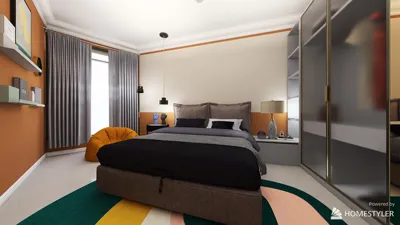


Transforming a 3D model for seamless integration into Unity requires a series of important steps to ensure both compatibility and high performance for your gaming or design endeavor. This process usually starts with exporting your 3D model from its original software—be it Blender, 3ds Max, or Maya—into a format suitable for Unity such as FBX or OBJ. Prior to the export, it's vital to verify the model's scale, axis alignment, and texture mapping to prevent complications during the import process. Within your 3D application, apply all transformations and ensure the origin of the model is correctly positioned. Materials and textures must be accurately assigned, with texture images being in file types that Unity supports, like PNG or JPEG. Once this is done, open Unity and move the exported file into your "Assets" directory. Unity will automatically handle the model import, but you may need to adjust import settings for scale, normals, and materials for the best outcome. Lastly, set up colliders, scripts, and prefabs according to your project specifications.
Advice 1:
As a designer, I consistently stress the importance of clean topology and optimized textures before importing any 3D asset. This practice not only enhances performance in Unity but also accelerates workflow when adjustments are necessary. If you're considering significant customization or design tweaks—like experimenting with various furniture layouts in a space—utilizing a 3D Floor Planner, such as Homestyler, can greatly enhance your modeling and integration efficiency. These kinds of tools are fantastic for quickly visualizing designs and adapting 3D models for engaging interactive projects.
Common Questions
Q: Which file formats are compatible with Unity for 3D models?
A: Unity supports several formats including FBX, OBJ, DAE (Collada), and 3DS. FBX is the most recommended format for optimal compatibility.
Q: How can I retain textures when importing models into Unity?
A: Ensure that textures are properly mapped in your 3D software and that the image files are included in Unity’s "Assets" folder. Employing the FBX format can help preserve material assignments effectively.
Q: Why does my model appear different in Unity compared to my 3D software?
A: Variations can arise from lighting conditions, shader settings, or missing textures. Review materials, lighting setups, and import settings to achieve visual coherence.
Q: Is it possible to animate imported 3D models in Unity?
A: Absolutely. If your model contains animation data (such as with an FBX), Unity can import and execute these animations via its Animator component.
Q: How can I optimize a 3D model for real-time performance in Unity?
A: Apply low-poly modeling techniques, bake normals, limit the sizes of materials and textures, and eliminate unnecessary geometry to enhance performance in Unity projects.
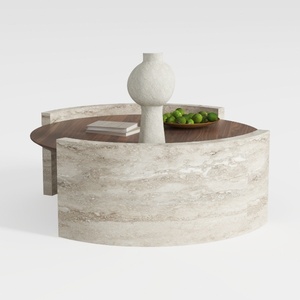
Round Coffee Table,29.52IN Wooden Coffee Table,Mid


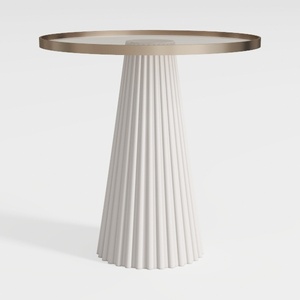
43" Wooden Round Dining Table, Mid-modern Circular
Homestyler is a fantastic online home design platform that makes it easy to visualize your ideas. With its user-friendly design tool, stunning 3D renderings, and a wealth of DIY video tutorials, it's perfect for anyone looking to create their dream space without any prior experience!
تصميم الآن مجانا
































