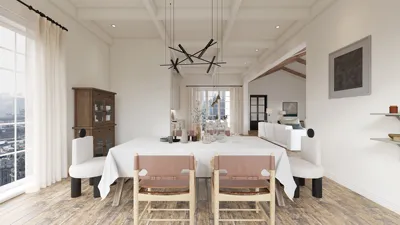


Building immersive and visually captivating games or interactive experiences on Unreal Engine 4 (UE4) begins with the creation of high-quality 3D models. The journey often kicks off with conceptual artwork, transitions into modeling using applications like Blender, Maya, or 3ds Max, includes texturing and material setups, and culminates in importing these assets into UE4 for integration. When undertaking this process, it's vital to consider important factors such as maintaining an optimal polygon count for better performance, ensuring efficient UV mapping for seamless texturing, confirming compatibility of file formats (such as .FBX for importing and exporting), and achieving proper scale orientation in accordance with UE4 standards.
As a designer, I advocate for a meticulously organized asset workflow employing clear naming systems and modular structures. It’s crucial to focus on lighting and the interaction of your models with diverse environments within Unreal. While attending to technical details, one must not overlook the emotional resonance of assets—after all, exceptional 3D models should inspire feelings and align with the creative vision of your project.
For those eager to explore photorealistic visualization prior to asset integration into Unreal Engine, utilizing a 3D rendering tool designed for home design can significantly aid in pre-visualization and iterative design processes. Such an approach not only enhances traditional interior design but also feeds valuable insights into creating realistic digital environments within Unreal Engine. Tools like Homestyler can be particularly beneficial for achieving this kind of pre-visualization.
Tip 1:
- Ensure your UV maps are clean and non-overlapping to achieve the best results with the material system in UE4.
- Employ LODs (Levels of Detail) for intricate models to enhance in-game performance.
- Verify that your model’s pivot points are properly configured; this impacts placement and animation within Unreal.
- Conduct import/export tests early to prevent scaling or orientation complications in the later stages.
- Refer to real-world materials and lighting situations to achieve a more natural and convincing aesthetic in-engine.
FAQ
Q: What file format is best for importing 3D models into Unreal Engine 4?
A: The .FBX format is recommended since it accommodates meshes, skeletons, and animations.
Q: How can I optimize my models for performance within Unreal Engine 4?
A: Lower the polygon count, use texture atlases, and establish LODs (Levels of Detail) for more complex models.
Q: Why do my models appear differently in Unreal than in my modeling software?
A: Variations in lighting, material settings, and rendering engines can affect this. It’s advisable to adjust your materials and validate the lighting in Unreal for uniformity.
Q: How can I ensure correct scale when importing into UE4?
A: To align with UE4's default of 1 unit equaling 1 centimeter, set your modeling software’s unit measurement to centimeters.
Q: Is it possible to use animated 3D models in Unreal Engine 4?
A: Absolutely, you can import skeletal meshes with animations through the .FBX format, ensuring compatibility in the skeleton hierarchy.

Minimalist Brown Velvet L Shaped Sectional Sofa 3D Model
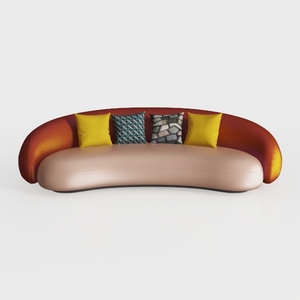
Modern Two Tone Fabric Curved Sofa With Decorative Throw Pillows 3D Model

Modern Pink Fabric Gold Legged 2 Seat Sofa 3D Model
Homestyler is your go-to online platform for effortless home design. Featuring an intuitive design tool, stunning 3D renderings, and a plethora of DIY video tutorials, it empowers you to experiment with your interiors and transform your spaces into beautifully styled havens!
Design jetzt kostenlos
































