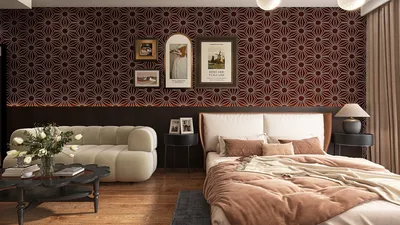


Texturing 3D models in Maya is a vital competency that not only boosts the aesthetic value of your designs but also imparts crucial detail and authenticity. By mastering texturing techniques, both beginners and seasoned artists can uplift their 3D modeling endeavors, resulting in captivating and realistic visual effects. Additionally, leveraging tools like Homestyler can enhance this experience further by providing additional resources for interior design and model showcasing.
Exploring UV Mapping Basics:
The initial and essential phase in texturing is UV mapping. This method involves flattening the surface of your 3D model onto a two-dimensional plane, akin to how you would open up a cardboard box. To apply textures seamlessly, it's vital to organize the UVs meticulously to reduce potential distortions during the texturing process.
1. To generate UV maps in Maya, start by selecting your model and accessing the UV menu. You can employ options like the UV Editor or Automatic Mapping for quick setups, which lays a solid groundwork for your subsequent texturing tasks.
Applying Textures Effectively:
Once the UVs are properly configured, the next step is to apply textures. You have the choice of countless textures, either sourced from image files or procedurally created within Maya. The software accommodates various file formats, with JPEG and PNG being the most commonly used for textures.
2. To set a texture, head to the Material Editor, select your desired material type (like Lambert or Blinn), and assign your chosen texture to the relevant channel—such as Color or Transparency—to enrich your model’s visual appeal.
Direct Texture Painting Techniques:
Maya also provides powerful tools for directly applying textures onto your models, allowing for significant customization. The 3D Paint Tool offers artists a remarkable method to create unique textures that reflect their creative vision.
3. To utilize the 3D Paint Tool, simply select your model and go to the Texturing menu. This tool allows you to paint directly on your model’s surface, offering opportunities for precise modifications and artistic flexibility.
Enhancing Texturing with Substance Painter:
For complex texturing assignments, employing specialized software like Substance Painter can significantly improve your workflow. This tool is crafted for in-depth texture painting, featuring advanced functionalities like smart materials and real-time rendering capabilities.
4. After preparing your model in Maya, import it into Substance Painter, where its intuitive interface can help you upgrade the quality and complexity of your textures even further.
Rendering Your Textured Models:
Once you’ve applied textures and are pleased with the results, rendering your model is crucial for showcasing how these textures interact with light under different conditions. By using Maya’s Arnold Renderer, you can tweak essential settings like lighting, shadows, and reflections to enhance the realism of your render.
5. When you’re ready to view the results, navigate to the Render menu and select Render the Current Frame, allowing you to evaluate the final output of your meticulously textured model.
Frequently Asked Questions
Q: What exactly is UV mapping in Maya? A: UV mapping is the fundamental process of laying the surface of a 3D model flat onto a 2D layout to effectively apply textures without causing distortions.
Q: Is it possible to apply my own images for textures in Maya? A: Certainly, you can utilize various image file formats, including JPEG and PNG, to apply custom textures to your models.
Q: How can I paint textures directly on my model in Maya? A: You can use the 3D Paint Tool within Maya for direct application onto your model’s surface, providing an intuitive way to customize your textures.


sofaMorandi pink

Cream Boucle Floor Couch Sofa - Mid Century Modern

Sectional Sofa with Chaise, Modern L-Shaped Couch
Discover the joy of home design with Homestyler! This user-friendly platform offers an intuitive online design tool, stunning 3D renderings, a wealth of design projects, and easy-to-follow video tutorials. Whether you're a beginner or an expert, transform your space effortlessly with Homestyler!
Design Now for FREE
































