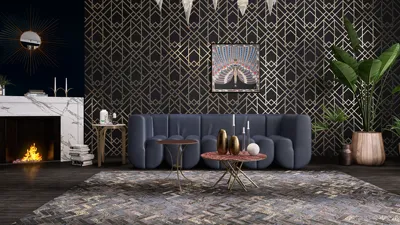


Rendered elevations play a vital role in the realm of interior design, offering a dynamic visualization of your space by highlighting elements like color palettes, materials, and overall aesthetics. In this comprehensive guide, we'll explore how to create rendered elevations utilizing Photoshop, empowering you to animate your designs effectively.
Step 1: Set Up Your Base Elevation Drawing
Begin by importing your foundational elevation drawing into Photoshop. This could be a hand-crafted sketch or a digitally designed elevation. Opt for a high-resolution image to ensure clarity and detail are maintained throughout your project.
Step 2: Establish Layers for Each Design Component
Organize your workspace efficiently by structuring separate layers for different aspects of the elevation, including walls, furniture, and fixtures. This structured approach simplifies editing and adjustments in the future.
Step 3: Infuse Color and Texture
Utilize the lasso tool or quick selection tool to identify areas for coloring. Once selected, harness the paint bucket tool to apply colors. For textural elements, you can use Photoshop’s texture brushes or import texture files to overlay on appropriate areas.
Step 4: Add Shadows and Highlights for Depth
Enhance your rendering's depth by integrating shadows and highlights. Create extra layers for shadows using a soft brush with low opacity, painting them where natural shadows would typically cast. Apply the same method for highlights to enrich the three-dimensional aspect.
Step 5: Fine-tune with Details
Apply final embellishments such as fabric patterns, surface reflections, and decorative components that elevate the overall appearance of the elevation. Zoom in for the finer details, ensuring a polished, professional finish.
Step 6: Save and Export Your Project
After achieving a satisfying rendered elevation, save your project in Photoshop format to keep layers intact. Also, export a version as a JPEG or PNG, making it suitable for sharing or including in presentations.
Tips for Achieving Excellence
- Utilize high-quality images for textures and patterns.- Experiment with blending modes to create distinctive effects.- Routinely compare your design with the original elevation to ensure consistency and accuracy.
Frequently Asked Questions
Q: What tools are most effective for rendering? A: Leverage the brush tool, paint bucket tool, lasso tool, and layers for optimal rendering.
Q: Is it feasible to use a mouse for rendering tasks? A: While a mouse will work, employing a drawing tablet may provide enhanced precision and control.
Discover the power of Homestyler, the premier home design software to bring your interior visions to reality.
Design Now for FREE
































