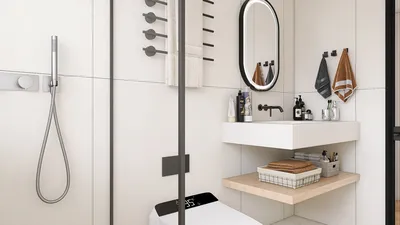


Mastering the art of texturing a 3D model using Photoshop significantly elevates your design projects. Texturing is a pivotal component as it introduces depth and realism to your creations. This comprehensive guide will walk you through the vital steps to achieve textures that look professional while complying with the latest usability and design standards, making the most of tools like Homestyler.
Grasping the Fundamentals of 3D Texturing
Before you embark on the texturing journey, it’s essential to understand its core concept. Texturing involves applying images, also known as textures, on the surfaces of your models to generate realistic details. This encompasses not only visual designs but also gives the illusion of depth using normal maps and bump maps. A considered approach to texturing enhances the visual appeal as well as the functional quality of your 3D models, making them ideal for integration with platforms such as Homestyler.
A Step-by-Step Approach to Texturing Your 3D Model
1. **Model Preparation**: Verify that your 3D model is clean and devoid of any artifacts. Maintaining organization within the model simplifies the texturing workflow, thereby producing superior results.
2. **Unwrapping UVs**: Within Photoshop, it’s crucial to unwrap your model’s UV layout. This technique involves mapping your 3D model onto a 2D plane, which facilitates the effective application of textures. Consider utilizing software such as Blender or Maya for precise unwrapping.
3. **Texture Creation or Importation**: You have the option to create your own textures or download high-quality textures from various online platforms. Ensure they are suitable for the surfaces you aim to depict while following the fundamental design principles.
4. **Applying Textures in Photoshop**: Launch your UV layout in Photoshop and apply the textures using layers. Utilize blending modes, adjustment layers, and layer masks to ensure the textures integrate flawlessly with the model, achieving a refined and professional look.
5. **Detail Addition**: Use filters and custom brushes to add realism. This could involve effects such as dirt, wear, and tear, contributing character and visual intrigue to your surfaces.
6. **Texture Exportation**: When satisfied with your texturing efforts, export the final images from Photoshop in an appropriate format (like PNG or JPEG) that is compatible with your 3D software. Make sure to optimize the settings to align with industry norms.
Strategies for Creating Realistic Textures
- **Utilize High-Resolution Textures**: The caliber of your textures profoundly influences the end result, so emphasize high-resolution sources.
- **Layering Exploration**: Experiment by layering various textures to craft more intricate surfaces that replicate real-world materials.
- **Lighting Considerations**: Lighting can dramatically affect how textures are perceived. Test the textures under different lighting conditions to achieve the most favorable outcome.
Frequently Asked Questions
Q: Is Photoshop suitable for 3D modeling? A: Photoshop offers limited 3D capabilities but is primarily designed for texturing rather than modeling. For extensive modeling tasks, consider using specialized software.
Q: What other software can enhance the texturing process? A: Programs like Substance Painter and Blender offer advanced texturing functionalities that work hand-in-hand with Photoshop, creating a more powerful workflow for texture creation, which could also integrate with Homestyler effectively.
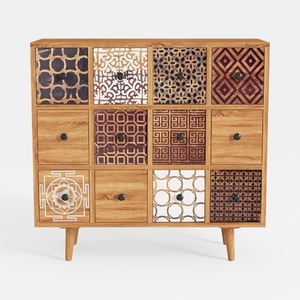
Best Choice Products 9-Cube Storage Organizer
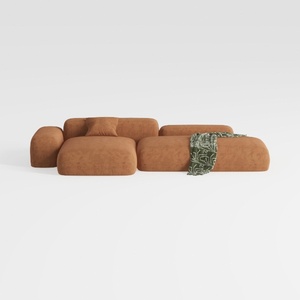
Oversized L-Shaped Sectional Sofa with Ottoman
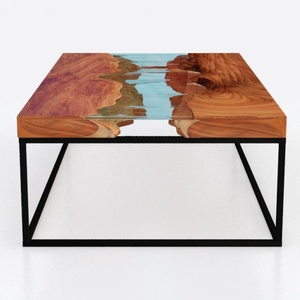
Custom 3D Waves Ocean Dining Table, Blue Ocean
Homestyler is an exceptional online home design platform perfect for anyone looking to revamp their space. With its user-friendly design tool, stunning 3D renderings, a plethora of inspiring design projects, and informative video tutorials, transforming your home has never been easier!
Zaprojektuj teraz za darmo
































