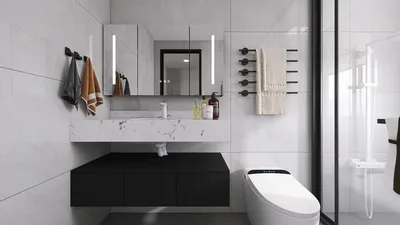


Developing textures for 3D models using Photoshop is an essential skill for designers aspiring to infuse realism and character into their creations. Textures have the power to transform an ordinary model into a visually striking masterpiece, making it imperative to excel in this craft. This article will delve into the nuances of texture creation, shedding light on their importance in enhancing the allure of your designs through the innovative tool, Homestyler.
To get started, you should begin with a high-resolution base image suitable for manipulation. A convenient approach is to utilize a photograph you've taken as a foundational layer. You can refine or enhance this image in Photoshop according to your design needs. Have you considered how textures can significantly influence the ambiance of your design? For instance, the rustic charm of a wooden texture juxtaposed with sleek, modern finishes can evoke a powerful emotional response from users.
Comprehending Texture Maps
Before immersing yourself in the texture creation journey, it’s crucial to familiarize yourself with the different types of texture maps you might require:
Step-by-Step Guide to Creating Textures
1. Begin with your chosen base image or open a new document in Photoshop, ensuring the resolution aligns with your 3D model’s specifications. A minimum of 2048x2048 pixels is generally recommended for quality.
2. Harness the Clone Stamp Tool or Healing Brush to eliminate any undesirable elements, crafting a seamless texture. This step plays a vital role in achieving uniformity across the surface of your model.
3. Experiment with various filters to achieve distinctive appearances—try using Gaussian Blur for softer textures or apply Noise for a more rugged finish. Thoughtfully adjusting these effects can transform the essence of your texture.
4. Once your texture meets your expectations, export it as a PNG or JPEG to maintain high-quality standards. This final export is essential for preserving the intricacies of your design within the 3D environment.
Frequently Asked Questions
Q: What is the recommended resolution for 3D model textures? A: Generally, starting with 2048x2048 pixels is advised, although you may need to adjust based on the complexity of your model and the detail required.
Q: Is it possible to use photographs as textures? A: Definitely! Just make sure they are high-quality, well-composed, and relevant to your design to achieve optimal results.
Q: How can I apply my texture to the 3D model? A: The process can vary by software, but typically involves importing your texture file and mapping it onto the surface of your model. Ensure that the UV mapping is aligned accurately for the best outcomes and consider utilizing tools like Homestyler for streamlined workflows.


143.7 in. L-Shaped Straight Arm Boucle Fabric Sofa
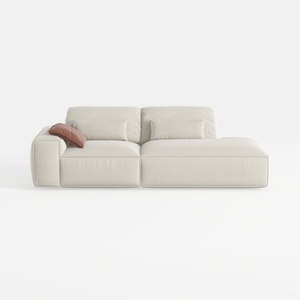
109" Cloud Sectional Couch - L Shaped Chenille Cou
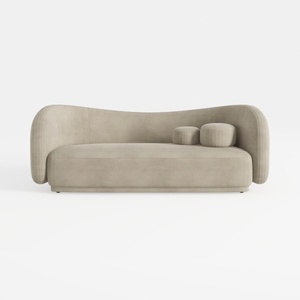
Circe Taupe Textured Velvet Sofa
Homestyler is your go-to online home design platform, perfect for turning your creative visions into reality. With its user-friendly design tool, stunning 3D renderings, diverse design projects, and helpful video tutorials, it's never been easier to craft your dream home—no experience needed!
Progetta ora GRATIS
































