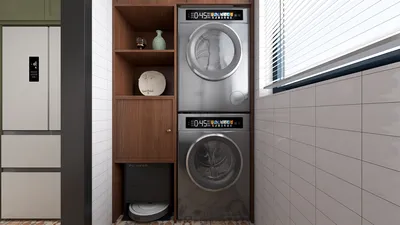


Achieving breathtaking visuals through 3D rendering relies heavily on the right configurations within your design software. Whether your focus is on architectural modeling or product visualization, refining your render settings can greatly improve both the quality and efficiency of your output. Below are essential settings to consider for optimal results with Homestyler and similar applications.
1. Choosing the Right Renderer
Select a renderer that fits the specific needs of your project. While the built-in scanline renderer offers speed, it often lacks the realism found in advanced options like V-Ray or Mental Ray. For achieving photorealistic visuals, V-Ray remains a popular choice due to its exceptional quality and adaptability.
2. Determine Output Size and Resolution
Set the output dimensions according to the final application of the rendering. Higher resolutions generally result in improved quality, although they also require more rendering time. For print media, a resolution of 300 dpi is commonly used, whereas 72 dpi is standard for online displays.
3. Adjust Anti-Aliasing Settings
Anti-aliasing minimizes jagged edges in your rendered images. Within the Render Setup menu, enhance the anti-aliasing settings by selecting higher quality options like 'Best' or 'Area Sampling' to achieve smoother results.
4. Incorporate Global Illumination and Final Gather
To enhance lighting realism, activate Global Illumination (GI) and Final Gather features. These methods simulate light’s interaction with surfaces, resulting in a lifelike appearance. Test settings such as 'Irradiance Map' for GI and use 'Brute Force' for Final Gather to optimize your renders.
5. Use Render Elements
Implementing render elements allows you to separate different aspects of your image, like shadows, reflections, and lighting. This practice simplifies post-production editing and grants you greater control over the finished product.
6. Optimize Material Settings
Ensure that your materials are configured correctly. Utilize high-resolution textures and focus on properties like reflection, refraction, and bump mapping to enhance realism. Tailor the material settings to align with the renderer you are using.
7. Set Up Effective Lighting
Lighting plays a vital role in 3D rendering. Combine both direct and indirect light sources to create depth in your scenes. Incorporating HDRI lighting can add realism by supplying a wider dynamic range of light and color.
8. Explore Post-Processing Effects
After the rendering process, consider applying post-processing effects including bloom, glare, or depth of field to enhance the overall aesthetic of your final image. These effects can be introduced in software like Photoshop or directly within the rendering engine.
9. Conduct Test Renders
Before finalizing a large render, perform test renders at reduced resolutions. This approach allows you to pinpoint potential issues with lighting, materials, or overall composition without investing excessive time.
Conclusion
By fine-tuning these settings within your 3D modeling software like Homestyler, you can significantly elevate the quality of your renderings. Always aim for a balance between visual quality and render times to enhance efficiency.
FAQ
Q: Which renderer is deemed best for usage in 3ds Max? A: V-Ray is consistently praised for its quality and flexibility, making it a top option for photorealistic rendering.
Q: How can I expedite render times in 3ds Max? A: Optimize your settings, utilize lower-quality test renders, and explore using render farms for intricate scenes.
Welcome to the leading home design software available.
Design jetzt kostenlos
































