

Developing a 3D model suitable for Cura encompasses several key stages, beginning with the design process and culminating in the preparation necessary for effective 3D printing. As a designer, I consistently take into account both the visual appeal and functional characteristics of a digital model, ensuring it transitions smoothly from idea to final print. Importantly, Cura is not a tool for model creation; it functions as slicing software designed to prepare pre-existing models (typically in STL or OBJ formats) for 3D printing. Below is a helpful guide to assist you in your endeavors:
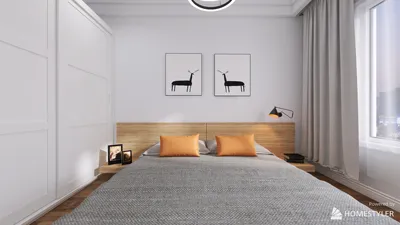
From an interior designer’s viewpoint, one essential tip is to envision how your 3D model will actually function within a spatial environment. For those designing home decor, furniture, or architectural features, utilizing a comprehensive 3D Render Home application, such as Homestyler, prior to printing can facilitate a preview of colors, textures, and the arrangement within your current space—thereby reducing design iterations and minimizing material waste.
Tip 1:
Always verify the scale of your model. Importing files that lack proper scaling can lead to prints that appear either too small or excessively large for their intended applications. Utilize Cura’s scaling, rotation, and mirroring capabilities to make last-minute adjustments just before slicing your model.
FAQ
Q: Is it possible to create a 3D model directly in Cura?
A: No, Cura is designed as a slicing tool for 3D printing; you must create your model using external 3D design tools and then import it.
Q: Which file formats are supported by Cura?
A: Cura mainly accepts STL, OBJ, and 3MF file formats for 3D models.
Q: How can I resolve mesh errors once I've imported into Cura?
A: Utilize the "Mesh Tools" plugin available in Cura’s marketplace for simple mesh repairs, but for intricate issues, you'll need to correct the original model using your design software.
Q: How do I preview my print before starting the process?
A: Cura offers a layer-by-layer preview mode after the slicing process, which enables you to review the printing sequence and detect any possible issues.
Q: What should I do if my model doesn’t fit the print bed in Cura?
A: Utilize the scaling and orientation tools in Cura to resize or reposition your model, ensuring that it complies with your specific printer’s build volume.
Discover the joy of home design with Homestyler! This user-friendly platform features an intuitive online design tool, stunning 3D renderings, and a treasure trove of design projects and DIY video tutorials. Perfect for transforming your space, regardless of your experience level!
Progetta ora GRATIS
































