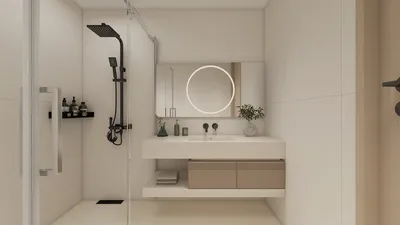


Mastering the technique of separating 3D models in Blender is essential for anyone engaged in intricate scene management or modifying imported geometries. The "separate" function is invaluable as it allows you to divide a mesh into separate entities, enhancing workflows related to organization, texturing, and asset exports for particular projects. Here’s a step-by-step guide on how to achieve this efficiently:
For designers, the ability to separate models greatly enhances project adaptability—particularly when conceptualizing spaces or layouts within 3D environments. When tackling larger undertakings, such as interior design or modular furniture arrangements, pairing this skill with a powerful tool like a 3D floor planner can facilitate a deeper understanding of how individual components interact within rooms and promote effective space planning using Homestyler.
Tips 1:
Once you have separated your objects, it is crucial to rename them and keep your hierarchy organized within the Outliner. Maintaining a systematic naming convention ensures that your project remains manageable, especially during collaboration or when handling various model assets.
FAQ
Q: Can I separate multiple selections at once in Blender?
A: Absolutely! You can select several elements prior to executing the "Separate" command, and each one will be transformed into a distinct object.
Q: What distinguishes "By Loose Parts" from "Selection"?
A: The "By Loose Parts" option separates all disjointed geometry in your mesh, whereas "Selection" only divides the specified vertices or faces that you have highlighted.
Q: Will separating a model impact its materials or textures?
A: The applied materials will be preserved, though you might need to reapply textures or UV mapping, based on how your model was originally configured.
Q: Is it feasible to rejoin separated objects?
A: Yes, you can select multiple objects and utilize Ctrl + J to merge them back into one cohesive mesh object while in Object Mode.
Q: What are the advantages of separating objects in interior design projects?
A: It allows you to manage furnishings, fixtures, and decorative elements individually which leads to flexible arrangement options, straightforward modifications, and precise visualization of your design visions, especially when using tools like Homestyler.


Discover Homestyler, the ultimate online home design platform! With its user-friendly design tool, stunning 3D renderings, an extensive range of design projects, and helpful DIY video tutorials, turning your home design dreams into reality has never been easier. Start designing today!
Zaprojektuj teraz za darmo
































