

For any designer aiming to craft breathtaking visualizations, mastering the rotation of models in 3D Max is essential. Grasping how to manipulate your 3D objects can significantly elevate your design perspective while improving your operational efficiency.
Fundamentals of Model Rotation
Before diving into the intricacies of rotation, it's important to become acquainted with your viewport configuration in 3D Max. You can easily rotate a model by utilizing the rotate tool, which can be found on the main toolbar. By selecting the model you wish to manipulate and clicking on the rotate icon, typically illustrated as a circular symbol, you can rotate your object precisely around its pivot point, enhancing your adjustments.
Grasping the significance of pivot points is crucial, as each 3D model has a specific pivot that determines its center of rotation. If you notice that your model feels unbalanced while rotating, it may be necessary to adjust the pivot point to achieve optimal performance.
Maximizing the Use of the Rotate Tool
Upon activation of the rotate tool, you'll observe three colored arcs, each corresponding to one of the three axes: X, Y, and Z. To effectively rotate your model, click and pull along the arc for the axis you wish to manipulate. For instance, engaging the Y-axis enables you to tilt your model to the left or right, giving you dynamic control over its orientation.
Additionally, if you hold down the ALT key while dragging, you can make finer adjustments for enhanced accuracy in your design. Always keep in mind that if the pivot isn’t re-centered, misalignments can happen, so routinely check that your object is rotating as intended!
Keyboard Shortcuts and Best Practices
To streamline your workflow, employing keyboard shortcuts can significantly accelerate your processes. The default shortcut 'E' provides instant access to the rotate tool, enabling swifter navigation throughout the software. Furthermore, toggling the coordinate system at the top of your screen to ‘Local’ mode offers a more intuitive perspective on the rotation direction based on the current positioning of your object. This adaptability can be particularly advantageous when working with intricate 3D models.
Common Inquiries
Q: Can multiple models be rotated simultaneously in 3D Max?
A: Absolutely! 3D Max allows for the selection of multiple models at once, enabling you to utilize the rotate tool effectively. All selected objects will rotate in unison while respecting their individual pivot points.
Q: What steps are involved in resetting the pivot back to the object?
A: To reset the pivot accurately, select your model, navigate to the 'Hierarchy' panel, and choose 'Affect Pivot Only' to correctly re-center it for the best rotation results. For those leveraging tools like Homestyler, understanding these functionalities can greatly enhance your visual design projects.
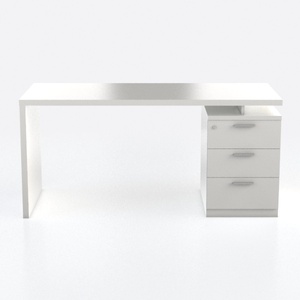
Lufeiya White Desk with 4 Drawers - 47 inch Gaming
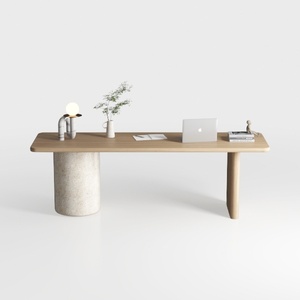
LITTLE TREE 62-Inch Home Office Computer Desk, Lar
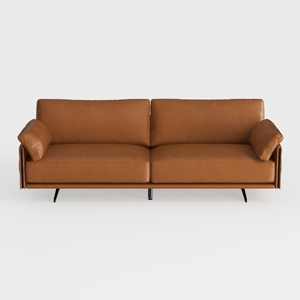

loveseat-Luxe Space
Discover Homestyler, your ultimate online home design platform. With an easy-to-use design tool, stunning 3D renderings, and a wealth of inspiring design projects, plus helpful DIY video tutorials, you can effortlessly create and visualize your dream space, regardless of your experience level!
지금 무료로 디자인하세요
































