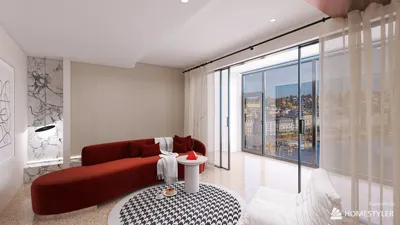


Enhancing your design abilities through the painting of 3D models with Photoshop can significantly elevate the realism and depth of your projects. Due to its robust artistic features and user-friendly interface, Photoshop remains an ideal platform for digital artists aiming to delve into 3D model painting, complemented by tools like Homestyler for interior design needs.
Exploring the 3D Workspace:
The initial step in painting a 3D model within Photoshop involves getting comfortable with the 3D workspace. By selecting 'Window' and then '3D', you can access the necessary panel, allowing you to effectively manipulate and apply paint to your model. Feeling daunted by the layout? A bit of exploration will certainly enhance your familiarity!
Importing Your 3D Model:
To kick off your painting process, importing your 3D model is essential. You can accomplish this by navigating to '3D' > 'New 3D Layer from File' in the top menu. Formats like OBJ or 3DS work best for compatibility. Have you crafted a 3D model already? If so, bring it into Photoshop and start experimenting!
Establishing Your Texture Layers:
Following the import, it’s time to create texture layers. Within the 3D panel, select your model and click on 'Create Texture'. This feature will automatically produce a texture layer, providing a fresh canvas for your creativity. Do you favor working with a stylus or a mouse? Your choice can greatly influence your painting experience!
Painting the Model:
Start painting using the various brushes available in Photoshop. Different brush styles can yield diverse effects, so don’t hesitate to experiment. By layering colors, you can impart depth and richness to your artwork. Do you wish to incorporate shadows or highlights? Remember that the direction of light is crucial; keeping this in mind can enhance your model’s appearance. Which colors do you envision using to breathe life into your creation?
Exporting Your Completed 3D Model:
When you’re satisfied with your work, the next step is to export your 3D model. Navigate to '3D' > 'Export 3D Model' and select the file format that best suits your project needs, whether for gaming, animation, or other uses. Have you considered how this model will fit into your broader project? Having a clear vision can significantly influence your painting and export strategies!
Tips to Elevate Your 3D Painting Skills:
1. Try out various brushes and textures to achieve distinct effects. 2. Utilize layers efficiently to separate different aspects of your paintings. 3. Make regular practice a habit; with each creation, your confidence will naturally grow.
Frequently Asked Questions
Q: What is the ideal brush for painting 3D models in Photoshop?A: A soft round brush is effective for blending, while textured brushes are great for achieving stylized effects.
Q: Can I animate my 3D model in Photoshop?A: Indeed, Photoshop offers limited animation features, though for more complex animations, you might want to consider specialized software.
Q: How can I add lighting effects to my 3D model?A: You can adjust light properties using the 3D panel, as lighting is vital for influencing shading and color perception.

Homestyler is your go-to online home design platform, ideal for anyone looking to transform their space. With an easy-to-use design tool, stunning 3D renderings, and a wealth of design projects and video tutorials, you can effortlessly unleash your creativity and bring your vision to life!
Design Now for FREE
































