


Integrating 3D models into Autodesk Maya is crucial for artists, animators, and designers who are involved with a variety of assets or working collaboratively across different platforms. This process allows for the seamless incorporation of external models into your Maya project, irrespective of whether you’re utilizing OBJ, FBX, STL, or other prevalent formats. Begin by launching Maya and opening the desired project. To import a model, navigate to File > Import, then locate the file path of your 3D asset. Maya accommodates a range of file types, with FBX and OBJ being particularly favored due to their extensive compatibility and their ability to preserve textures, geometry, and sometimes rigging data. Once you select your file, hit Import, and the model will populate in your workspace. Be sure to review any scaling discrepancies or absent textures, which can be adjusted within the Attribute Editor or Hypershade panel. For more intricate needs—such as amalgamating multiple models or enhancing scene composition—utilizing a room planner can significantly streamline your workflow by providing an intuitive structure, especially when organizing furniture layouts or architectural details. Consider using tools like Homestyler to enhance your interior design projects.
Tips 1:
Always verify the source model’s unit settings (like meters or centimeters) upon import to prevent scale mismatches within Maya. Additionally, ensure that texture file paths are appropriately managed to avoid rendering complications. A well-structured asset library accelerates the importing process, particularly for extensive projects.
FAQ
Q: What file formats can I import into Maya for 3D models?
A: Maya supports various file formats, including OBJ, FBX, STL, 3DS, DAE (Collada), and DXF, among others.
Q: How can I resolve missing textures after importing a 3D model?
A: You can utilize the Hypershade panel to reassign or relink texture files. Ensure that your texture paths are correctly set and that the image files are accessible.
Q: Is it possible to import animated models into Maya?
A: Yes, when you import FBX files, Maya can retain animation data, skeletons, and rigged characters.
Q: What steps should I take if my imported model appears too large or too small?
A: Adjust the scale either during the import process or afterward using Maya’s transform tools, and always confirm the unit settings of the original model before importing.
Q: Are there tools that assist in planning interior layouts with imported 3D models?
A: Absolutely. Employing a room planner can significantly streamline the organization of 3D models for interior design purposes, making the planning process more efficient and visually coherent. Tools like Homestyler are excellent for simplifying this aspect.
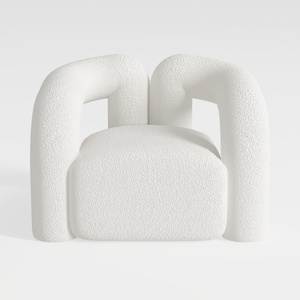
Minimalist Boucle Fabric Armchair Modern Unique Design 3D Model
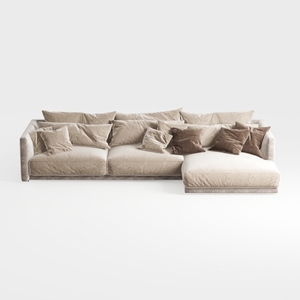
Minimalist Velvet L Shaped Sectional Sofa with Throw Pillows 3D Model
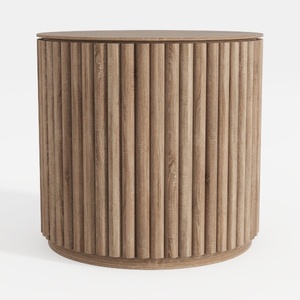
Minimalist Fluted Solid Wood Round Side Table 3D Model
Homestyler is your go-to online platform for effortless home design! With its user-friendly design tool, stunning 3D renderings, diverse design projects, and helpful video tutorials, you can easily transform your ideas into beautiful spaces. Discover your inner designer today!
Concevez maintenant gratuitement
































