


Crafting 3D FBX models might appear intimidating at first, but with the right support, it can be a fulfilling endeavor!
The foundation of developing any 3D FBX model lies in grasping the fundamentals of 3D modeling software. Regardless of whether you're a beginner or a seasoned designer, this guide will help you produce captivating models.
Initiating Your Journey with 3D Modeling Software
The initial step towards creating 3D models involves selecting suitable software. Well-known options encompass Blender, Autodesk Maya, and 3ds Max. All have distinct advantages, but Blender stands out for its cost-free and user-friendly nature. Did you know that Blender also enables native FBX format support?
After you have the software installed, take a moment to get accustomed to the interface. Most programs offer tutorials within the application or on their websites, making it simpler for newcomers.
Constructing Your Model
Once you feel at ease with the software, it’s your moment to forge your model. Begin with fundamental shapes and progressively refine them. For example, if you're conceptualizing a chair, start with a basic cube for the seat and integrate cylinders for the legs. This technique embodies the art of 3D modeling—constructing intricate designs from simple forms.
Make sure to search for online resources or forums that can provide insights on efficient modeling practices. Have you utilized reference images during your modeling journey?
Adding Textures and Materials
Post-modeling, it's time to apply textures and materials to give your 3D object the look you desire. This phase is vital as it boosts realism. Most software allows you to paint directly on the model or use images as textures. Wouldn't it be exciting to play with various textures and observe their impact on visual aesthetics?
Do keep in mind UV mapping if you're employing images as textures. This technique entails unwrapping your model for accurate application of 2D images onto it.
Exporting Your Creation to FBX Format
Finally, once you're happy with your creation, it's time to export it as an FBX file. In the majority of software, this can be executed through the 'Export' function. Select FBX as your file type and make sure to check all necessary settings, such as exporting textures.
Congratulations! You have successfully created your first 3D FBX model! Have you considered what projects you'll incorporate this into?
Frequently Asked Questions
A: You can utilize software like Blender, Autodesk Maya, or 3ds Max for crafting 3D FBX models.
A: Absolutely! Blender is a free tool that allows you to create 3D models and export them in FBX format.
A: Texturing enhances the realism of your model by adding surface details and colors.

Minimalist Walnut Round Dining Table 3D Model
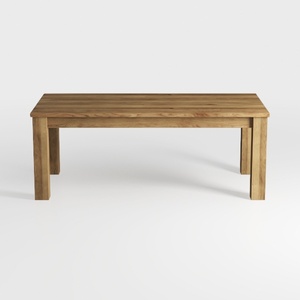
Minimalist Solid Oak Wood Dining Table 3D Model
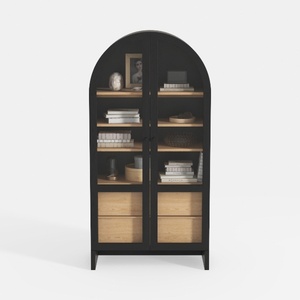
Modern Black Oak Arched Glass Display Cabinet 3D Model
Looking to transform your living space? Homestyler is your go-to online design platform! Its user-friendly design tool allows you to create stunning interiors with ease. Enjoy impressive 3D renderings, a plethora of design projects, and helpful DIY video tutorials that will inspire and guide you on your home design journey!
Design Now for FREE
































