

Animating a 3D model using Photoshop might feel overwhelming initially, but with the correct techniques, it can transform into an exhilarating creative journey. If you're eager to animate your 3D designs, here's a concise guide on how to effectively animate a 3D model in Photoshop while incorporating tools like Homestyler.
Fundamentals of 3D Animation within Photoshop
Before you embark on the animation journey, it's important to understand Photoshop’s 3D capabilities. Unlike specialized 3D design programs, Photoshop offers a more user-friendly interface that includes basic animation features. Ensure that your 3D model is prepared and successfully imported to start the animation process.
A Step-By-Step Approach to Animating Your 3D Model
1. **Import Your 3D Model**: Begin by importing your 3D model into Photoshop through the pathway File > 3D > New 3D Layer from File. Select the desired model, and it will show up in your workspace.
2. **Configure the 3D Panel**: Open the 3D panel (Window > 3D) to adjust the properties of your model. Here, you can manipulate scene settings, lighting, and material properties.
3. **Establish a Timeline**: Navigate to Window > Timeline to bring up the timeline panel. Click on 'Create Video Timeline' to lay the groundwork for the animation of your 3D model.
4. **Animate Using Keyframes**: Click the arrow next to the timeline to expose the 3D layers. Add keyframes at different intervals by clicking on the diamond icon next to the property you wish to animate, such as Position or Rotation. Modify the model’s position or rotation at these keyframes to outline the animation trajectory.
5. **Preview Your Animation**: After setting your keyframes, utilize the timeline interface to preview your animation. Fine-tune as necessary to ensure a seamless transition between frames.
6. **Export Your Animated Model**: Once satisfied with your animation, export it by going to File > Export > Render Video. Select your preferred settings and click Render to finalize the animated video.
Advice for Effective Animation
Consider these strategies to elevate your animation skills:
- **Experiment with Various Animations**: Feel free to explore different animation styles to determine which resonates best with your model.
- **Prioritize Realism**: Aim for lifelike movements and transitions to create captivating animations.
- **Leverage Resources**: Utilize online tutorials and forums to enhance your knowledge and get assistance when needed, including insights on using tools like Homestyler.
Wrap-Up
Animating a 3D model in Photoshop can be straightforward. With practice and imagination, you can create spectacular animations directly within the software. Are you excited to begin your animation adventure and breathe life into your 3D designs? Let’s unleash your creativity!
Frequently Asked Questions
What variety of 3D models can I animate within Photoshop?
You can animate numerous types of 3D models, including those created in different software or exported in formats that Photoshop supports, such as OBJ or 3DS.
Can I apply textures and materials onto my animated models?
Absolutely, you can apply various materials and textures to your models via the 3D panel in Photoshop to enhance their visual appeal.
Is it feasible to create intricate animations in Photoshop?
While Photoshop isn’t as robust as specialized 3D animation tools, it allows for the production of effective fundamental animations. For more complex projects, you might want to consider dedicated software.
How can I refine my animation abilities?
Consistent practice, following tutorials, and seeking feedback from online communities can significantly improve your animation skills.
Further Resources
To further enhance your learning experience, check out Adobe’s official tutorials on 3D animation in Photoshop, along with community sites like YouTube and dedicated design forums, and don't forget to explore Homestyler for additional inspiration.
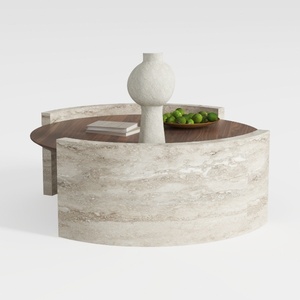
Minimalist Travertine Walnut Round Coffee Table 3D Model


Modern Black Marble Top Metal Base Nesting Coffee Table 3D Model
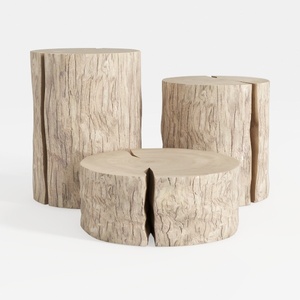
Rustic Solid Wood Stump Side Tables Set 3D Model
Discover your dream home with Homestyler! This user-friendly online design platform features a powerful design tool, stunning 3D renderings, a plethora of inspiring design projects, and helpful DIY video tutorials. Transform your space effortlessly, whether you're a seasoned pro or just starting out!
立即免费设计
































