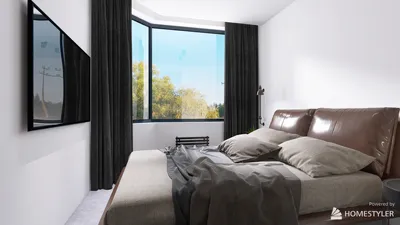


Transferring a 3D model file into Unity is a simple yet crucial step for crafting visually engaging scenes. Initially, verify that your 3D model is saved in a format compatible with Unity, such as FBX, OBJ, DAE, or directly from software like Blender. After ensuring the format is correct, open your Unity project and find the Assets folder. You can easily drag and drop your 3D model file into this folder; Unity will automatically import it and create the necessary components including meshes, textures, and materials. To incorporate your model into a scene, just drag it from the Assets folder into the Hierarchy or Scene view, and Unity will render it immediately in real-time. Designers should meticulously plan the lighting and positioning to enhance the appearance of the imported model, facilitating a seamless integration into the overall environment. For those looking to visualize spatial planning ahead of time, utilizing a 3D floor planner like Homestyler can assist in preparing your virtual layouts for effective integration into Unity, fostering a cohesive design process from concept to execution.
Tips 1:
Always ensure that your 3D model scale aligns with Unity’s standard units (1 unit = 1 meter) to avoid scale discrepancies. Organize your materials and textures into dedicated folders for better management and apply proper naming conventions for each asset.
FAQ
Q: What file formats does Unity support for 3D models?
A: Unity is compatible with formats such as FBX, OBJ, DAE, BLEND, and various others either directly or through plugins.
Q: How do I include textures with my 3D model when importing into Unity?
A: To successfully import textures, ensure the texture files are in the same directory as your model prior to the import, or manually assign them to material slots within Unity.
Q: Why does my 3D model appear differently once inside Unity?
A: Variations in appearance can occur due to lighting configurations, material compatibility issues, or missing textures; tweaking these settings in Unity will yield the best visual outcomes.
Q: Am I able to modify my 3D model after it has been imported into Unity?
A: You can make basic modifications in Unity, but for more advanced adjustments, it’s advisable to use your original 3D modeling software.
Q: Is there a method to plan my scene prior to importing models into Unity?
A: Indeed, using a 3D floor planner like Homestyler enables you to visualize layouts and spatial relationships before transferring assets into Unity.
Looking to transform your home? With Homestyler, you can unleash your creativity using its user-friendly online design tool. Explore stunning 3D renderings, access a variety of design projects, and watch DIY video tutorials that guide you every step of the way. Design your dream space today!
Concevez maintenant gratuitement
































