


Integrating a 3D model into Godot is fundamental for bringing your assets into a dynamic environment. This game engine accommodates a variety of 3D file formats such as .glTF, .dae (Collada), .obj, and .fbx (with the aid of community plugins). The preferred file type is .glTF due to its superior efficiency in managing materials, meshes, skeletons, and animations. To begin, export your 3D model from design tools like Blender in either .glTF or .dae format. Following this, drag the file directly into the “res://” directory of your Godot project, causing the engine to generate a dedicated import folder for your materials, textures, and mesh resources seamlessly.
To modify and preview your newly added scene file, which ends in .tscn or .scn, open it in Godot. This allows you to ensure that your textures are appropriately linked and the materials appear as expected. If your model includes animations, the AnimationPlayer or AnimationTree nodes in Godot can recognize any compatible keyframes. For optimal design results, it is crucial to neatly organize your 3D assets, establishing logical chunking and setting pivot points correctly in your design software, ensuring smooth adjustments within Godot.
As a designer, it’s advisable to think ahead about how lighting and spatial arrangements in your virtual environment will impact the imported assets. Employing a 3D floor planner during your design process allows you to visualize layouts effectively and tailor your 3D models for seamless integration into projects built with Godot.
Guideline 1:
Prior to importing, always verify your model’s scale and orientation, as inconsistencies between design software and Godot could lead to unforeseen issues. Implementing transformations (including location, rotation, and scale) in your modeling application, while using snapshot previews in Godot, can significantly enhance asset fidelity and overall workflow.
Frequently Asked Questions
Q: What is the optimal file format for importing 3D models into Godot?
A: The .glTF format is typically suggested, as it efficiently preserves materials, animations, and hierarchical data within Godot.
Q: My textures are not visible after importing — how can I resolve this?
A: Make sure your textures are in the same folder as your 3D model and that they are correctly linked in the source software prior to export. Godot utilizes relative paths for textures.
Q: Is it possible to update a 3D model in Godot without losing material changes?
A: Yes, you can overwrite the imported model file to update it in Godot, but ensure that you reassign any custom materials or reapply necessary settings after the update.
Q: How do I resolve scale issues with my imported models in Godot?
A: Verify and apply the correct scale in your 3D modeling software before exporting, and check that the import settings in Godot correspond to your intended scene scale.
Q: Can Godot work with animated 3D models?
A: Definitely! Godot supports skeletal animations as long as they are correctly exported, particularly with the .glTF format, along with the model.
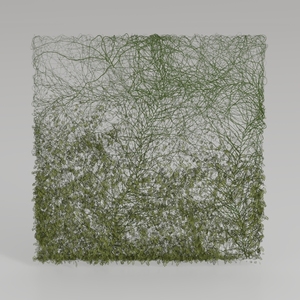
Natural Green Vine Wall Panel Decorative 3D Model

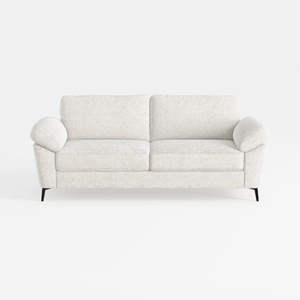
Minimalist Fabric Loveseat Sofa with Black Metal Legs 3D Model
Discover your dream home design with Homestyler! This user-friendly online platform offers an intuitive design tool, stunning 3D renderings, and a treasure trove of design projects and DIY video tutorials. Bring your ideas to life effortlessly—perfect for both beginners and seasoned decorators!
Progetta ora GRATIS
































