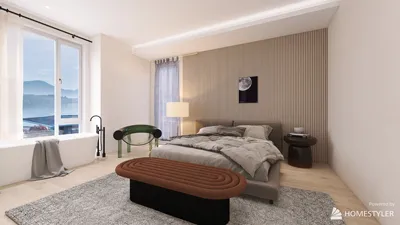


Viewing a 3D model in Virtual Reality (VR) can greatly enhance your design experience, rendering it more immersive and captivating for architects, designers, and hobbyists alike. Interacting with a model in a 3D virtual space amplifies your understanding and connection to the area. So, how can you view a 3D model in VR? Let’s delve into the procedure!
Understanding the Fundamentals of VR Viewing
Virtual Reality headsets allow users to dive into a 3D environment, delivering a comprehensive sensory experience that traditional displays simply cannot match. To view a 3D model in VR, several essential components are required: a compatible model file, a VR headset, and appropriate software. Notable VR headsets include the Oculus Rift, HTC Vive, and Valve Index. Be sure that your PC or device meets the required specifications to run VR applications seamlessly for an optimal experience.
Step-by-Step Guide to Visualizing 3D Models in VR
1. **Select Your 3D Model:** Ensure your 3D model is saved in a suitable format (like .obj, .fbx, or .glb), as different design programs can export to these types.
2. **Pick a VR Platform:** Utilize software platforms such as Unity, Sketchfab, or Homestyler to upload and set up your 3D model. Each platform may have specific guidelines for importing and fine-tuning your model for VR viewing.
3. **Connect Your VR Headset:** Follow the manufacturer’s guidelines to configure your VR headset, ensuring it connects properly to your computer or device. This setup often involves installing necessary drivers and software.
4. **Open the Application:** Launch the VR software where you have uploaded your 3D model. Put on your VR headset and use the controllers to navigate to your model within the application.
5. **Experience the Immersion:** Once you locate your 3D model in the virtual realm, feel free to explore—walk around, interact, and appreciate the design details like never before.
Tips for an Enhanced VR Experience
- Ensure your play space is clear of obstacles to allow for unhindered movement while in VR.
- Tailor your settings for comfort, adjusting playback speed and lighting options according to your preferences.
- Explore the multiple interactive tools available within the software to heighten your engagement with the model.
FAQ
A: Popular applications to consider are Unity, Sketchfab, and Homestyler, which support various 3D file formats.
A: Although high-end specifications can significantly boost performance, many mid-range computers can effectively manage basic VR applications.
A: To optimize your model for VR, keep a low polygon count, use efficient textures, and ensure compatibility with your selected VR software's format requirements.
What began as an Autodesk innovation has evolved into a design platform used by more than 18 million people around the globe. Homestyler combines powerful rendering, an intuitive editor, and a vast furniture library to help you turn inspiration into photorealistic designs — whether you're redesigning a single room or planning an entire home.

Rustic Solid Wood Fabric Dining Table Chair Set 3D Model

Minimalist Concrete Large Planter Pot with Greenery 3D Model
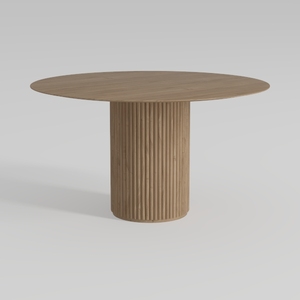
Minimalist Solid Oak Fluted Round Dining Table 3D Model
Homestyler is your go-to online design platform for creating stunning home interiors. With its user-friendly design tool, impressive 3D renderings, and a wealth of DIY video tutorials, you'll find everything you need to transform your space and bring your design dreams to life!
Zaprojektuj teraz za darmo
































