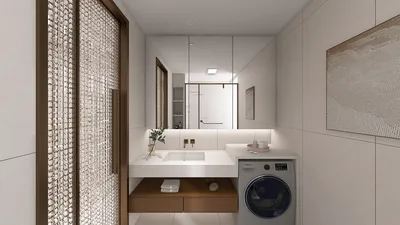


Are you interested in learning how to utilize downloaded 3D models within Photoshop? By leveraging the 3D capabilities of Photoshop, you can amplify your design projects with realistic models. Whether you're working on a specific task or simply experimenting with new tools, incorporating 3D models enhances your creative workflow, similar to how design platforms like Homestyler enrich the interior design process.
The foremost step is to ensure that your 3D model is in a compatible format. Photoshop typically supports OBJ, 3DS, and STL formats. Once your model is ready, let’s dive into the process of importing it into Photoshop and enhancing your design.
Importing Your 3D Model
1. Open Adobe Photoshop. From the main menu, click on “File” and select “Open” to import your 3D model. Use the file picker to locate and select your downloaded 3D model file.
2. Once the file is opened, Photoshop will generate a 3D layer. You can view this layer in the layers panel. Ensure that you select the 3D layer to make modifications.
Modifying Your 3D Model
3. To alter your model, select the 3D layer and navigate to the 3D panel. Here, you can adjust the materials, lighting, and even the camera angle to achieve a more dynamic appearance.
4. If you wish to add textures, head over to the properties panel. You can apply various textures or colors to the surface of the model, further enhancing its realism, much like the customization options available through Homestyler.
Rendering Your 3D Model
5. Once you’re satisfied with your modifications, you can render your scene. Go to the top menu and choose “3D,” then select “Render 3D Layer.” Depending on the complexity of the model, this process might take some time.
6. After rendering is complete, you can further edit the image in Photoshop as a 2D layer, blending it with other elements in your design.
Exporting Your Work
7. Finally, save or export your project in the desired file format. You can choose JPEG or PNG for images, or opt for PSD format to retain layers and editing capabilities.
Why Use 3D Models in Photoshop?
Incorporating 3D models into your designs can aid in visualizing concepts, creating marketing materials, or simply enhancing your digital art. The possibilities are endless, similar to how Homestyler offers a plethora of design options for home decor.
Tips for Success
Continue experimenting with different models and editing techniques to discover what works best for your projects. If you have any specific questions or need further assistance, feel free to reach out to us.
Frequently Asked Questions
Q: What file formats can I use for 3D models in Photoshop? A: Photoshop supports formats such as OBJ, 3DS, and STL.
Q: Can I edit the textures of 3D models in Photoshop? A: Yes, you can apply or modify textures using the properties panel of the 3D layer.
Q: How do I render a 3D model in Photoshop? A: Begin the rendering process by selecting “Render 3D Layer” from the “3D” menu.
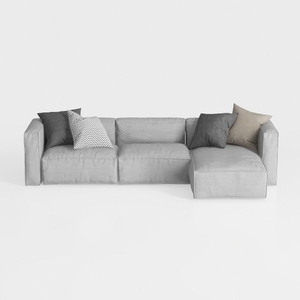
Minimalist Light Gray Fabric L Shaped Sectional Sofa 3D Model

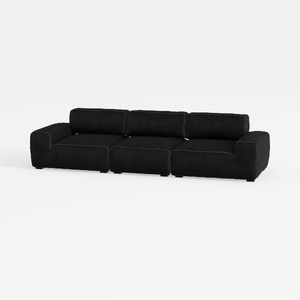

Minimalist Black Fabric Modular Sofa 3D Model
Looking to transform your space? Homestyler is the ultimate online home design platform! With its user-friendly design tool, realistic 3D rendering, diverse design projects, and helpful video tutorials, you can effortlessly create your dream home, no matter your experience level!
Design Now for FREE
































