


Are you eager to add a touch of excitement to your presentations? Mastering the art of making a 3D model move in PowerPoint can greatly enhance your slides and captivate your audience. With a few simple clicks, you can transform static images into engaging visuals that hold your listeners’ attention more effectively.
To begin, confirm that you have the appropriate version of PowerPoint, ideally PowerPoint 2019 or a newer version, as these variants support 3D models. Here’s a step-by-step guide to embark on your creative journey!
Insert a 3D Model:
1. Launch your PowerPoint presentation and navigate to the slide where you'd like to incorporate your 3D model. 2. Click on the Insert tab located in the ribbon. 3. Select 3D Models and opt for either This Device to upload a model from your local storage or Stock 3D Models to pick from PowerPoint’s extensive library.
Animate Your 3D Model:
Once your 3D model is in place, it’s time to bring it to life with animation: 1. Click on the model to select it. 2. Move to the Animations tab and click on Add Animation. 3. Choose an animation effect that complements your presentation, such as Spin or Grow/Shrink.
You can personalize the timing and duration of each animation effect to ensure a smooth transition. Experimenting with various effects will help you find the best way to convey your message!
Preview and Fine-tune:
After applying your animations, be sure to preview your slide. Click on the Slide Show tab and select From Current Slide to watch your 3D model come to life.
Tips for Effective 3D Animation:
1. Select animations that align with the theme of your presentation. 2. Avoid overdoing it; excessive animations can detract from your core message. 3. Consider incorporating interactive components, allowing your audience to engage with the model for a more hands-on experience with tools like Homestyler.
FAQ
Q: Can I use any 3D model in PowerPoint? A: Not all 3D models are compatible. Ensure that they are in formats like .FBX, .OBJ, .3MF, or .STEP.
Q: How do I edit the 3D model in PowerPoint? A: Click on the model and utilize the 3D Model Tools tab that appears to modify properties and views.

OKD 48" Modern Farmhouse Coffee Table, Wooden
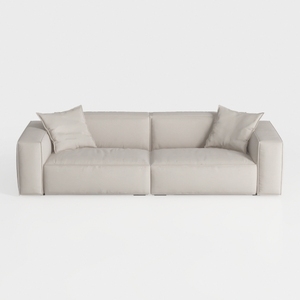
Manhattan Comfort Verandah 112” Chenille Sofa with
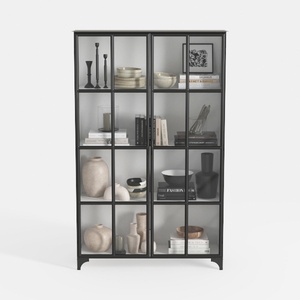
Triple Wide 5-Tier Bookshelf, 70.87" L x 79.13" H
Discover the ease of home design with Homestyler! This user-friendly platform features an intuitive online design tool, stunning 3D renderings, inspiring design projects, and engaging video tutorials. Transform your space effortlessly and let your creativity shine, whether you're a novice or a seasoned designer!
Дизайн сейчас бесплатно
































