


Integrating a 3D model into your PowerPoint slides will not only capture attention but also enhance your narrative. Whether you're presenting a product concept, an architectural design, or a creative idea, the addition of a 3D model can create a lasting impression on your audience.
To begin, verify that your PowerPoint version is 2016 or later, as these versions support 3D models. Here’s a straightforward guide to help you insert a 3D model into your presentation:
Step 1: Open PowerPoint and Select Your Slide
Start PowerPoint and navigate to the desired slide where you want to embed your 3D model. This can either be a new blank slide or an existing one that complements your overall presentation.
Step 2: Access the Insert Menu
Head to the Insert tab located in the top menu. Find the 3D Models option. You can either search for a 3D model stored locally on your machine or choose From Online Sources to explore a variety of 3D models available online.
Step 3: Embed Your 3D Model
After selecting a model, it will display on your slide. Adjust the size by clicking and dragging the corners of the model. You can rotate the model to view it from various perspectives, ensuring it integrates seamlessly into your presentation.
Step 4: Modify the Model's Position and Dimensions
With the Format tab activated when the 3D model is selected, you can fine-tune aspects like style, rotation, and dimensions. Use the 3D Model Views feature to select pre-defined angles that best highlight your model.
Step 5: Enhance with PowerPoint Animation (Optional)
For a more dynamic presentation, consider adding animations to your 3D model. Select the model, then navigate to the Animations tab to explore various options that can make your model stand out and be emphasized during the presentation.
By implementing these steps, you can effortlessly incorporate 3D models into your PowerPoint presentations. This not only distinguishes your slides but also engages your audience far more effective than static images. Don't forget to rehearse with the 3D model for smooth transitions and interactions during your presentation.
FAQ
Q: Can I utilize any 3D model in PowerPoint? A: Absolutely, but make sure the model is in a compatible format such as .FBX or .OBJ for optimal results.
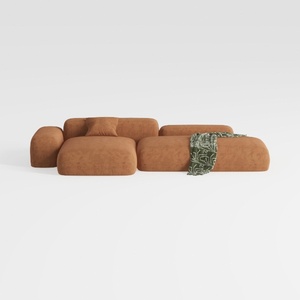
Minimalist Brown Fabric Modular Sectional Sofa 3D Model
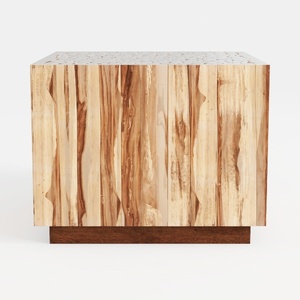

Minimalist Solid Wood Accent Cabinet with Textured Top 3D Model

Minimalist Concrete Large Planter Pot with Greenery 3D Model
Homestyler is your go-to online home design platform! With its user-friendly design tool, stunning 3D rendering features, and a wealth of inspiring design projects and DIY video tutorials, you can easily create the perfect space without any prior experience. Start designing today!
Design jetzt kostenlos
































