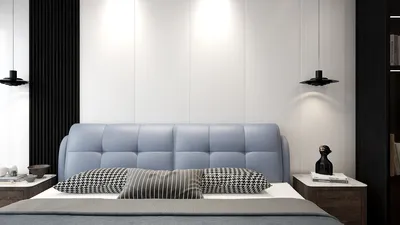


Are you eager to upgrade your creative endeavors by incorporating new 3D models into Adobe Dimension? Fortunately, the import process is not only simple but also accessible for users of all experience levels, even if you're just starting out. Adobe Dimension empowers you to integrate your distinct 3D designs, offering unparalleled flexibility to modify your creations.
To begin, make sure that your 3D model is in a compatible file format. Adobe Dimension recognizes several formats such as OBJ, STL, and FBX. Once your model is prepared, follow the subsequent steps to import it successfully.
Step 1: Launch Adobe Dimension
Start by opening Adobe Dimension on your computer. Ensure that you have a fresh or pre-existing project open where you intend to bring in your model. Opting for an existing project can provide a good visual context for where your new addition will integrate into your overall design.
Step 2: Import Your 3D Model
Proceed to the 'File' menu located in the upper left corner of the screen and choose 'Import' from the options available in the dropdown. This action will prompt a file explorer to open, enabling you to locate your 3D model. Select the appropriate file and click 'Open.' Your model will be displayed in the workspace immediately.
Step 3: Modify the Model
After successfully importing your model, you can adjust its position, scale, or rotation to perfect its fit within your design. Utilize the manipulation tools found in the right panel to change the size and placement of the model. If the model requires texturing or further adjustments, don’t hesitate to explore the material options in Adobe Dimension to enhance its visual appeal.
Step 4: Save Your Work
Once you have finalized the arrangement of your model, make sure to save your project! Click on 'File' and then choose either 'Save' or 'Save As' to store your work, allowing you to revisit it whenever necessary.
Helpful Tips for a Seamless Import Experience:
1. **Verify File Compatibility**: Always ensure your 3D model is in a format supported by Adobe Dimension to prevent any import complications.
2. **Optimize Your Model**: Prior to importing, optimize your 3D model for both performance and quality. This involves reducing the polygon count and ensuring that textures are correctly aligned.
3. **Utilize Trusted Sources**: When downloading models from the internet, always rely on reputable resources to guarantee quality and compatibility.
FAQ
Q: Can I utilize SketchUp models with Adobe Dimension?
A: Absolutely! You can export SketchUp models in a compatible format, like OBJ, and then seamlessly import them into Adobe Dimension.
Q: What should I do if my model doesn't display correctly in Adobe Dimension?
A: Verify the file format of your model to ensure its compatibility. Occasionally, cleaning the model within 3D software prior to import can help resolve display issues.
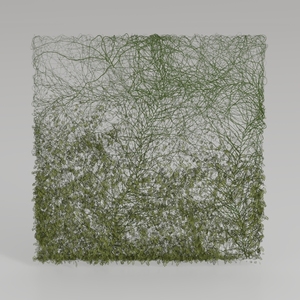
Natural Green Vine Wall Panel Decorative 3D Model
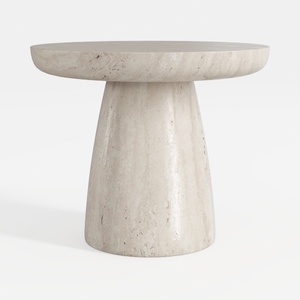
Minimalist Travertine Round Side Table 3D Model

Minimalist Fabric L Shaped Sectional Sofa 3D Model
Discover the ease of home design with Homestyler! This user-friendly platform offers a state-of-the-art online design tool, stunning 3D renderings, a plethora of design projects, and insightful DIY video tutorials. Transform your living space effortlessly and creatively, no matter your skill level!
Progetta ora GRATIS
































