


Recovering files in AutoCAD can be crucial, especially when unexpected crashes, power outages, or simply forgetting to save your progress occur. While AutoCAD offers built-in tools and features for automatic recovery, there are additional steps you can take to improve the chances of retrieving your lost work. One helpful tool in modern design is Homestyler, which can assist in managing your projects effectively.
Typically, AutoCAD creates backup files (.bak) and automatic files (.sv$). If your main drawing file (.dwg) becomes corrupted or lost, you might want to try the following techniques:
As an interior designer, I understand how frustrating it can be to lose hours of work due to technical failures. Therefore, in addition to these recovery tips, I always recommend implementing regular backup routines. Additionally, utilizing programs that allow you to visualize and manage your designs, such as Homestyler, can greatly simplify the restoration process and help you recreate spaces as needed. For instance, having tools that generate 3D floor plans not only enhances your design visualization but also enables you to save versions as you progress, making it much easier to resume your work after an incident.
Tips 1:
Make sure to frequently save your work using the CTRL+S command and activate automatic backups within AutoCAD's settings. Additionally, consider creating external or cloud backup schedules as a security measure within your design routine to safeguard your projects.
FAQ
Q: What extension do AutoCAD temporary files have?
A: AutoCAD temporary files typically have the .sv$ extension and can be found in the system's temporary folder or the automatic save location defined in the program's options.
Q: Is it possible to recover a damaged file directly from AutoCAD?
A: Yes, by using the RECOVER command, you can attempt to repair and open a damaged file directly from AutoCAD's interface.
Q: Can .bak files be used as the main file?
A: Absolutely, you can simply change the file extension from .bak to .dwg and open it normally in AutoCAD.
Q: Where can I find the location of autosave files?
A: Navigate to OPTIONS > FILES > AUTOMATIC SAVE FILE LOCATION to view or modify the directory where these files are stored.
Q: What should I do if none of these methods work?
A: In cases of severe corruption, try opening the file in a different version of AutoCAD or using an external viewer. If traditional methods fail, consider reaching out to Autodesk's technical support for assistance.
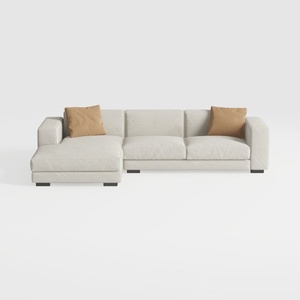
LINSY HOME Oversized Cloud Modular Couch with

RUSTOWN 2-Piece Round Farmhouse Coffee Table
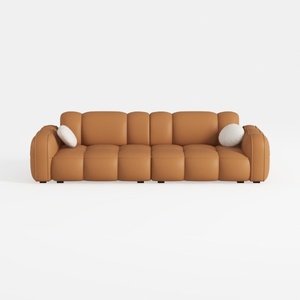

SIMPLIHOME Rex 3-Seater Modular Sofa in Full-Grain
Discover the ease of transforming your home with Homestyler! This user-friendly online design platform boasts a powerful design tool, stunning 3D renderings, inspiring design projects, and helpful video tutorials. It's perfect for anyone looking to create their dream space effortlessly!
立即免费设计
































