


Displaying a 3D model in PowerPoint is a captivating method to present your designs and concepts. These 3D models help your audience visualize ideas more dynamically, improving their comprehension. In this guide, I will outline the steps for presenting your 3D model effectively while keeping your listeners engaged.
How to Import a 3D Model into PowerPoint
1. Start by ensuring that you are using a suitable version of Microsoft PowerPoint. The capability to include 3D models is available from PowerPoint 2016 onwards.
2. Launch your PowerPoint presentation and go to the slide where you intend to insert the 3D model.
3. Click the 'Insert' tab located on the ribbon, then select '3D Models'. You can choose 'From a File' to upload your own model, or 'From Online Sources' to access Microsoft's extensive 3D model database.
Optimizing Your 3D Model Display
After inserting your model, it's crucial to enhance its presentation. Here are some useful tips:
1. **Adjust Size and Position**: Modify the dimensions of your model to complement your slide layout without overshadowing other elements. You can also reposition it to draw better attention.
2. **Enable 3D Rotation**: To enhance interactivity, allow your model to rotate. Within the 'Format' tab, choose '3D Rotation' options to provide different perspectives. This adds a dynamic aspect to your visual presentation.
Elevating Your Presentation with Visual Effects
Incorporating visual effects can significantly enhance your presentation. Think about including:
1. **Animation Effects**: Go to the 'Animations' tab to add entrance or emphasis effects to your 3D model. This not only captures attention but also builds intrigue.
2. **Narration**: While presenting, discuss the vital features of your 3D model. This assists your audience in following along and provides context to what they are observing.
Conclusion
By adhering to these steps, you can achieve a visually stunning and educational presentation that effectively highlights your 3D designs. Remember to engage your audience by making the presentation interactive and informative, utilizing features in PowerPoint to boost your delivery.
Tip 1:
To enhance audience engagement, consider practicing your presentation several times to ensure a seamless delivery. Understanding your audience’s viewpoint will help you tailor your content to align with their interests.
FAQ
Q: Is it possible to use any 3D model in PowerPoint? A: PowerPoint accepts a variety of 3D model formats like .fbx, .obj, and .3mf. Make sure your model is in a compatible format to facilitate successful import.
Q: What can I do to guarantee my PowerPoint presentation operates smoothly? A: Prior to your presentation, test your slides on the equipment you plan to use, ensuring compatibility and optimal performance, especially when incorporating 3D models.
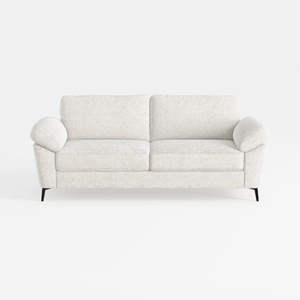
sofa_843927-101 Stories
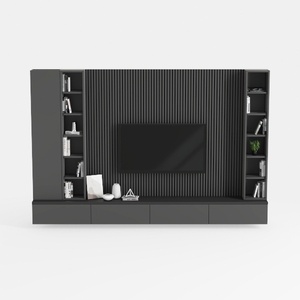
Sideboard Buffet, Kitchen Storage Cabinet with
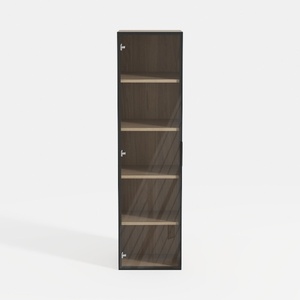
Home Square 5-Shelf Engineered Wood Bookcase Set
Discover the ease of home design with Homestyler! This user-friendly platform features an advanced online design tool, stunning 3D rendering, and a wealth of DIY video tutorials. Perfect for anyone looking to transform their space, Homestyler makes your interior design dreams a reality!
Progetta ora GRATIS
































