


Are you seeking to streamline your workspace by disabling 3D modeling in AutoCAD 2019? The good news is that this adjustment is simple to execute, allowing you to concentrate on 2D designs with greater efficiency. By switching off the 3D functionalities, you can tailor your workspace to meet your design requirements more effectively.
How to Disable 3D Modeling:
1. **Launch AutoCAD 2019**: Start the software and open your existing drawing project.
2. **Find the Workspace Switcher**: Look at the top-left corner of your AutoCAD interface for the workspace switcher, which usually defaults to '3D Modeling'.
3. **Change to 2D Drafting**: Click the workspace switcher and select '2D Drafting' from the options provided. This will deactivate 3D modeling features, enabling you to work within a more familiar 2D setting.
Suggestions for Enhanced 2D Workflows:
If your primary focus is on 2D illustrations, it may be beneficial to further customize your interface. Consider disabling toolbars or panels related to 3D design, which can help improve clarity and concentration during your work sessions.
Common Questions
Q: What are the benefits of turning off 3D modeling when focusing on 2D? A: Disabling 3D modeling can help declutter your workspace, facilitating easier navigation and allowing you to focus on your 2D projects.
Q: Is it possible to revert back to 3D modeling later? A: Absolutely! You can switch back to '3D Modeling' via the same workspace switcher at any time when you wish to engage in 3D design.


RJYYYDS Desk Game Table Home Office Desk Walnut De
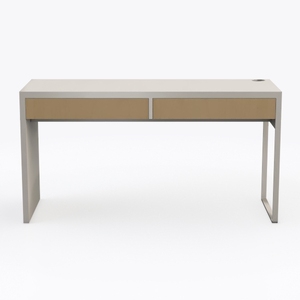
Hooker Furniture Home Office Cascade Writing Desk
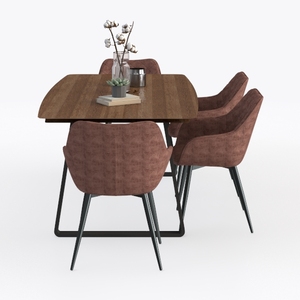
Modern Dining Chairs Set of 6, Mid Century Kitchen
Discover the joy of home design with Homestyler! This user-friendly online platform offers powerful design tools, stunning 3D renderings, and an array of inspiring design projects. Plus, with engaging DIY video tutorials, you can effortlessly create your dream space, no matter your skill level!
Concevez maintenant gratuitement
































