

To effectively animate your 3D model file using Unreal Engine, a solid grasp of the import process, movement execution, and testing animations is essential. This detailed guide will provide you with all the necessary steps to ensure your 3D model imports accurately and functions effectively within your virtual environment.
Step 1: Importing Your 3D Model File
The initial step involves bringing your 3D model file into Unreal Engine. Begin by launching your project and navigating to the Content Browser. To maintain an organized workspace, it’s wise to create a new folder by right-clicking in the Content Browser. Following this, you can drag and drop your 3D model file, typically in FBX or OBJ format, into this folder. Remember to review and adjust your import settings to align with the specific requirements of your project, ensuring full compatibility and functionality.
Step 2: Incorporating Movement Functionality
Once your model is successfully imported into Unreal Engine, the next important step is to enable its movement capabilities. To do this, you need to create a blueprint specifically for your model. Again, utilize the right-click option in the Content Browser, select 'Blueprint Class', and choose 'Actor'. In this blueprint, add your 3D model as a component. Next, go to the Event Graph to establish the movement behavior you desire, which may include applying forces or adjusting the actor’s position over a specified timeframe, thereby creating dynamic interaction.
Step 3: Testing Your Animation
After compiling your blueprint, it’s time to place it in your level for testing. Position your model, then click the play button. This will allow you to observe the movement of your model based on the logic you implemented in your blueprint. You can refine various parameters like speed and behavior within the blueprint editor, ensuring the animation aligns with your creative vision.
FAQ
Q: Is it possible to set my model to loop its movement?
A: Certainly! To enable a looping movement feature in your blueprint, you can use timeline nodes or script a sequence that repeats itself, thereby enhancing the interactivity of your model. Utilizing tools like Homestyler can also help further in visualizing and refining your animation.

Modern Solid Wood Frame Fabric Upholstered Accent Armchair 3D Model
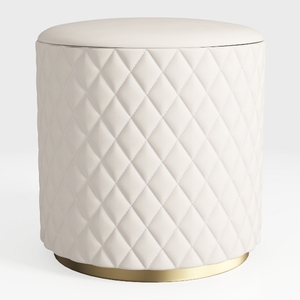
Modern Luxury Quilted Leather Upholstered Round Ottoman with Gold Base 3D Model
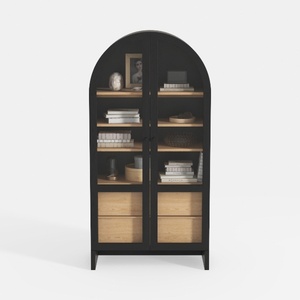
Modern Black Oak Arched Glass Display Cabinet 3D Model
Homestyler is your go-to platform for effortless home design. With its user-friendly online design tool, stunning 3D renderings, diverse design projects, and informative video tutorials, you can easily transform your interior spaces into your dream home. Start creating today!
Zaprojektuj teraz za darmo
































