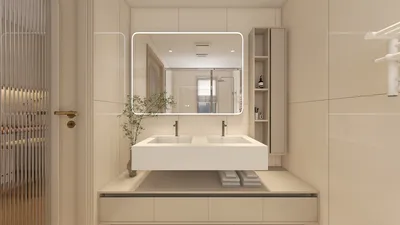


Unity 3D stands out as a leading platform for creating immersive 3D experiences, whether for gaming, architectural showcases, or virtual simulations. The process of generating 3D models within Unity typically involves utilizing external modeling tools such as Blender, Maya, or 3ds Max alongside Unity's comprehensive suite of tools for importing and managing these assets. Below is a streamlined guide to help you seamlessly integrate your custom 3D models into your Unity projects while optimizing them for peak performance and visual appeal.
Step 1: Preparing Your 3D Models
Most of the 3D modeling process is completed in specialized software before importing into Unity. It is crucial to export your models in a format compatible with Unity, like FBX or OBJ, while ensuring you include required textures and, if necessary, baked lighting. Make sure to verify the scale, orientation, and hierarchy of the model prior to export to minimize adjustments needed in Unity afterwards.
Step 2: Importing Models into Unity
After generating your models, import them by simply dragging and dropping the files into the Assets folder of the Unity Editor. Unity automatically processes and imports models, textures, and materials. For intricate assets, such as those with animations or multiple materials, be sure to check the import settings to ensure optimal performance and visual quality.
Step 3: Material and Texture Assignment
The choice of materials and textures is fundamental for enhancing the appearance of your 3D models. Utilize Unity’s Material Editor to adjust aspects like shaders, normal maps, and color attributes. The PBR (Physically-Based Rendering) workflow is particularly effective for achieving realistic lighting effects for your designs.
Step 4: Placing and Configuring Models in the Scene
After importing and assigning materials, you can drag your models into the Scene view. Here, you have the flexibility to modify their position, rotation, and scale, as well as to add components, such as Rigidbody for physics interactions or Collider for user interaction. This turns your 3D model into a fully functional element within your Unity-based project.
Step 5: Optimization for Real-Time Performance
For any Unity project, maintaining efficiency across various devices is essential. Optimize your models by decreasing polygon counts, implementing efficient texture formats, and using Level of Detail (LOD) groups. Employing baked lighting and occlusion culling will also help to enhance frame rates and lessen resource consumption.
As an interior designer, my approach to 3D modeling in Unity mirrors the careful planning involved in designing physical spaces: starting with a precise layout, gradually adding intricate details, and refining ambiance through strategic lighting and materials. For individuals seeking to enhance their design workflows, utilizing a 3D floor planner, such as Homestyler, can efficiently facilitate both creative designs and client presentations, seamlessly integrating 3D assets into one cohesive space.
Tips 1:
Maintain orderly model hierarchies—adopt clear naming conventions and logically group similar objects. This tactic simplifies editing and problem-solving as your Unity scenes become more intricate.
FAQ
Q: Is it possible to create 3D models directly within Unity?
A: While Unity provides basic geometric shapes (like cubes and spheres), comprehensive 3D modeling should be conducted in specialized software like Blender or Maya, which can then be imported into Unity for further work.
Q: Which file formats does Unity support for 3D assets?
A: Unity mainly supports formats like FBX, OBJ, and COLLADA, with FBX being the preferred choice for animations and complex model attributes due to its superior compatibility.
Q: What are some strategies for optimizing 3D models for real-time rendering in Unity?
A: To improve performance, aim to reduce the polygon count, utilize texture atlases, enable LOD, and judiciously manage the complexity of materials and shaders to balance visual fidelity and system performance.
Q: Once I import a 3D model into Unity, how should I handle materials and textures?
A: Unity often auto-generates materials during the import process, which you can modify in the Inspector. Reassigning textures or adjusting shader settings can help achieve the best visual outcome.
Q: Can Unity support animated 3D models?
A: Yes, Unity can handle animated models that are imported via FBX files, including both skeletal and rigged characters as well as object animations.

Minimalist Fabric Oversized Sofa 3D Model

Minimalist Solid Oak Fluted TV Stand with Black Metal Legs 3D Model
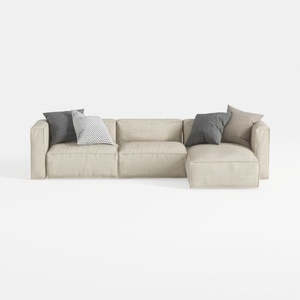
Minimalist Fabric L Shaped Sectional Sofa with Throw Pillows 3D Model
Discover Homestyler, your go-to online home design platform! With an easy-to-use design tool, amazing 3D renderings, inspiring design projects, and helpful DIY video tutorials, you can transform your space into your dream home effortlessly. Start creating today!
Design Now for FREE
































