


Exporting a 3D model from Onshape can be both a straightforward and effective process when you understand the necessary procedures. This detailed guide will lead you through the necessary steps to expertly export your designs for further analysis, presentation, or use, all while seamlessly integrating your experiences with Homestyler.
Exploring Export Options in Onshape
Before jumping into the actual procedures, it's important to become acquainted with the various export options that Onshape offers. You can export models in formats like STL for 3D printing, STEP for CAD interoperability, IGES for data exchange, and more, each tailored for specific purposes in design workflows, including visualization tools like Homestyler.
Steps to Successfully Export Your 3D Model from Onshape
1. Access Your Onshape Document: Begin by opening the document that contains the 3D model you intend to export. Make certain you're in the appropriate workspace to prevent any confusion. This is crucial, especially if you plan to import your designs into Homestyler later.
2. Identify the Part or Assembly: Select the specific part or assembly you wish to export, ensuring it is properly highlighted. This will assist in avoiding any mistakes when exporting elements.
3. Open the Export Menu: After making your selection, right-click on the part or assembly and choose the "Export" option from the context menu. Doing so will present you with the export dialog box where you can specify your preferences.
4. Choose Your Desired File Format: In the export dialog, pick your desired file format from the dropdown list (e.g., STL, STEP, IGES). It’s crucial to select a format that aligns with your intended application, especially if you plan on integrating your designs into Homestyler.
5. Adjust Export Settings: Configure any settings related to scale, units, or resolution based on your project's particular needs. This crucial step ensures your exported model meets the necessary specifications for further manipulation or presentation.
6. Finalize the Export Process: Click on the "OK" button to complete the export. Your file will be processed and made available for download shortly thereafter, along with a notification confirming that the export has been completed.
Common Issues and How to Troubleshoot Them
Should you encounter challenges during the export process, check your internet connection to guarantee stability. Furthermore, ensure that the part isn't overly complex for your chosen file format, as this may result in export failures. Lastly, always verify that you hold the necessary permissions to export the document, since lacking the required rights may inhibit the process.
Frequently Asked Questions
Q: What file formats can I export my 3D model to from Onshape?
A: You can export your model to a variety of formats, including STL, STEP, IGES, and many others, each customized to fit your specific needs according to the intended application, including those related to Homestyler.
Q: Is there a requirement for special permissions to export models from Onshape?
A: Generally, at least edit permissions on the document are necessary to successfully export models. If you face issues, it’s advisable to consult your document administrator.


Cream Boucle Floor Couch Sofa - Mid Century Modern

Sebastian Teak Brown 4-Piece Wood Outdoor Patio Co
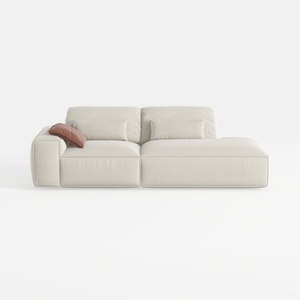
109" Cloud Sectional Couch - L Shaped Chenille Cou
Discover Homestyler, the ultimate online home design platform that empowers you to create stunning interiors effortlessly! With its innovative design tool, realistic 3D renderings, inspiring design projects, and helpful DIY video tutorials, your dream home is just a click away. Start designing today!
立即免费设计
































