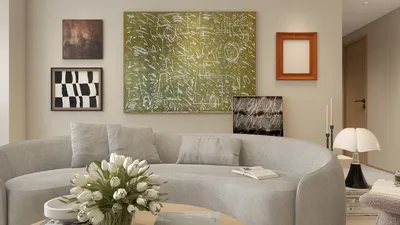


Enhancing a 3D model by applying texture using a single image can significantly improve the visual realism and depth of your design. In this article, we will guide you through the process step-by-step, ensuring that you can apply textures effectively and effortlessly, especially when working with tools like Homestyler.
Understanding Texture Mapping:
The first essential step in texture application is grasping the concept of texture mapping. This technique involves enveloping an image, referred to as the texture, around a 3D object. Ultimately, this transforms your flat image into a substrate that enhances the overall appearance of your model. But what actually happens in this process?
To start, it's critical that your 3D model is equipped with UV coordinates. UV mapping serves the purpose of projecting a two-dimensional image onto the surface of a 3D model. If your model lacks UV coordinates, you will need to generate them first. Fortunately, numerous software tools, including Homestyler, offer this feature, often with automated mapping options.
Preparing Your Image Texture:
For optimal results, it’s important to refine your texture image. This includes resizing it to dimensions appropriate for your 3D model and ensuring that it maintains a suitable resolution without being excessively high to avoid lagging during rendering. An image editing tool can be utilized to achieve this optimization.
When choosing a texture image, think about how it can enhance the features of your model. For example, does your design require a wood grain texture to simulate furniture or a fabric texture for upholstery? Select an image that resonates best with the material you aim to replicate in your model.
Applying the Texture in Software:
After your texture image is prepared, the next step is applying it within your chosen 3D software. The procedures can vary slightly depending on the program, but generally, you will follow these steps:
1. **Import your 3D model**: Load your model into the 3D software, such as Homestyler.
2. **Select the model**: Ensure the model is activated by clicking on it.
3. **Create a material**: Most software will provide an option to create a new material, which will hold your selected texture.
4. **Load your image**: In the material settings, find an option to add your texture map. Upload your prepared image here, typically labeled as ‘Diffuse’ or ‘Albedo’.
5. **Adjust settings**: Modify the settings such as scale, tiling, and orientation to achieve the desired texture appearance.
Final Touches:
Once the texture is applied, it is vital to view your model under various lighting conditions to fine-tune its appearance. Adjust properties such as shininess, roughness, or any other features necessary to create the desired look. Additionally, examining your model from different angles is crucial to ensure that the texture appears seamless.
Conclusion:
Applying texture using a single image can significantly elevate the quality of your 3D designs. By following this guide and experimenting with various techniques, you can enhance your workflow and achieve stunning results with the help of software like Homestyler.
FAQ
A: Yes, while this guide highlights the use of a single image, you can easily stack multiple textures if required.
A: Programs such as Blender, 3ds Max, and Maya are excellent choices for texture mapping, complemented by user-friendly interfaces to streamline the process.
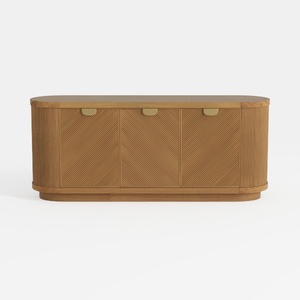
Modern Minimalist Solid Wood Fluted Sideboard with Brass Accents 3D Model
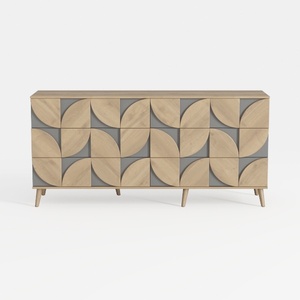
Modern Geometric Pattern Solid Wood Sideboard Cabinet 3D Model
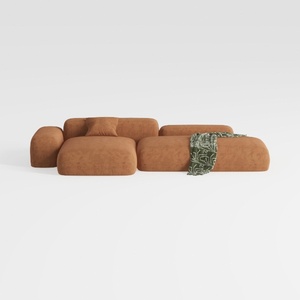
Minimalist Brown Fabric Modular Sectional Sofa 3D Model
Looking to unleash your inner designer? Homestyler offers an intuitive online design tool, stunning 3D renderings, and a wealth of DIY video tutorials. Whether you're reimagining a room or starting from scratch, Homestyler makes home design fun and accessible for everyone!
Diseño ahora GRATIS
































