


Integrating a 3D model into Google Slides can dramatically elevate your presentations, making them more interactive and visually appealing. This detailed guide will walk you through each step necessary to seamlessly add 3D models into your slides while keeping the content informative and engaging.
Getting Started with 3D Models in Google Slides
It's crucial to recognize that Google Slides does not natively support 3D model files like .obj or .stl. To successfully add 3D models, you’ll need to explore alternative methods and ensure your models are formatted appropriately for best results in the slides.
Step 1: Preparing Your 3D Model
Make sure your 3D model is exported in a compatible format such as .GLTF or .GLB. If your model is currently in an unsupported format, there are several online converters available to facilitate the conversion to a suitable file. Remember to save the newly formatted file either on your local device or in cloud storage for easy retrieval.
Step 2: Adding the Model to Your Slides
Launch Google Slides and go to the specific slide where you want to incorporate the 3D model. Click the 'Insert' menu located at the top bar, and select 'Image.' Here, you can upload the image that represents your 3D model from either your computer or cloud storage. It’s essential to pick an image that captures the essence of your 3D model effectively.
Step 3: Enhancing Your 3D Presentation
After inserting the image, consider enhancing your presentation by including descriptive links or annotations surrounding the image to promote audience engagement. You can also apply animations to emphasize various features of the 3D model, keeping the audience informed and captivated throughout your presentation.
Best Practices for Optimal Results
Before you present, take the time to test your slides to ensure that all components display properly, especially the 3D model representation. Also, be mindful of the lighting and backdrop on your slides, as these elements can significantly influence how your audience perceives the 3D model.
Frequently Asked Questions
Q: Is it possible to rotate 3D models in Google Slides? A: Unfortunately, Google Slides does not permit 3D rotations. However, you can showcase multiple images of the model from different angles to give a simulated 3D feel.
Q: Are there better alternatives for presenting 3D models? A: Indeed, applications like Microsoft PowerPoint or Prezi generally offer improved support for integrating 3D elements into presentations, allowing for a more dynamic display.
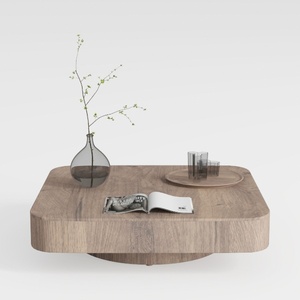

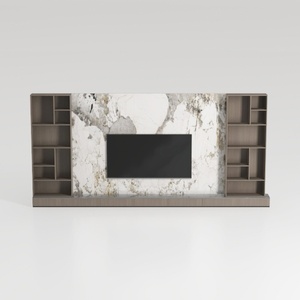
Homestyler is your go-to online platform for home design. With its user-friendly design tool, stunning 3D renderings, and a wealth of DIY video tutorials, you'll find it easy to transform your decorating ideas into reality—perfect for both novices and seasoned designers!
Дизайн сейчас бесплатно
































