

Utilizing a 3D printer to create SolidWorks models is an exhilarating method to turn your digital designs into physical items. To get started, make sure your model is complete and error-free within SolidWorks. You can use the “Export” functionality to save your design in an STL format, which is commonly used by a majority of 3D printers. Afterward, import your STL file into slicing software, such as Cura or PrusaSlicer, where you can fine-tune your print settings—including layer height, infill density, and support structures—before generating the G-code tailored for your specific printer. Move the G-code to your 3D printer through an SD card or USB connection, and then initiate the printing process.
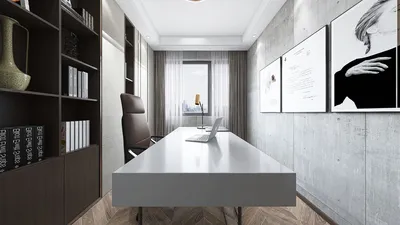
As a designer, it’s crucial to ensure your model is optimized for successful printing. Pay close attention to aspects such as wall thickness, overhangs, and resolution to prevent any printing problems. If your model involves an interior component—like furniture or props—consider utilizing integrated design tools for visualization prior to printing. Tools like Homestyler can be incredibly useful for obtaining realistic renderings, allowing you to verify that your prototype aligns beautifully with the intended environmental context.
Tips 1:
Make sure to confirm that your STL export from SolidWorks retains all intricate details, and consider using an STL fixer tool to identify and correct mesh errors. It’s beneficial to implement print preview features in your slicing software to predict support requirements or filament consumption before embarking on a long print job.
FAQ
Q: What file format should I export from SolidWorks when preparing for 3D printing?
A: The preferred format is STL, which is compatible with most 3D printers and slicing applications.
Q: How can I confirm my SolidWorks model is ready for printing?
A: Ensure that all faces are closed and that there are no gaps. Additionally, verify that the walls are adequately thick—thicker components tend to be simpler to print.
Q: Is it possible to print multi-part or moving assemblies designed in SolidWorks?
A: Absolutely, but it is essential to export each component separately and assemble them post-printing. Don’t forget to consider print tolerances for functional joints.
Q: Which slicing software is recommended for working with SolidWorks STL files?
A: Popular choices include Cura, PrusaSlicer, and the software provided by your 3D printer’s manufacturer.
Q: Will I need to perform any post-processing after my SolidWorks model is printed?
A: Typically, yes—common post-processing steps involve removing supports, sanding down any rough edges, and in some cases, painting or assembling different parts.



Looking to transform your space? Homestyler is the ideal online home design platform for you! Its user-friendly design tool, stunning 3D renderings, and a wealth of design projects and DIY video tutorials make it easy and inspiring to create your dream home.
Design Now for FREE
































