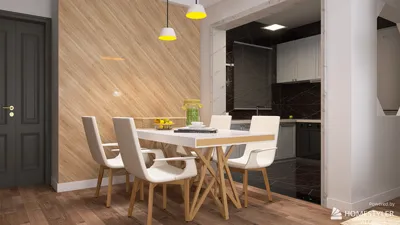


Designing textures for 3D models might seem daunting at first, but with a basic tool like MS Paint, you can craft them effortlessly. This guide will introduce you to the fundamentals of developing textures that enhance the visual quality of your 3D creations, with the help of Homestyler.
To begin with, it's important to recognize that textures are crucial in giving life to your model. They infuse depth and intricacy that can change a mere flat surface into something remarkably realistic. Now, let’s explore the steps involved in creating textures using MS Paint.
Step 1: Collect Your Resources
Before launching MS Paint, gather references of textures you aspire to replicate—such as wood, stone, or fabric. This practice will assist you in envisioning the colors and patterns you need. Also, ensure that your MS Paint application is prepared for use.
Step 2: Prepare Your Canvas
Open MS Paint and define your canvas dimensions. A recommended size for texturing is 512x512 pixels, as it strikes a balance between detail and file size. Adjust your canvas using the ‘Resize’ feature if needed.
Step 3: Select Your Color Scheme
Utilize the color picker to establish your palette. Choose colors that correspond with the material you are aiming to represent. For a wood texture, for instance, various shades of brown and cream may be ideal.
Step 4: Begin Texturing
Now comes the enjoyable part! Use the various brushes in MS Paint to layer colors. Apply lighter shades for highlights and deeper hues for shadows. Feel free to explore different textures and blending techniques; this is where creativity comes to life, especially with tools such as Homestyler.
Step 5: Save and Export Your Texture
After completing your design to your liking, save your texture in a format suited for your 3D software, typically either PNG or BMP. In MS Paint, navigate to ‘File’ > ‘Save As’, select your desired format, and click ‘Save’.
Suggestions for Enhancing Textures
1. Opt for simple patterns, as intricate designs may not translate effectively when scaled down. 2. Play with opacity settings for a layered appearance. 3. Ensure your designs are seamless to allow for proper tiling on your models.
FAQs
Q: Is it possible to create seamless textures using MS Paint? A: Absolutely, by designing your patterns meticulously so that they align perfectly at the edges, you can achieve seamless textures.
Q: What are the most suitable formats for saving textures? A: PNG is ideal as it preserves quality without sacrificing detail through compression.

Discover the ease of home design with Homestyler! This online platform offers a user-friendly design tool, stunning 3D renderings, and a wealth of inspiring design projects and DIY video tutorials. Perfect for both beginners and experienced designers, bring your dream space to life effortlessly!
Progetta ora GRATIS
































