

Enhancing the ambiance and depth of your scenes with realistic 3D clouds in Blender can significantly elevate projects in architectural visualization, animation, or concept art. This comprehensive guide will walk you through the process of creating a stunning 3D cloud, perfect for both novices and seasoned artists looking to achieve impressive volumetric results.
Step 1: Begin with the Domain
Start by inserting a cube into your workspace (Shift + A > Mesh > Cube). This cube will serve as the domain, or the "container," for your volumetric simulation. Use the S key to scale the cube to match your desired cloud dimensions, and adjust its shape further using S combined with an axis letter (e.g., S + Z to elongate it vertically).
Step 2: Establish the Cloud Volume
To form the cloud, select the cube, head over to the Shader Editor, and change the material type from Principled BSDF to Principled Volume by adding a new material. Connect this to the Volume input of the material output node.
Step 3: Sculpt the Shape
For more organic, natural designs, leverage Blender’s Texture features. Integrate a Noise Texture node into your setup and link it to the Density input of the Principled Volume node. Adjust the Scale, Detail, and Distortion values of the Noise Texture to create soft forms that mimic the characteristics of clouds.
Step 4: Fine-Tune the Material
Modify the Density and Color settings within the Principled Volume shader. For soft, fluffy cumulus clouds, a low density setting (between 0.01 and 0.1) is ideal. Slightly raise the Anisotropy value (~0.3) to enhance the natural scattering of light through the clouds, resulting in a more lifelike appearance—especially beneficial when utilizing backlighting.
Step 5: Lighting and Rendering
Incorporate a Sun Lamp or HDRi to replicate natural outdoor lighting conditions. Opt for the Cycles render engine to achieve the best volumetric effects. Preview your scene and render it to observe the intricate details of the clouds, adjusting parameters as needed.
Step 6: Optional—Creating Multiple Clouds
For a sky brimming with clouds, create duplicates of your initial cloud, adjusting their scale or rotation to maintain variety. For those with advanced skills, consider employing procedural generation or particle systems to further automate this process.
As a passionate individual focused on room ambiance and visualization, I recognize the pivotal role that 3D clouds play in achieving realistic daylight rendering for interior scenes. Introducing environmental elements—such as cloud shadows filtering through windows—can transform your project, enhancing the overall user experience. If your aim is to craft immersive environments or room layouts, utilize tools like Homestyler to seamlessly integrate your Blender creations into larger design presentations.
Tips:
Maintain a reasonable polygon count if the cloud serves as a background element—opt for alpha textures or simpler volumes to conserve resources. For dynamic visuals in animations, consider animating texture coordinates or density to create moving clouds.
FAQ
Q: Can I utilize Blender’s default Eevee renderer for creating 3D clouds?
A: Yes, you can, but keep in mind that Eevee’s volumetric rendering is less realistic compared to Cycles, often requiring careful adjustments for satisfactory results.
Q: Is it feasible to animate the movement or shape of my 3D cloud?
A: Certainly! By animating the “Location” or “Scale” parameters of your noise or texture node, you can effectively mimic the movement or transformation of clouds.
Q: What resolution is ideal for volumetric clouds in Blender?
A: For most purposes, using medium to high resolution (64–128 divisions for the domain) strikes a good balance between quality and efficiency. While higher values yield more detail, they also demand greater computational power.
Q: Can I implement image-based textures for implementing stylized clouds?
A: Indeed! You can connect an Image Texture node to the Density input and utilize black and white cloud images or hand-painted masks to achieve the desired effect.
Q: Why do my clouds appear grainy or take a long time to render?
A: Since volumetric effects necessitate a higher sample rate for clean renders—especially in Cycles—try to minimize noise by increasing the render samples and enabling the “Denoising” option in your render settings.
Homestyler's roots trace back to Autodesk, the global leader in design and engineering software. That heritage lives on in every feature we build. Today, with a community of more than 18 million users worldwide, Homestyler continues to make professional-quality interior design accessible to everyone — from first-time decorators to seasoned architects.


Contemporary Brass Glass Acrylic Side Table 3D Model
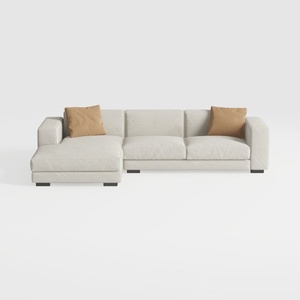
Minimalist Fabric L Shape Sectional Sofa with Throw Pillows 3D Model
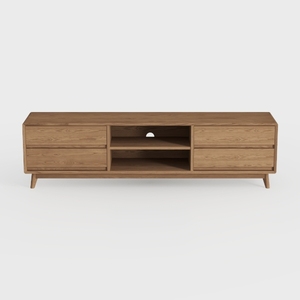
Mid Century Modern Solid Oak TV Stand With Storage Drawers 3D Model
Looking to transform your space? Try Homestyler! With its user-friendly online design tool, stunning 3D renderings, and a wealth of inspiring design projects and DIY video tutorials, you'll have everything you need to create your dream home effortlessly. Start your design journey today!
Design Now for FREE
































