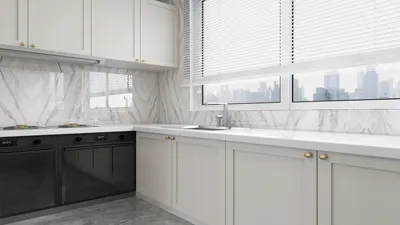


Animating a 3D model using Homestyler can initially seem intimidating, but the process is more straightforward than you might imagine! Let’s explore the fundamental steps required to bring your 3D designs to life.
Getting Acquainted with Animation Basics in Homestyler
Before diving into animation, it’s crucial to understand how Homestyler operates in terms of animations. This platform enables you to create movement by directly manipulating the 3D models. Familiarize yourself with the interface and features that will enhance your animation experience.
Step 1: Import Your 3D Model
To start animating, you need to bring the 3D model you wish to work on into Homestyler. This is easily done by uploading designs from your local device or selecting from the extensive library provided by Homestyler. After importing, ensure your model is ready for animation by checking for any missing textures or details.
Step 2: Establish an Animation Timeline
In Homestyler, animations are regulated through a timeline. Create a new animation timeline by navigating to the animation tab. This timeline will help you record any changes and movements you want to implement on your model. Visualize your animation in terms of keyframes—these are key moments where you will adjust your model’s position, rotation, or scale.
Step 3: Incorporate Keyframes
To add a keyframe, reposition your model as needed and insert the keyframe into the timeline. Repeat this to create various movements. Remember, timing is essential; determine how quickly or slowly your model transitions between keyframes to capture the desired animation vibe.
Step 4: Refine Your Animation
After establishing your keyframes, it’s time to adjust the timing and smooth out movements. Homestyler offers tools to help you refine the animation for a seamless flow. Take your time with this phase—great animations typically require careful adjustments to achieve a realistic feel.
Step 5: Export Your Animation
Once you’re happy with your animation, the final step is exporting it! Homestyler supports various formats, so choose the one that best suits your project—video files are excellent for presentations, whereas GIFs work well for quick sharing on social media or forums.
Tips for Successful Animation in Homestyler
1. Practice: The more you engage with animation, the better you’ll grasp what techniques work best.
2. Seek Out Tutorials: There are a wealth of resources that provide advanced animation techniques.
3. Experiment with Diverse Models: Animate an assortment of shapes and styles to uncover your distinct animation style.
FAQ
A: Absolutely, you can create complex movements using multiple keyframes and by properly adjusting the timeline.
A: Homestyler allows you to export your animations in several formats, including MPEG and GIF.


Discover the joy of home design with Homestyler! This user-friendly online platform offers a powerful design tool, stunning 3D renderings, a multitude of design projects, and helpful DIY video tutorials. Whether you're a beginner or an expert, Homestyler makes transforming your space easy and inspiring!
Progetta ora GRATIS
































