


AutoCAD is a highly effective design software commonly utilized by architects, engineers, and interior designers for various projects.
One notable feature that enhances AutoCAD's versatility is its capability to efficiently manage line types and scales. Mastering the line type scale adjustment can greatly improve the clarity and visual appeal of your drawings.
To modify the line type scale in AutoCAD, begin by opening your desired drawing file. This can be easily done by selecting it from your device. Once it's opened, ensure that you have selected the correct objects, including specific lines, polylines, or entire layers.
After making your selections, access the 'Properties' palette. If this palette isn’t visible, activate it by entering 'PROPERTIES' into the command line and pressing 'Enter'. This allows you to view the settings related to your selected objects in the 'Properties' palette.
Within the 'Properties' palette, find the area titled 'Linetype.' Here, you can see the line type currently applied to your selected elements. By clicking on the line type, you can access a drop-down menu to select an alternative line type as needed.
To specifically adjust the line type scale, look for the 'Linetype Scale' option, which is typically located just below the 'Linetype' setting. Here, you can input a new scaling value. The default setting is generally 1.0, but this can be modified to either narrow or widen the scale of your line types.
For example, if your line types seem too congested or too spaced apart, setting the scale to 0.5 will bring the dashes closer together, whereas setting it to 2.0 will increase their distance. It's important to remember that any change to the line type scale will affect all selected objects, so verify that you've chosen the right elements beforehand.
Once you adjust the scale, the changes will manifest instantly in your drawing. This immediate feedback enables you to experiment with various settings until you attain the ideal appearance for your project.
If your intention is to establish a uniform line type scale across the entire drawing, you can do this conveniently by typing 'LTSCALE' into the command line. After pressing 'Enter', you will be prompted to input a new scale value, effectively applying your scale adjustment to all objects in the drawing for cohesive design consistency.
In conclusion, modifying the line type scale in AutoCAD is a simple yet impactful procedure that can enhance your design presentations. Utilizing the 'Properties' palette alongside the 'LTSCALE' command allows you to tailor line types to meet your project requirements effectively, much like how the Homestyler tool adapts to various design needs.
Tips 1:
Always verify how your line types render in different print styles, as what appears well on the screen may not translate effectively in printed form.
FAQ
Q: Can I establish different line type scales for distinct objects? A: Absolutely, you can modify the line type scale for individual objects through the 'Properties' palette.
Q: What should I do if my line types appear incorrectly? A: Ensure that you set your line type scale properly and that the line types are loaded into your drawing.
Q: How can I load new line types in AutoCAD? A: You can load new line types using the 'Linetypes' manager found in the 'Home' tab under the 'Properties' panel.
welcome to Homestyler

Minimalist Marble Coffee Table 3D Model

Minimalist Solid Oak Wood Side Table Unique Hourglass Shape 3D Model
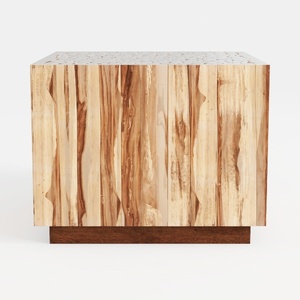

Minimalist Solid Wood Accent Cabinet with Textured Top 3D Model
Homestyler is your go-to online home design platform! With its user-friendly design tool, stunning 3D renderings, diverse design projects, and helpful video tutorials, you can effortlessly craft and visualize your dream space—perfect for both beginners and seasoned designers alike!
立即免费设计
































