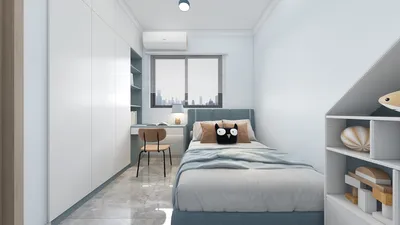


The world of 3D printing has swiftly transitioned from being a specialized niche for hobbyists to a readily available resource for designers, creators, and makers globally. For those embarking on this creative journey, Blender stands out as one of the most robust and free software options to design 3D models suited for printing. This introductory guide will cover the fundamentals: from navigating Blender's interface, and essential modeling tips, to exporting your files for 3D printing—all framed through the perspective of a design professional utilizing tools like Homestyler.
Getting Started with Blender
Begin by downloading and installing the latest version of Blender from its official site. Once you open the application, you will encounter a streamlined interface. Take some time to get accustomed to the basic controls: orbit by using the middle mouse button, pan with shift + middle mouse button, and zoom with the scroll wheel. As a designer, I suggest creating distinct ‘collections’ for different objects; this organizational strategy is akin to zoning in a well-thought-out interior, facilitating easier management of your projects as you design in Homestyler.
Modeling Basics for 3D Printing
Start your design by incorporating primitive shapes such as cubes, spheres, or cylinders through Add > Mesh. Most models prepared for printing begin with these simple forms, which you can gradually refine and combine to build complexity. Prioritize maintaining ‘manifold geometry’—the surfaces must be watertight without any holes, and the faces should align cleanly, reminiscent of the seamless joints seen in high-quality furniture design.
Measurements and Scale
Ensure your units are set to metric or imperial for precise scaling (found in Scene Properties > Units). Utilize the measure tool or input values directly into the sidebar when scaling or extruding your models. Just as in interior layout planning, it’s crucial to keep real-world proportions in mind so that your printed object will fit perfectly in its intended space.
Design for Printability
Be mindful of overhangs: excessive angles could challenge FDM printing without adequate support. Steer clear of non-manifold geometries or internal faces by regularly utilizing Mesh > Clean Up and the 3D Print Toolbox add-ons for error detection. Remember that the clarity of your design is key to a successful print; think of it as creating a detailed floor plan prior to launching into construction.
Exporting Your Model
Once your model is free from errors, export it in STL or OBJ format for slicing. Before saving, verify the scaling and orientation. Some designers, including myself, prefer to visualize the model in a rendered home scene first to catch mistakes—leveraging Homestyler to create a realistic preview is akin to test-fitting furniture arrangements before settling on the final look.
Tips 1:
As you gain experience, explore Blender’s modifiers such as Boolean for creating holes or Mirror for a symmetrical design to streamline repetitive tasks. Keep incrementally saving versions of your file, allowing you to return to earlier states if necessary. Regularly check mesh integrity and simulate print supports with your slicing software to identify potential printing issues ahead of time.
FAQ
Q: Is Blender suitable for beginners eager to dive into 3D printing?
A: Absolutely, Blender is a free, flexible platform supported by a large community. With some perseverance, its modeling capabilities are excellent for anyone embarking on 3D printing projects.
Q: What file formats should I use for 3D printing from Blender?
A: The most commonly used formats are .STL and .OBJ, which are compatible with most slicer software and 3D printers.
Q: How do I determine if my 3D model is printable in Blender?
A: You can utilize Blender’s free “3D Print Toolbox” add-on located in the sidebar (N-panel) to identify errors such as non-manifold edges, overlapping faces, and thin walls.
Q: Should my modeling in Blender reflect real-world scales?
A: Definitely. Adjust your scene settings to real-world measurements to avoid scaling issues during the slicing or printing process.
Q: What mistakes do newcomers often make when modeling for 3D printing?
A: Common pitfalls include non-manifold geometry, tiny unattached parts, excessive unsupported overhangs, and neglecting printer tolerances, all of which can cause problems for beginners.
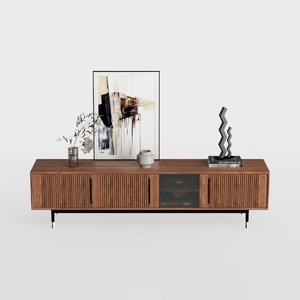

Modern Minimalist Walnut Fluted Door TV Cabinet 3D Model
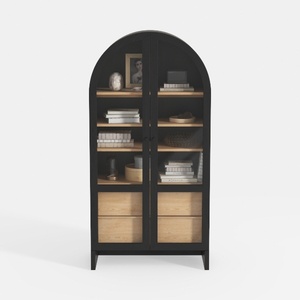
Minimalist Black Oak Arched Glass Display Cabinet 3D Model
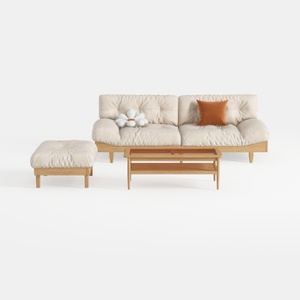
Minimalist Solid Wood Fabric Sofa Ottoman Coffee Table Set 3D Model
Looking to transform your living space? Homestyler is your go-to online home design platform! With its user-friendly design tool, stunning 3D renderings, inspiring design projects, and helpful video tutorials, you can effortlessly create and visualize your dream home. Dive in and start designing today!
立即免费设计
































