

Removing a component of a 3D model can seem intimidating, particularly for beginners in the field of 3D design. Yet, grasping the essential principles can transform the process into a manageable task. Regardless of whether you're utilizing advanced 3D modeling software or more user-friendly applications, the core techniques tend to be quite similar. In this article, we will explore effective strategies and optimal practices for confidently and accurately deleting segments of your 3D models, integrating features from tools like Homestyler where applicable.
Familiarizing Yourself with Your Software Tools:
3D modeling applications offer a variety of tools for model editing. It's essential to become acquainted with the selection and deletion functions in the software you are using. For instance, in popular platforms such as Blender, you enter Edit Mode, select the desired faces or vertices and simply press the 'Delete' key. Conversely, in Homestyler, you can select an object using the Select Tool and then delete it with the same keystroke. Moreover, understanding specific application shortcuts can significantly streamline your workflow and improve overall efficiency while modeling.
Employing Selection Techniques:
Accurate selection is crucial for successfully eliminating parts of your model. Whether you click and drag around the components you want to erase or use a selection marquee tool available in your software, ensure that you are in the correct editing mode. Many programs offer specialized modes for selecting vertices, edges, or faces to enhance your editing experience. Getting to grips with these features will not only optimize your workflow but will also elevate your editing precision.
Inspecting for Unwanted Artifacts:
Once you've deleted a section, it’s vital to inspect your model closely. Removing a part might inadvertently leave behind stray faces, edges, or vertices that are no longer connected. Utilize the cleanup features in your software to effectively eliminate these artifacts, ensuring that your model remains visually appealing and structurally robust—ideal for rendering or even 3D printing. This examination is crucial as it upholds the integrity of your design and helps prevent potential complications in subsequent stages of the modeling process.
Common Questions:
Q: What should I do if I mistakenly remove the wrong section?
A: Most 3D modeling software includes an undo function (typically Ctrl + Z), allowing you to quickly revert the last action. This feature can save you from frustration and enables smooth corrections during your modeling projects.
Q: How can I avoid deleting other parts of my model unintentionally?
A: To protect your model while editing, consider using layers or hiding elements you do not wish to affect. This strategy not only safeguards your work but also helps focus your attention on the areas requiring modification. Additionally, you can lock certain components in your software to prevent any accidental changes.
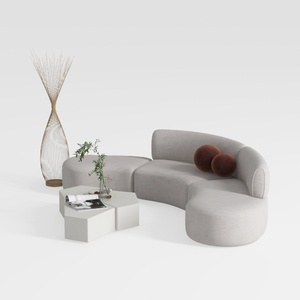
Minimalist Fabric Curved Sectional Sofa 3D Model


Modern Brown Leather L-shaped Sectional Sofa With Throw Pillows 3D Model

Minimalist Linen Fabric Extra Large Sofa With Throw Pillows And Blanket 3D Model
Discover your home's potential with Homestyler! This amazing online design platform offers a user-friendly design tool, stunning 3D renderings, and a host of creative design projects. Plus, it features engaging DIY video tutorials to inspire your decorating journey. Bring your vision to life with ease!
Design Now for FREE
































